The Nexus Discord bot adds creators you approve to your server with the roles you choose. It can also message creators on Discord when you message them, send them keys, or announce a campaign there.
This short video shows the same steps:
Connect the bot and choose roles
Section titled “Connect the bot and choose roles”Only program Admins with a verified email on their Nexus account can connect the bot.
-
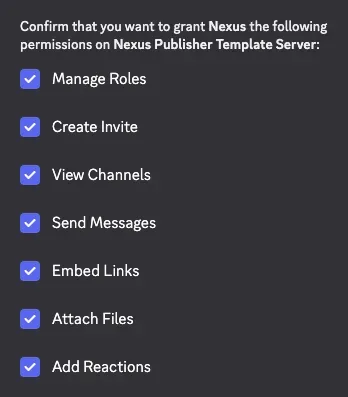
Connect the bot. On the Integrations tab of Program settings, select Connect bot, then choose your server on the Discord screen and authorize the bot.
-
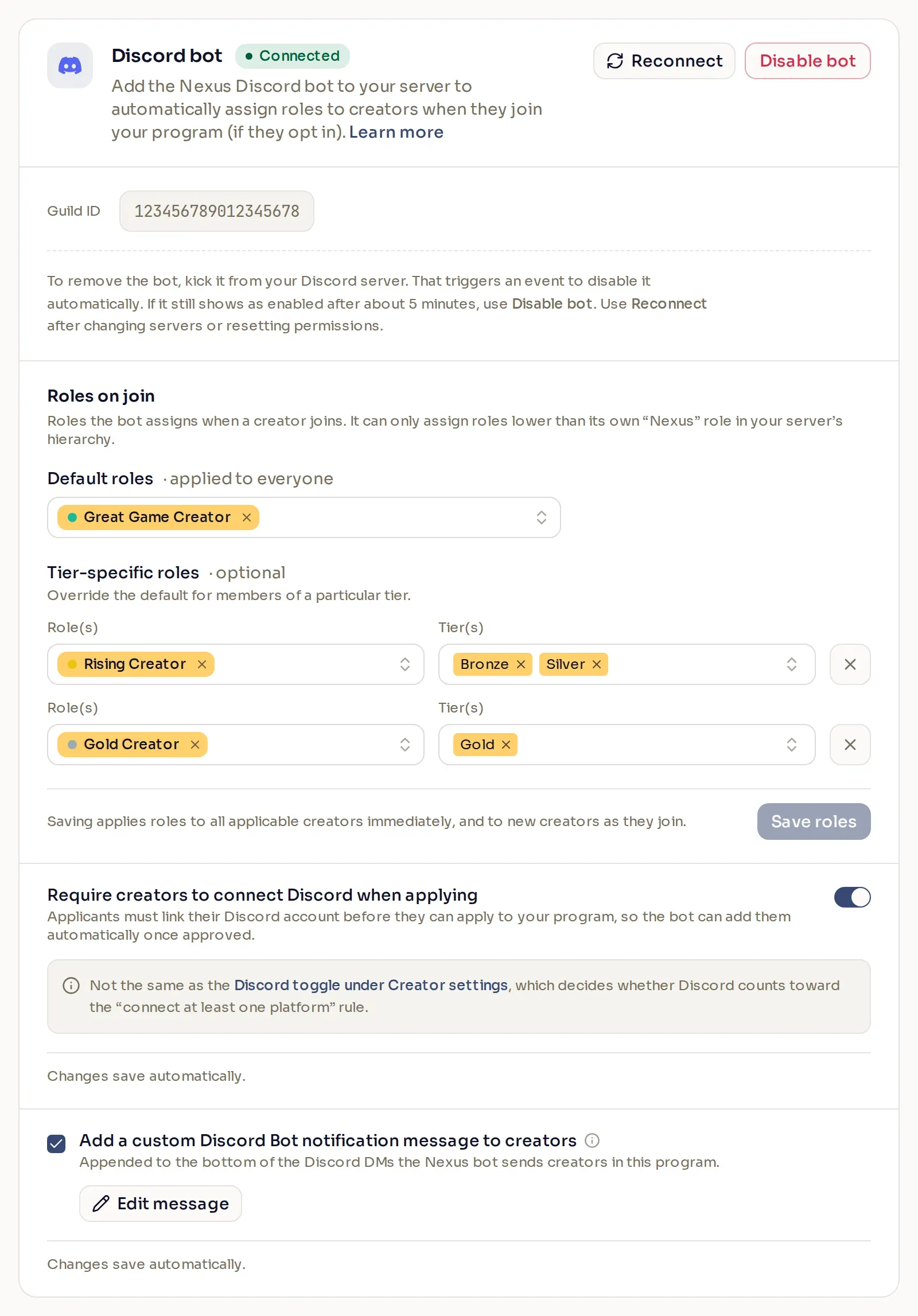
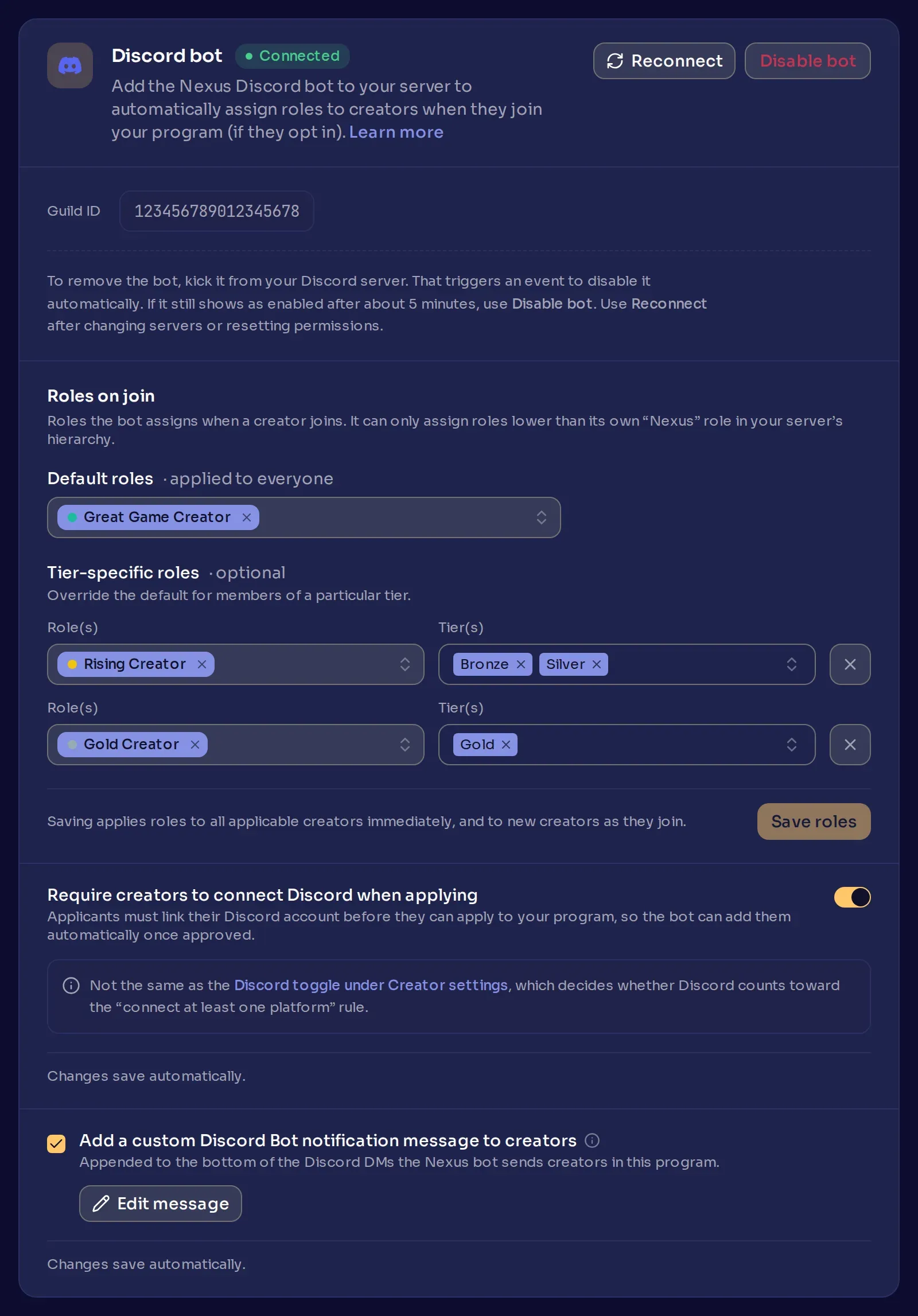
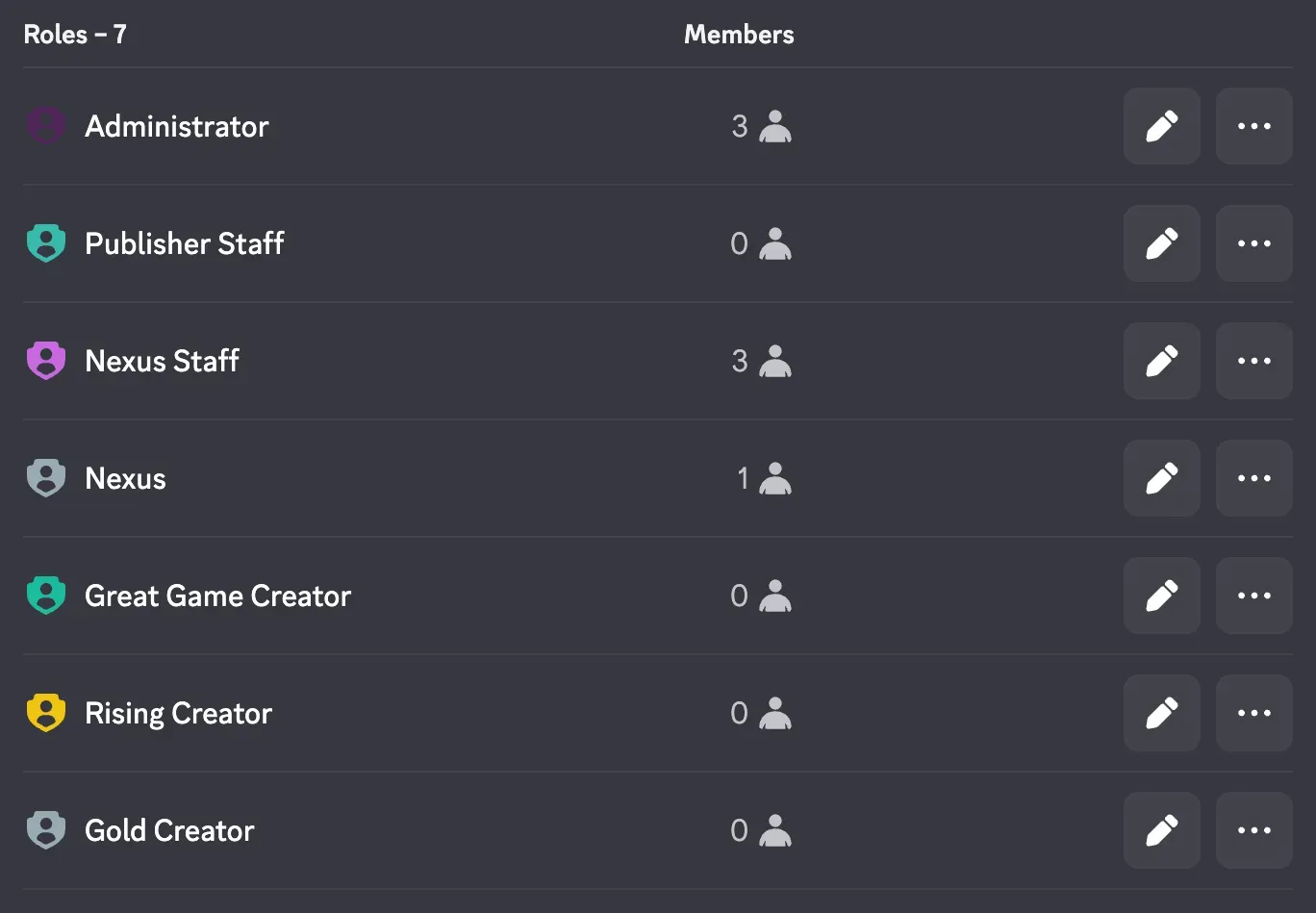
Choose roles. Under Roles on join, pick the Default roles every creator gets, and use Add roles & tiers to give a tier extra roles. Save roles updates creators already in your server and everyone who joins after.
-
Require Discord to apply (optional). Turn on Require creators to connect Discord when applying to make new applicants connect Discord first. It does not cover creators you add yourself or who are already members.
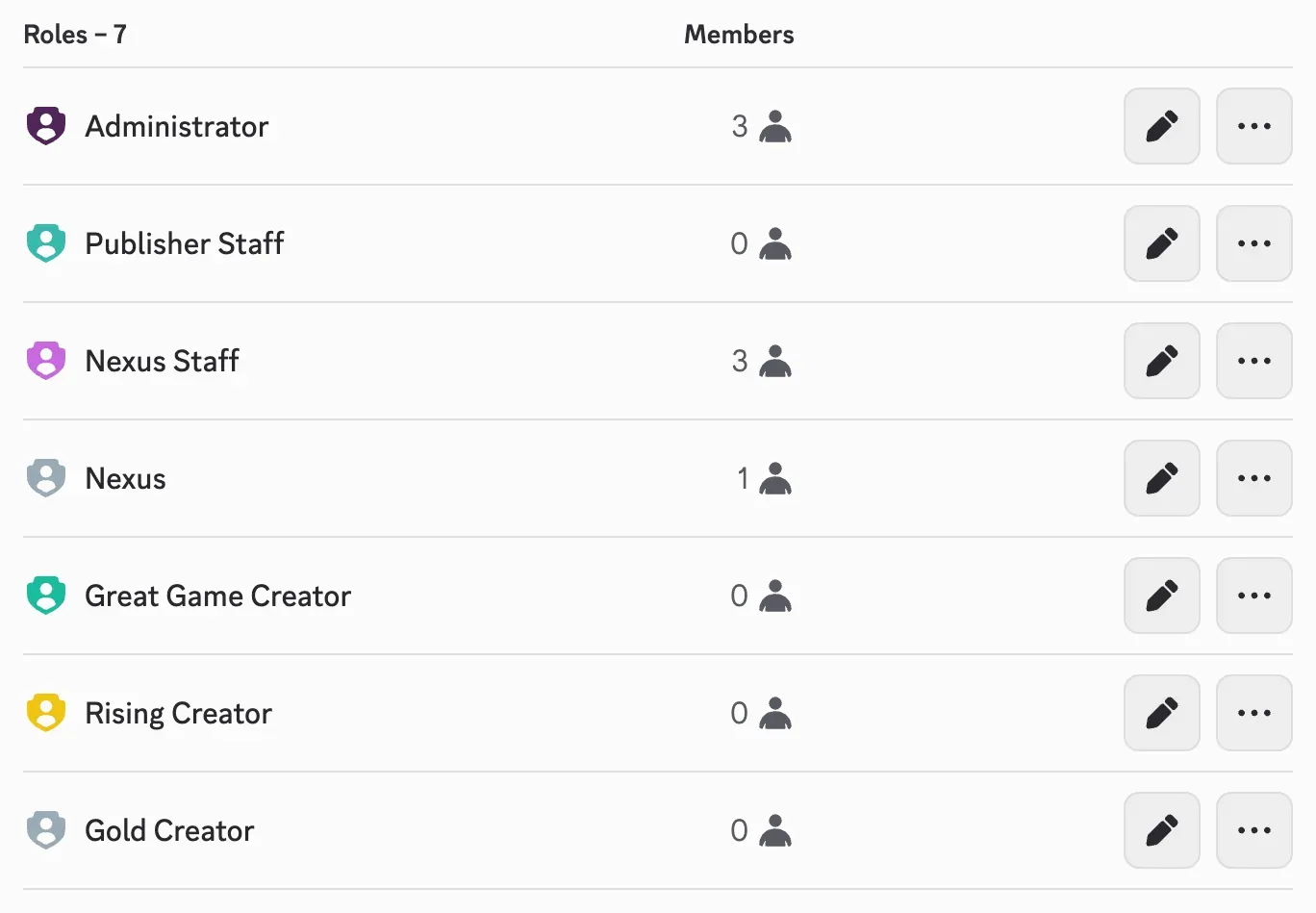
In Discord, keep the bot’s Nexus role above every role you choose.
What the bot does for creators
Section titled “What the bot does for creators”All of this needs the bot connected:
- Creators who connected Discord join your server when you approve them.
- Others, including creators approved before the bot was connected or while it was disabled, join from Support a Creator > Programs with Join Discord.
- When a creator changes tier, the bot swaps their tier roles.
- When a creator is removed or leaves, the bot takes away the roles set under Roles on join, but they stay in your server.
Direct messages
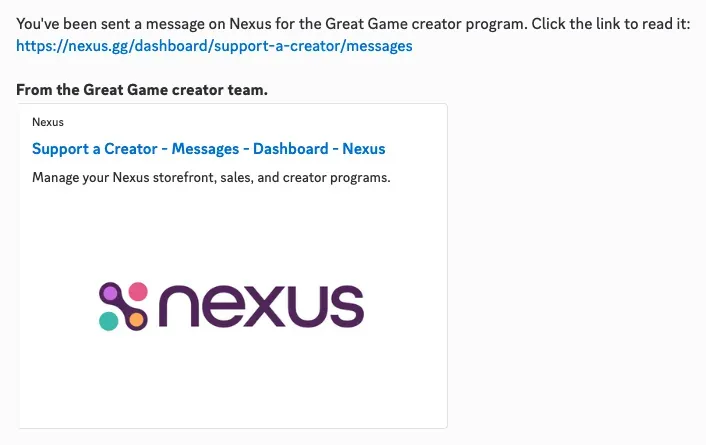
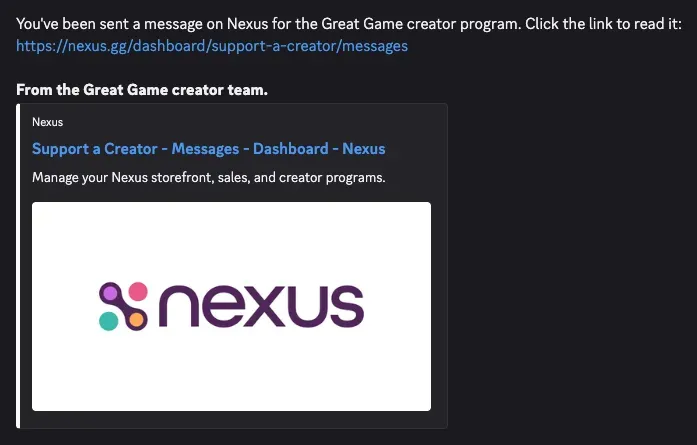
Section titled “Direct messages”The bot messages creators who connected Discord when you send them a message from Messaging or send them keys, and about campaigns whose Discord channel is on. Discord delivers it only if the creator shares a server with the Nexus bot and accepts its direct messages.
To add a note at the bottom, tick Add a custom Discord Bot notification message to creators, select Add message, write up to 1,200 characters, formatting included, and select Save message.
Disable the bot
Section titled “Disable the bot”Before you select Disable bot, turn off Require creators to connect Discord when applying, because applicants still have to meet it and the panel hides it while the bot is off. Disabling stops the bot adding creators and changing roles. Roles it gave stay, even for creators you then remove, and it still sends direct messages about your messages and keys. To turn it back on, select Connect bot and choose the same server.
To remove the bot, kick it from your server. If the panel still shows Connected after about 5 minutes, select Disable bot.