A campaign can give creators game keys from one or more key lists. Send keys on opt-in to get every creator playing, or on approval to reward the content you approve. That choice, together with any creator limit, decides how many keys each list needs, so plan both before you publish.
Choose when keys are sent
Section titled “Choose when keys are sent”Each key list in the campaign’s Keys section has a toggle for its send time: On opt-in or On approval. A new key list starts on On opt-in.
| On opt-in | On approval | |
|---|---|---|
| Who receives keys | Every creator who opts in | Only creators who meet the content requirement |
| When they receive them | As soon as they opt in | When you approve enough of their content |
| What it needs | Nothing extra | Content submission turned on |
| How many keys to stock | Keys per creator × everyone invited | Keys per creator × the creator limit, or × everyone invited if you set no limit |
On approval is unavailable until you tick Allow creators to submit content for this campaign. Once a list sends on approval, Approved pieces required appears under your key lists. Set how many approved pieces release the keys (1 by default). If you set a minimum number of posts per platform instead, the keys release once a creator meets every minimum.
You can mix both in one campaign. For example, every creator who opts in gets a founder pack key, and creators whose content you approve also get a premium bundle key.
Set a creator limit
Section titled “Set a creator limit”Limit how many creators are accepted caps how many creators can meet the content requirement in the campaign. It appears once content submission is on.
- Enter a number from 1 to 99,999.
- A creator takes one spot when they meet the content requirement, however many pieces you approve.
- When every spot is taken, submission and approval close for the whole campaign. Creators can still opt in, and still receive keys sent on opt-in.
- You can raise the limit while the campaign is live, but you cannot lower it below the number of creators who have already taken a spot. If the campaign sends keys on approval, those lists need enough keys for the new limit.
- Show creators how many spots are left is on by default, so creators see how many spots remain. Untick it to keep the limit private: creators then see no count, only that the campaign is full once every spot is taken. You can change it while the campaign is live.
When the creator limit fills shows how this looks in the Accepted creators panel.
Work out how many keys you need
Section titled “Work out how many keys you need”When you publish, Nexus checks every key list against the number of creators who could receive its keys. If a list falls short, publishing stops with a message naming the list, how many keys it has, and how many it needs.
Keys sent on opt-in
Section titled “Keys sent on opt-in”A key list sent on opt-in needs enough keys for your whole audience: keys per creator × the number of creators invited.
While you build the campaign, a warning under the key list shows when it clearly cannot cover the audience you chose:
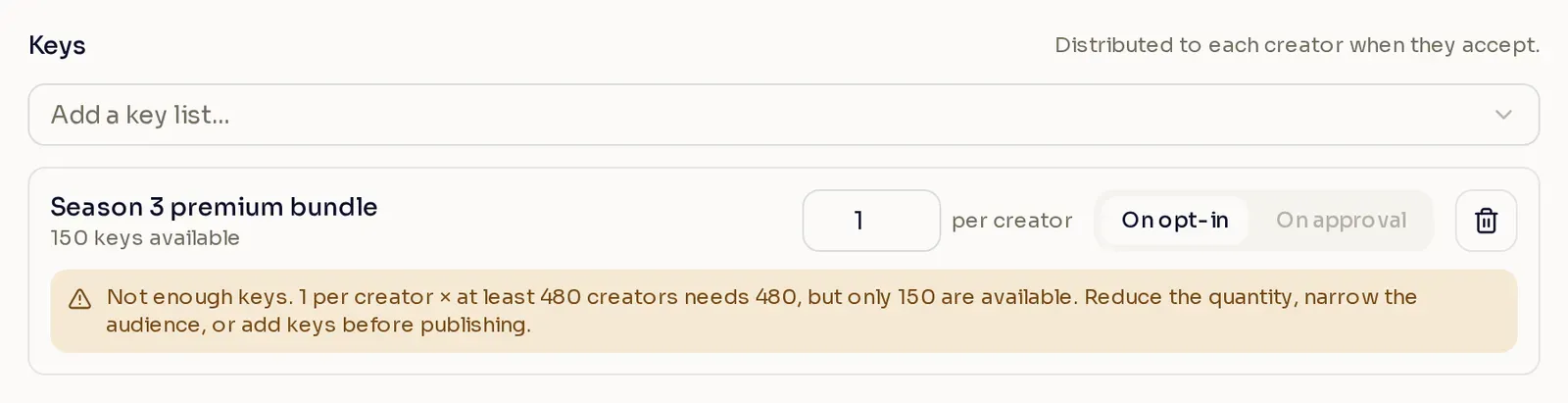
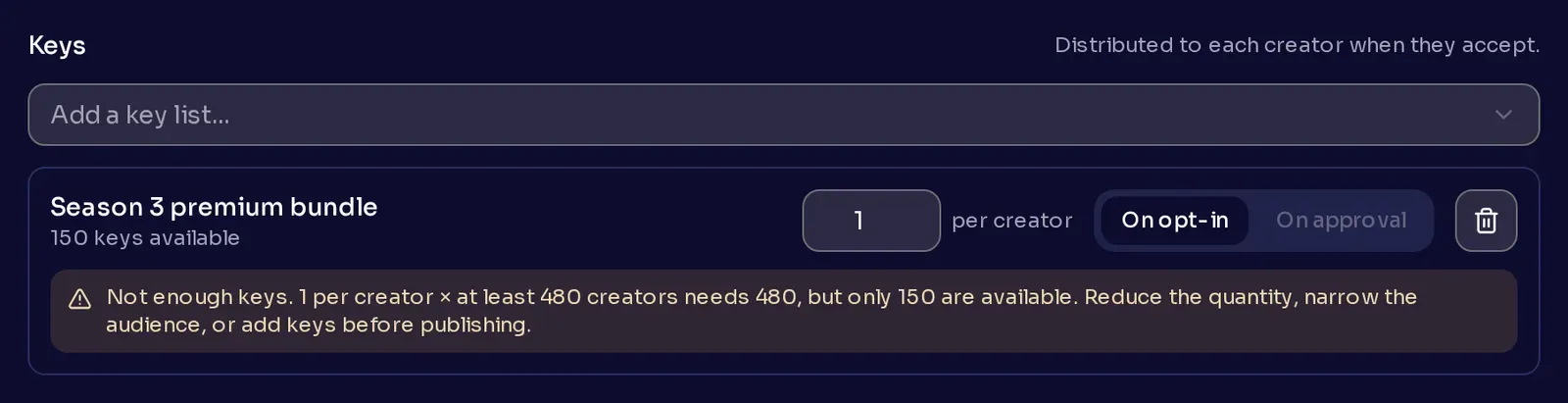
The warning compares the list with the largest single group you picked: all members, or the biggest tier, tag, or set of creators when every row is joined with OR. The full check runs when you publish.
If Allow new creators to opt in is on, creators who join after you publish also receive keys sent on opt-in. Keep spare keys in the list for them.
Keys sent on approval
Section titled “Keys sent on approval”A key list sent on approval only goes to creators who meet the content requirement, so the creator limit sets how many keys it needs:
- With a creator limit, the list needs keys per creator × the limit.
- Without a limit, any invited creator could be approved, so the list needs keys per creator × everyone invited, the same as on opt-in.
Keep a few spare keys as well. Release reward now sends keys before a creator meets the content requirement, and those keys come from the same list.
If a list runs out
Section titled “If a list runs out”Creators who opt in or get approved after a list runs out still get all their keys, once you add more:
- On opt-in: the creator gets the keys that are left, and Nexus emails you about each creator who got fewer keys than promised.
- On approval: the creator’s reward shows Pending · no keys in the Accepted creators panel, and Nexus emails you.
Upload more keys to the list, and Nexus sends the missing keys automatically.
Example: plan keys for a launch
Section titled “Example: plan keys for a launch”Your Gold tier has 480 creators. You want every creator who opts in to get a founder pack key. You also want the first 100 creators whose content you approve to get a premium bundle key.
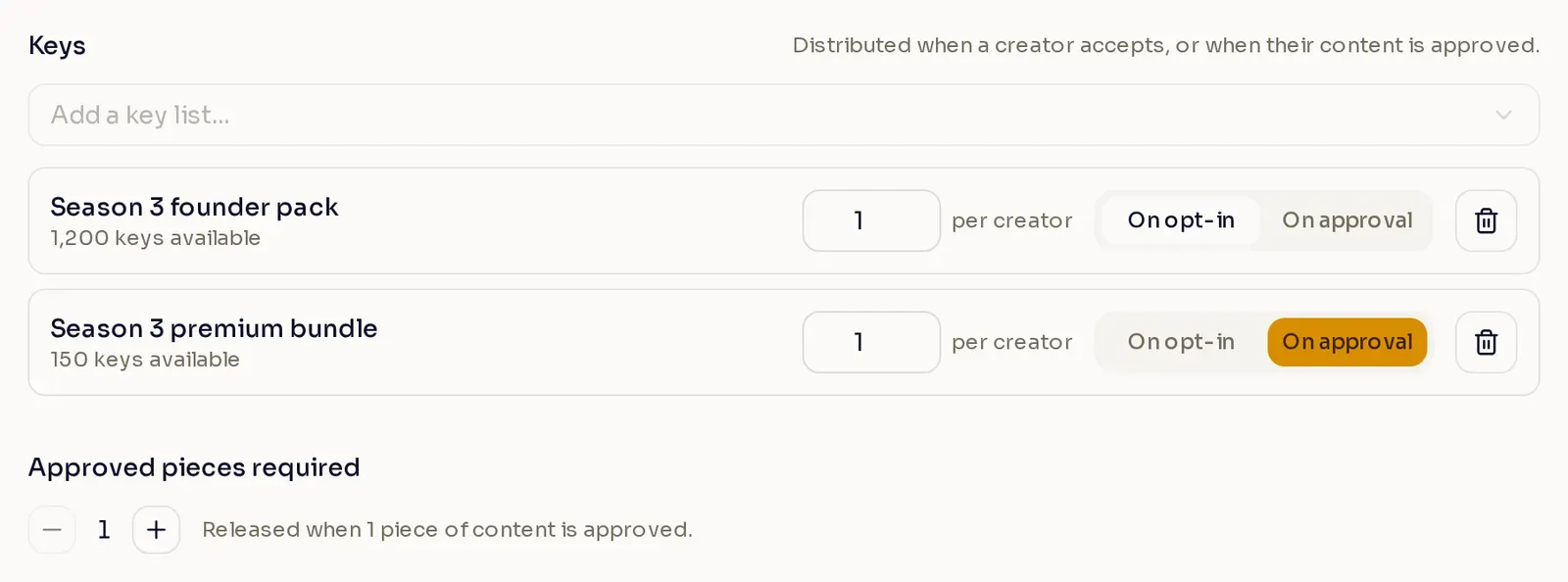
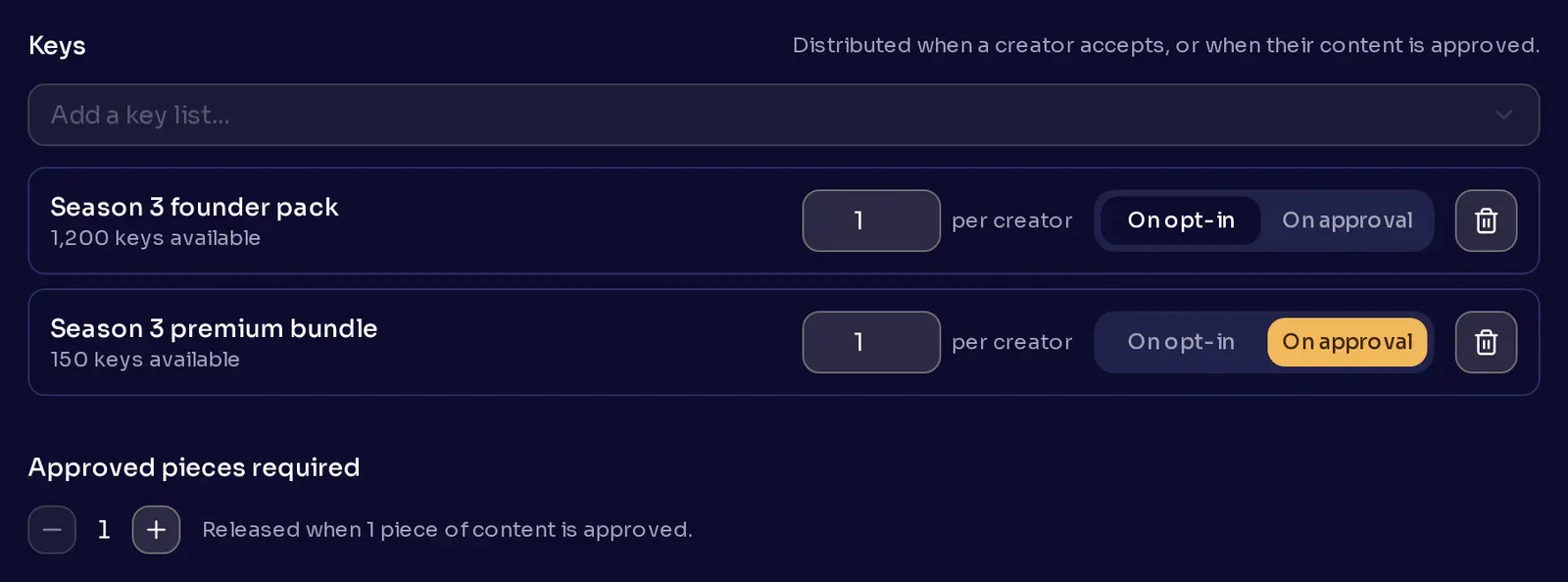
Give each creator one key from each list, and set the campaign up like this:
| Key list | Who receives it | Keys needed |
|---|---|---|
| Season 3 founder pack, sent On opt-in | All 480 invited creators | 480 |
| Season 3 premium bundle, sent On approval | Up to 100, the creator limit | 100 |
The founder pack list holds 1,200 keys and the premium bundle list holds 150, so both lists cover the campaign. The 720 spare founder pack keys cover creators who join later, and the 50 spare premium bundle keys leave room to release a few rewards early.
Change keys on a live campaign
Section titled “Change keys on a live campaign”After you publish, a key list keeps its keys per creator and its send time. You can still change the campaign’s key lists:
- Add a key list sent on opt-in. Nexus sends it right away to every creator who has already opted in, so the list needs enough keys for all of them.
- Add a key list sent on approval. Creators who already meet the content requirement receive it. The list needs enough keys for the creator limit, or for everyone already opted in if there is no limit.
- Remove a key list. Rewards still waiting on that list are canceled. Keys already sent stay with creators.