Running a creator program is easier with help. Give each teammate their own sign-in to the Publisher Dashboard and choose what they can reach, so nobody has to share a password.
This short video shows how to invite a teammate and pick their role:
Before you start
Section titled “Before you start”You need the Admin role. Settings, where you invite people, appears only for that role.
Choose a role
Section titled “Choose a role”Each teammate gets one role.
- Admin can do everything, in every program, including Settings: your company details, users, and API keys.
- Creator Manager works with creators in every program: reviewing applications, approving, denying, or removing creators, setting tiers, and keeping notes. The program’s other pages, Home, Analytics, and Content Insights are for Admins.
- Program specific gives access only to the programs you pick, as an Admin or a Creator Manager in each. They don’t see Settings.
Invite a teammate
Section titled “Invite a teammate”-
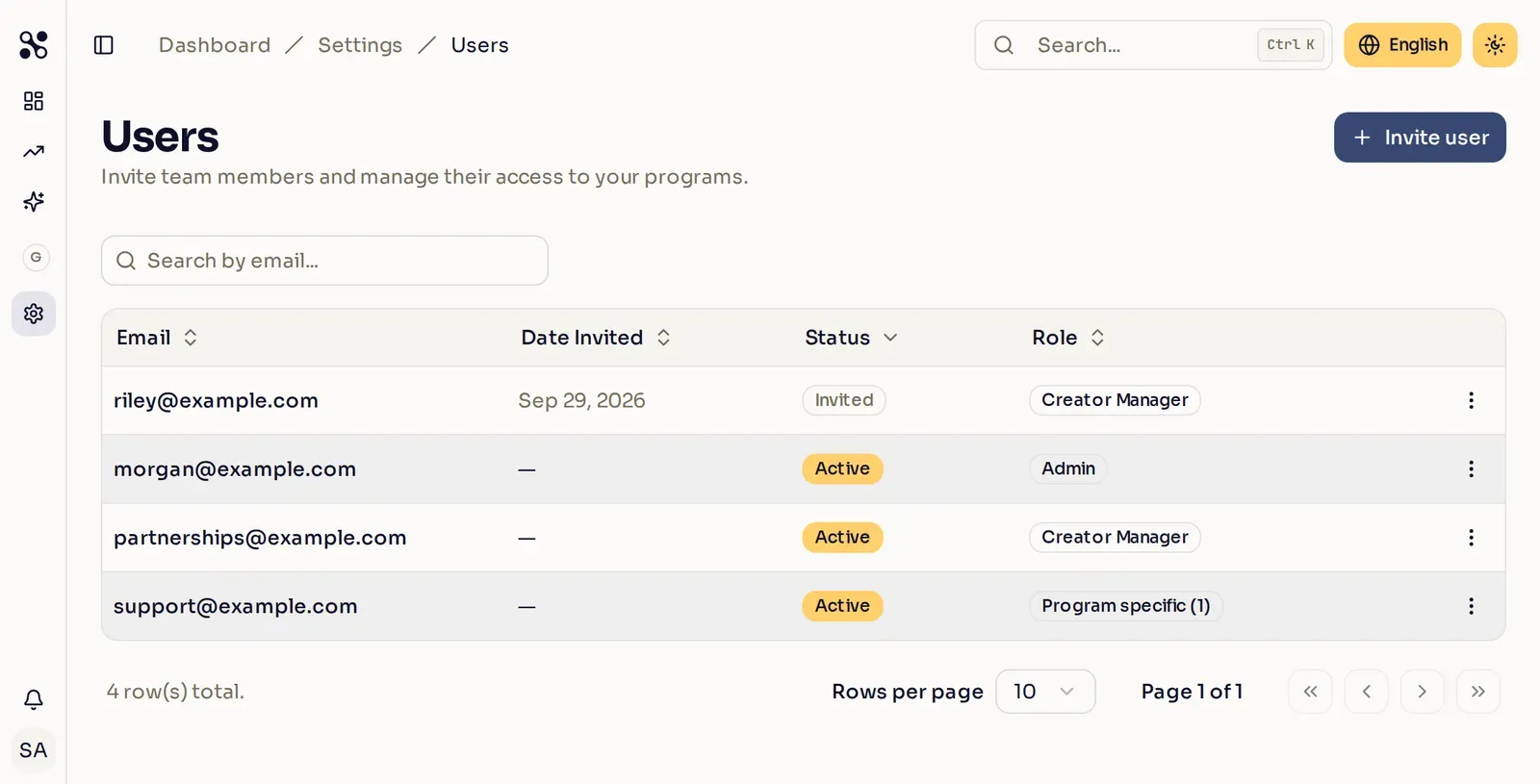
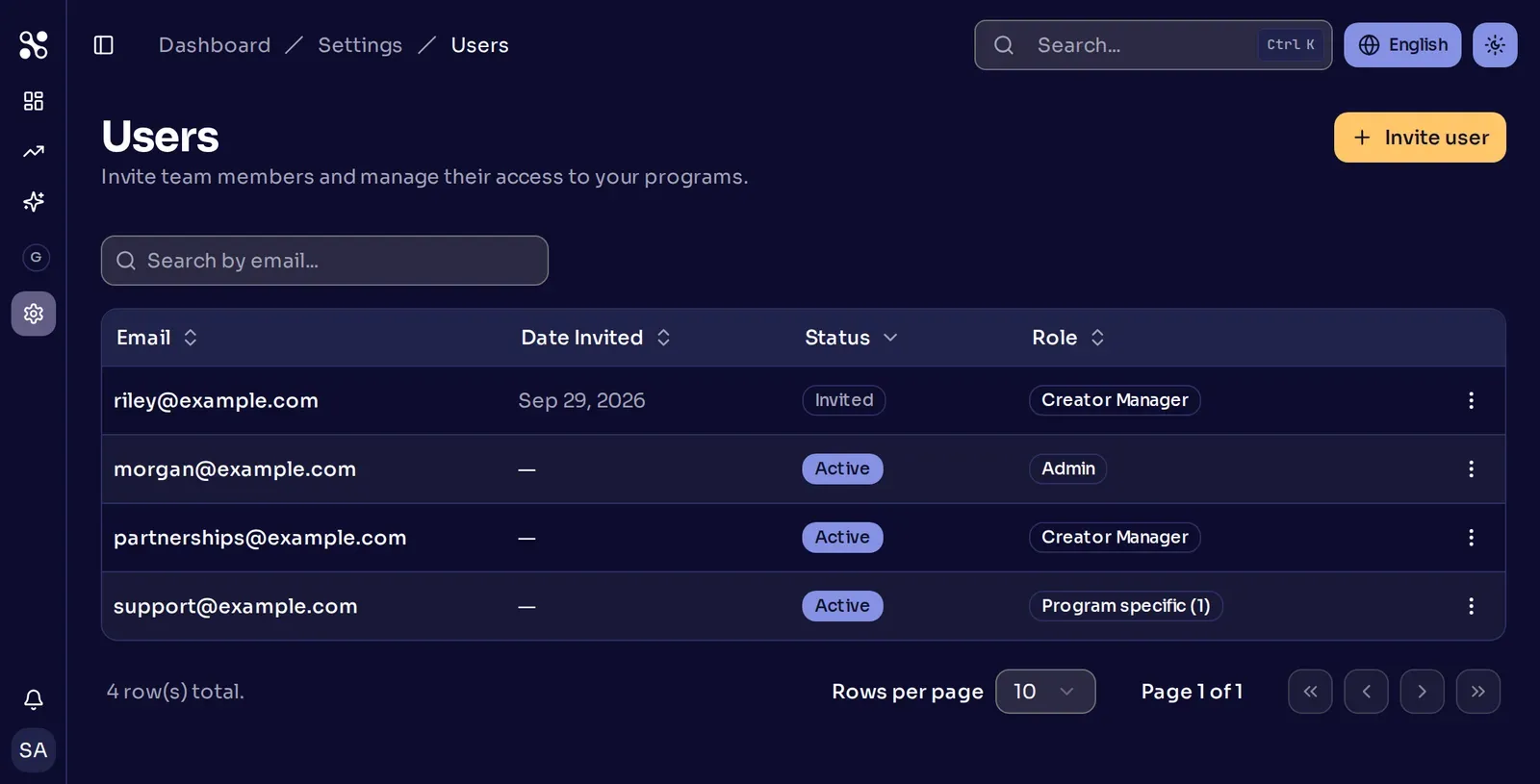
Open Users. In the sidebar, open Settings, then select Users. The list shows everyone on your team except you, with their status and role.
-
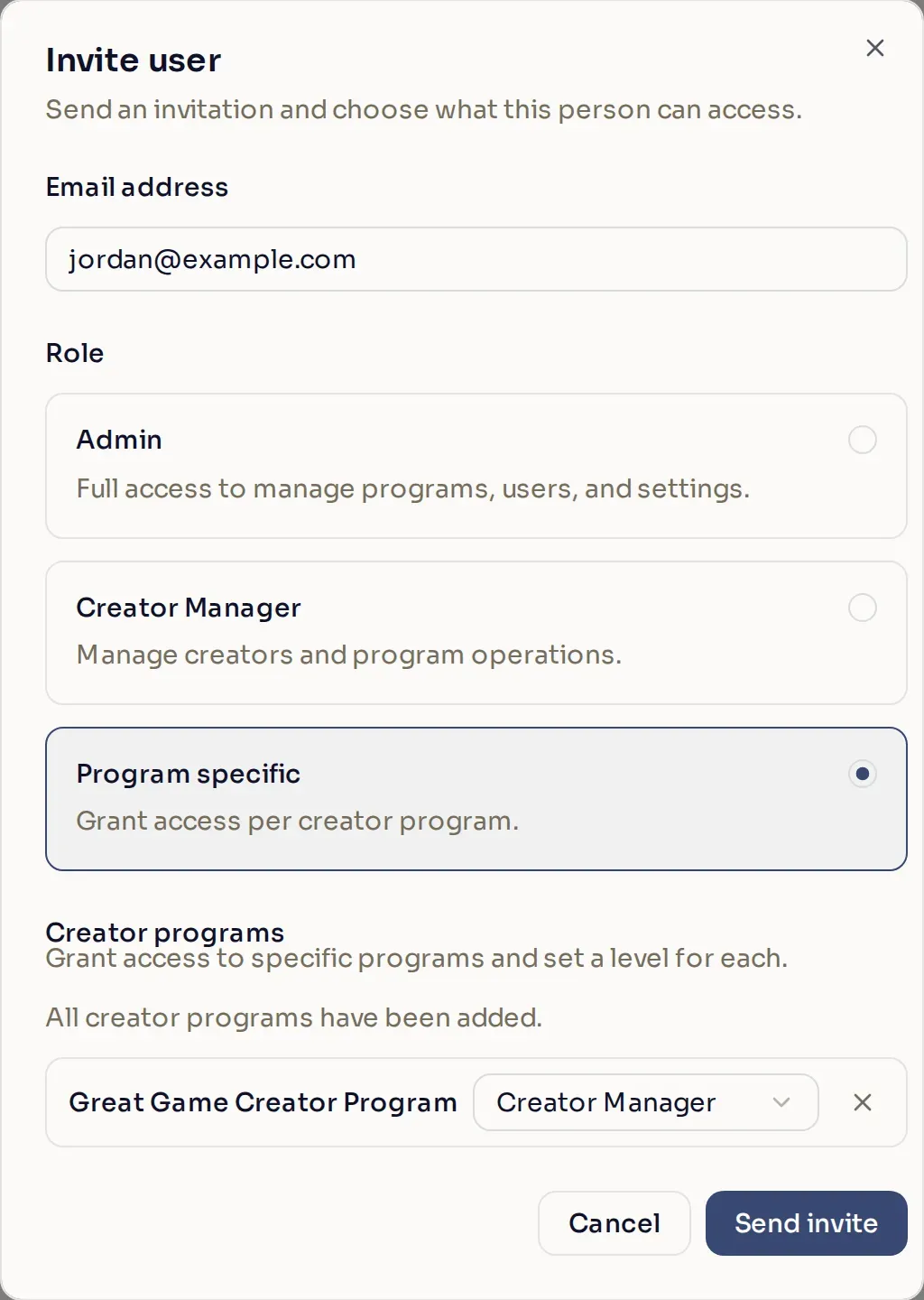
Select Invite user and enter their email address. Use the address they will sign in with.
-
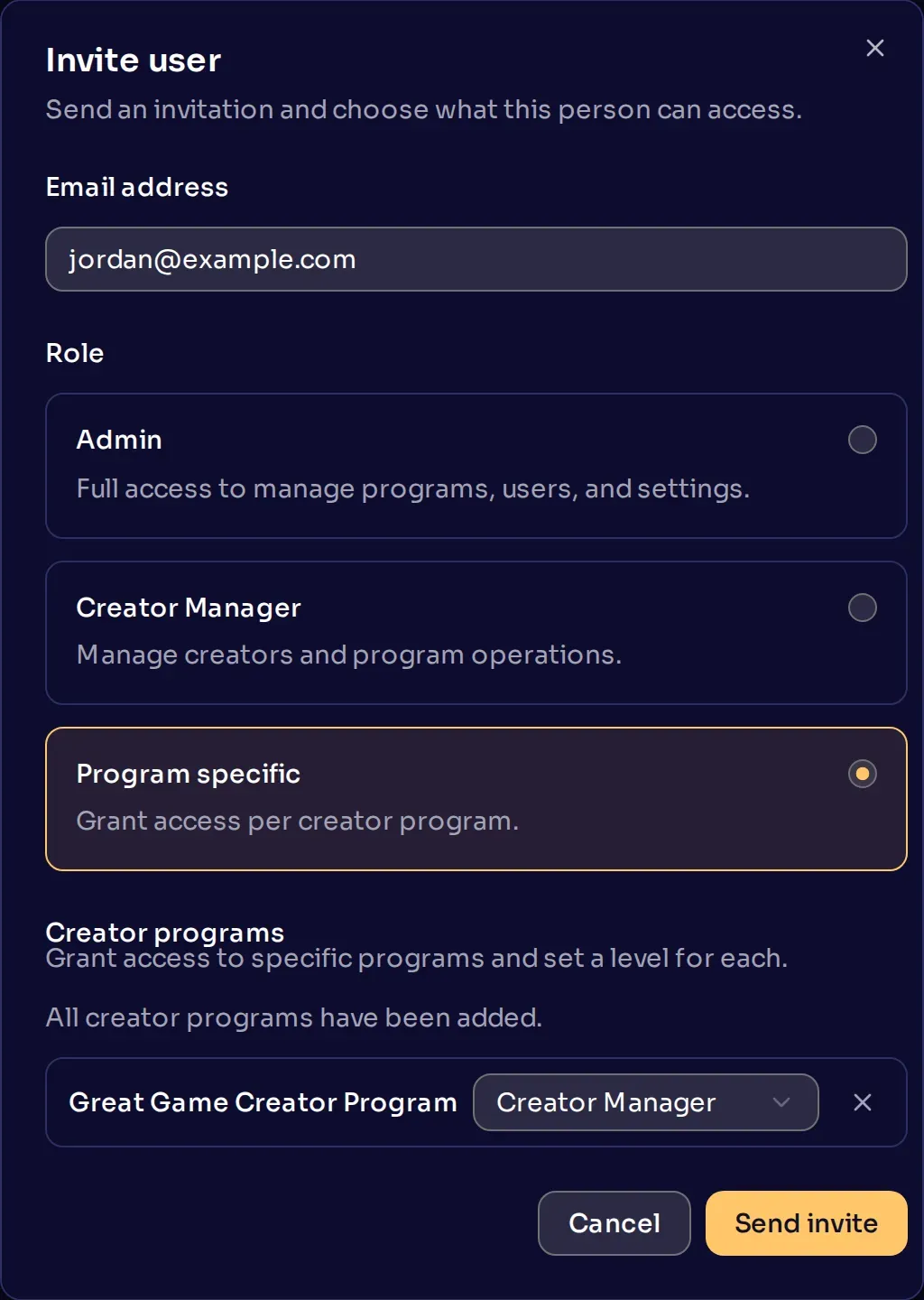
Choose a role. The dialog starts on Admin, so pick a narrower role if they don’t need everything. For Program specific, use Add a creator program to add each program they need, then set Admin or Creator Manager beside it. Each program you add starts at Admin.
-
Select Send invite. They appear in the list.
What your teammate sees
Section titled “What your teammate sees”If they don’t have a Nexus account yet, Nexus emails them a link to sign up. They need to sign up with the address you invited. They show as Invited until they do, then as Active.
If they already have a Nexus account, such as a creator account, Nexus adds them right away and emails them about it. They show as Active, and their creator account keeps working as before.
A Nexus account can belong to only one publisher. If the address is already on another publisher’s team, the invite fails, so ask them for a different address.
Change or remove access
Section titled “Change or remove access”Select the three-dot menu on a teammate’s row.
- Edit role changes their role, and the change applies right away.
- Remove ends their access to your account. Their Nexus account stays, and you can invite them again later.
- For someone still Invited, the menu offers Revoke invite instead. Invitations don’t expire, so to change an invited person’s role or send them a fresh email, revoke the invite and invite them again.
You can’t change your own role or remove yourself, so ask another Admin.