An agreement is a set of terms creators accept before they can apply to your program, such as a code of conduct or sponsorship terms. You can link to terms you host, write them out in Nexus, or add a one-line consent statement. Agreements are on the last card of the Creator settings tab in Program settings. Set application requirements covers who can open it and how saving works.
Choose a type
Section titled “Choose a type”| Type | Creators see | Use it for |
|---|---|---|
| Link | Your title, linking to your page | Terms on your own site |
| Rich text | Your title, opening your terms | Terms you keep in Nexus |
| Statement | Your sentence | A one-line promise |
Add an agreement
Section titled “Add an agreement”-
Open the panel. In the Agreements card, select Add agreement (Add your first agreement if the card is empty). Choose Link, Rich text, or Statement.
-
Fill it in.
- For a Link, enter a Title and the URL of your terms.
- For Rich text, enter a Title and write the Terms.
- For a Statement, write the Consent statement. It sits next to the accept box, so keep it to one sentence. You can add links to it.
To change the type, use Type at the top of the panel.
-
Save. Select Save. The agreement appears in the card.
Creators accept agreements when they apply, so an agreement you add later is for new applicants. Creators already in your program are not asked to accept it.
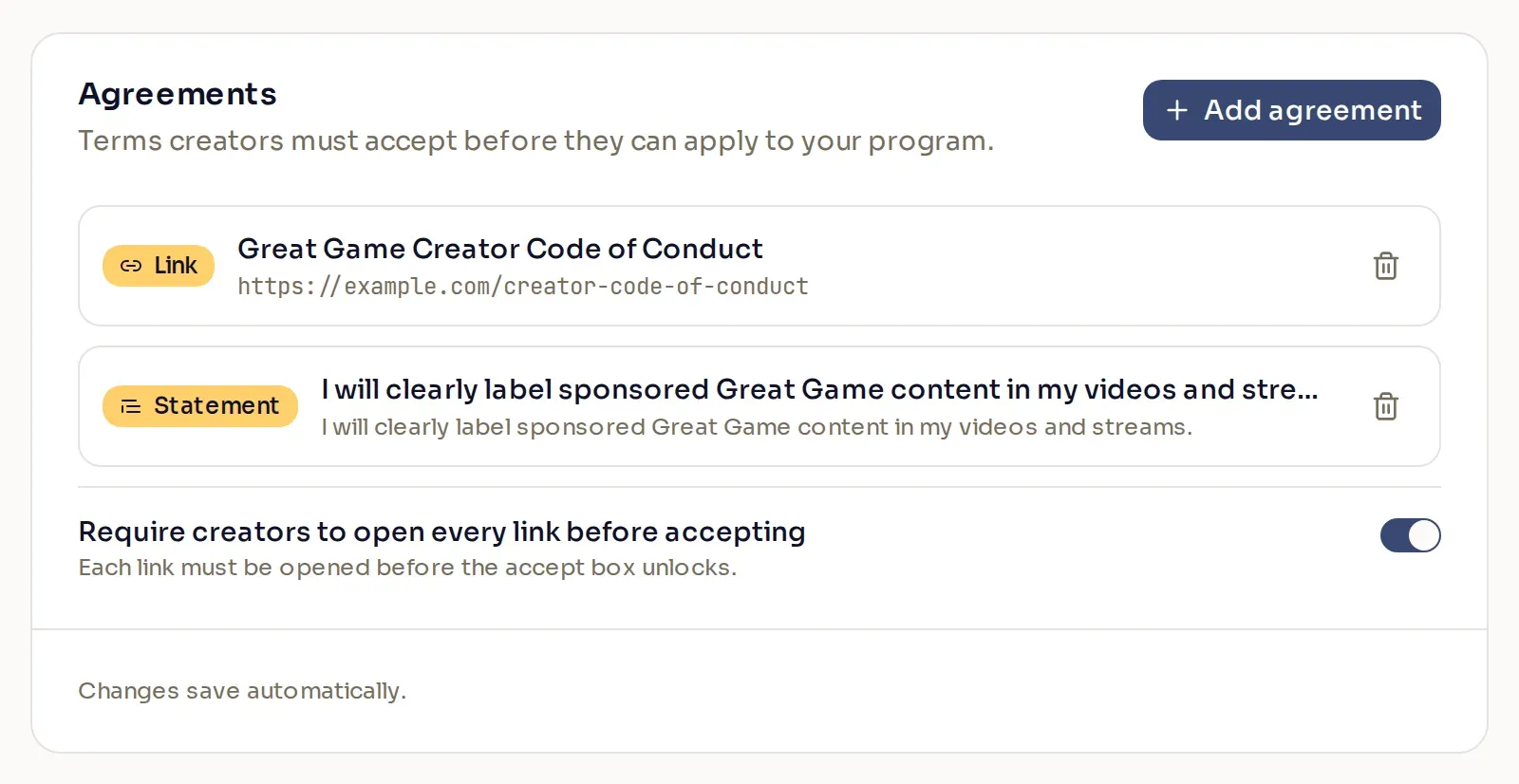
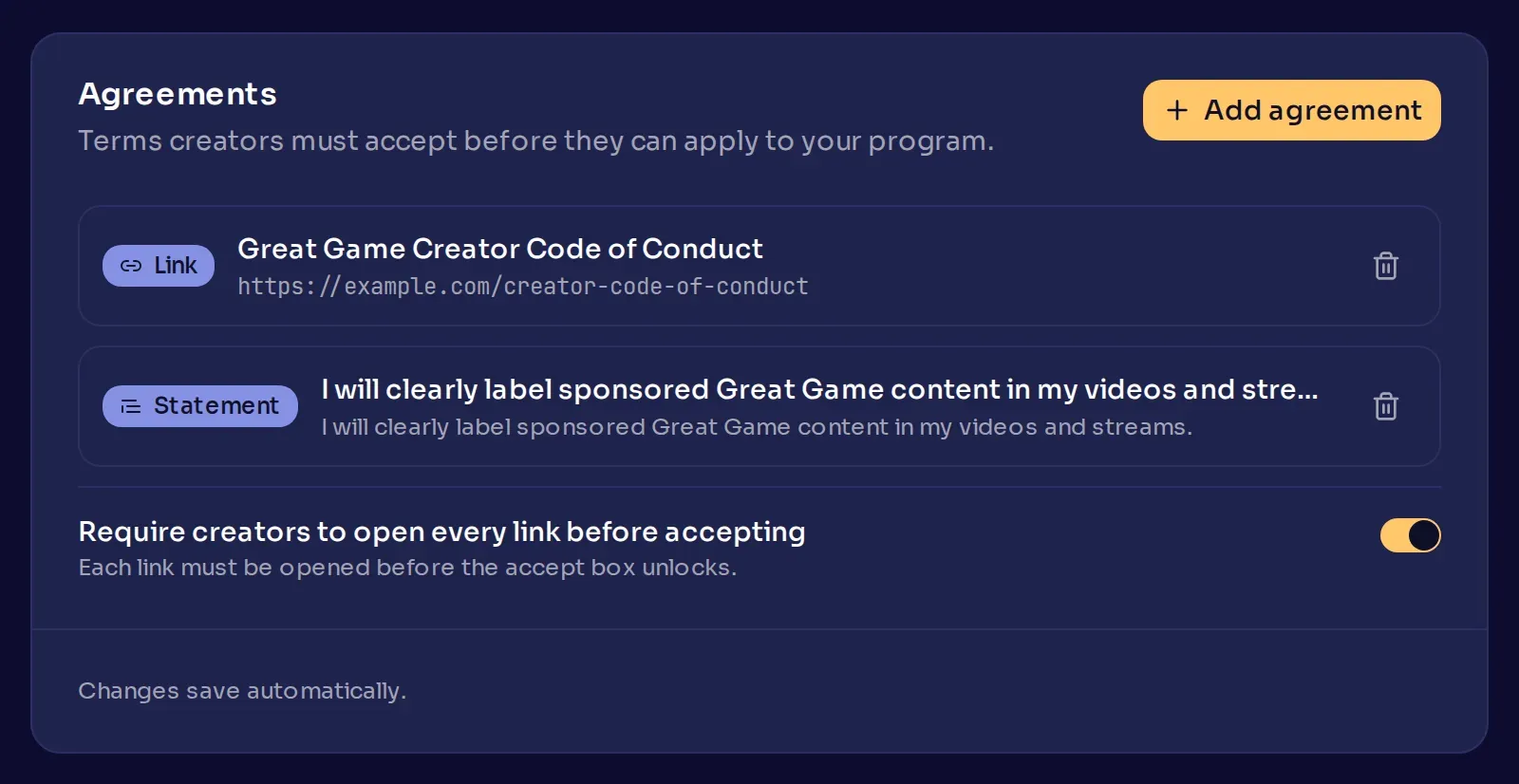
In this example, the program links to its creator code of conduct and asks creators to promise to label sponsored content. The code of conduct needs a page creators can read, so it is a Link. The promise fits in one sentence, so it is a Statement.
Make creators open your terms (optional)
Section titled “Make creators open your terms (optional)”To make sure creators open your terms before they accept them, turn on Require creators to open every link before accepting. The switch appears in the card once it has an agreement, and you can turn it on once one of them is a Link. With it on, a creator has to open your terms, and any link in a statement, before the accept box beside them unlocks.
What creators see
Section titled “What creators see”Each agreement appears on the application form with an accept box, and creators must tick every one before they can submit. A Link or Rich text agreement puts your title in a sentence such as “I have read and agree to Great Game Publishing’s Great Game Creator Code of Conduct.” With Require creators to open every link before accepting on, pointing at a locked accept box shows “You must read the document to be able to accept the agreement.”
Set application requirements shows the whole form.
Edit or remove an agreement
Section titled “Edit or remove an agreement”To edit an agreement, select its row, make your changes, and select Save. Creators who accepted it before keep their acceptance, so if you change the terms in a way that matters, tell them yourself.
To remove an agreement, select the trash icon on its row, then select Remove. Creators no longer need to accept it before applying, and you cannot undo the removal.
When your settings are ready, invite creators from Creators > Invite Creators.