A campaign is a promotion your creators opt into. Use one to rally creators around a launch, an update, or an event. You choose who is invited and when they can join, tell them what to make, give them game keys, and reward the content you approve.
Before you start
Section titled “Before you start”Only program Admins can create and manage campaigns. If the Campaigns page shows Admin access required, ask an Admin on your team to change your role for this program.
A campaign can use your tiers, tags, key lists, and Discord bot. All of them are optional, but set up the ones you want before you create the campaign:
| To | Set up | Where |
|---|---|---|
| Invite creators by tier | Tiers | Commissions > Creator tiers (Revenue Shares in a revenue-share program) |
| Invite creators by tag, or tag the creators who join | Tags | Tags |
| Give creators game keys | Key lists | Keys > Key lists |
| Announce the campaign by Discord direct message | The Discord bot | Program settings > Integrations |
Open your campaigns
Section titled “Open your campaigns”Open Campaigns in the Publisher Dashboard. The table lists every campaign in the program with its status, its start and end dates, and how many creators are opted in.
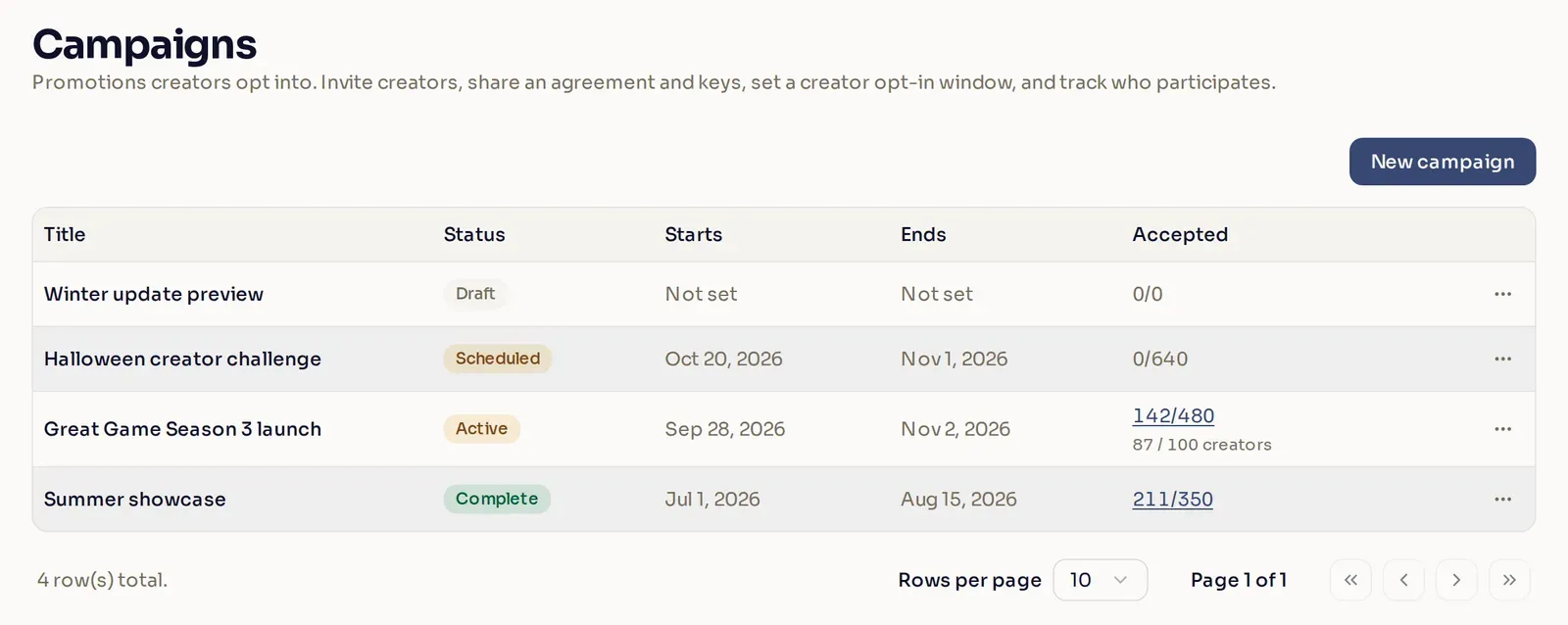
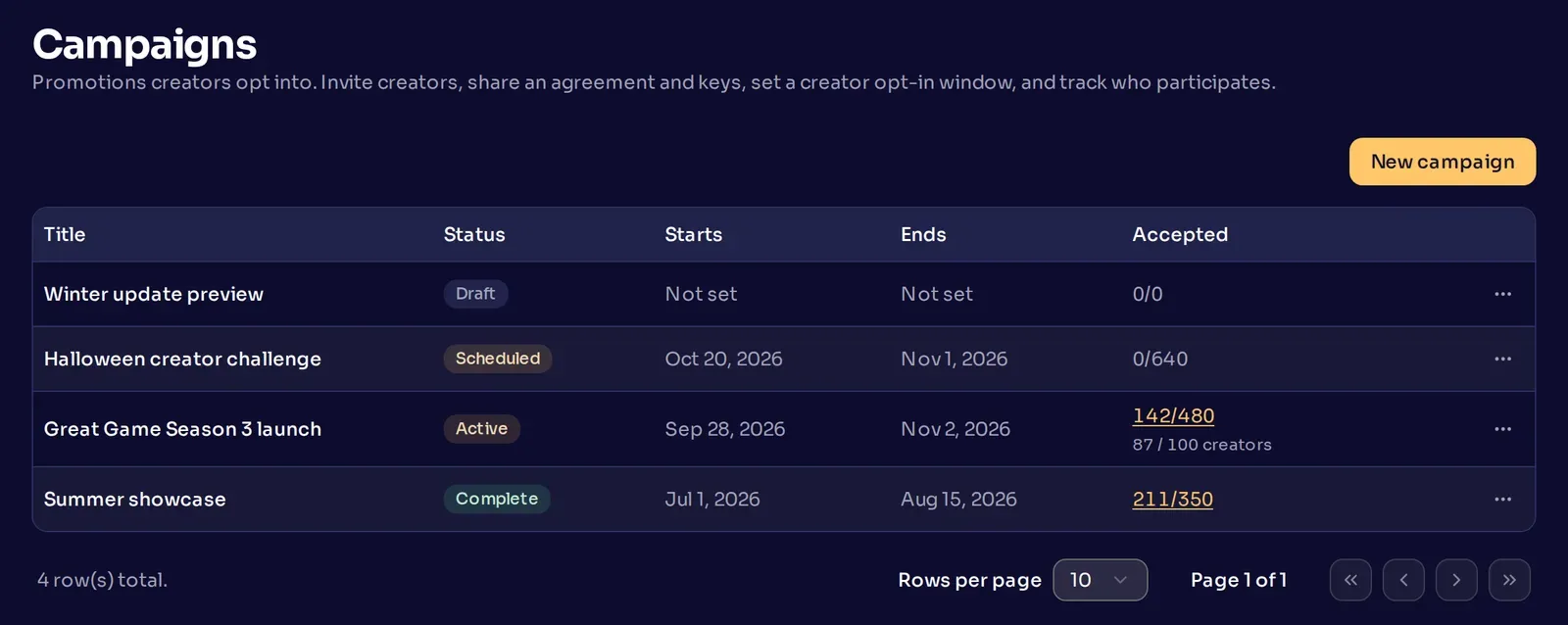
The Accepted column shows how many creators are opted in now, out of how many are eligible. Once creators start meeting the content requirement, a second line shows how many have, out of your creator limit if you set one. For example, 142/480 means 142 of 480 eligible creators are opted in. 87 / 100 creators means 87 of the 100 spots in the creator limit are filled. Edit a campaign explains each status.
Create a campaign
Section titled “Create a campaign”Select New campaign to open the campaign panel. The steps below follow the panel from top to bottom.
-
Choose who is invited. Under Who’s invited?, pick one of three options:
- All members invites everyone in your program.
- Specific creators invites only the creators you pick.
- Filtered audience invites creators by Tier, Tag, Country, Language, or Platform.
A filtered audience has three sections:
Section Who it invites Invite creators who match any of these Creators who match at least one of these filters. Only if they also match all of these (optional) Narrows the audience: creators must match every one of these filters too. Also invite these creators (optional) Creators you name, even if they match none of the filters. Each filter picks one or more values, and a creator matches the filter if they match any value in it. Select Add filter or Add requirement to add a filter to a section. The Audience card under the sections sums up who you are inviting.
For example, to invite creators in your Gold tier or tagged Launch partners, as long as they speak English, plus two partner streamers whatever their language:
Section Filters Any of these Tier is any of Gold; Tag is any of Launch partners All of these Language is any of English Also invite Your two partner streamers Country and language come from the creator’s Nexus profile, so creators who have not set them do not match those filters. Platform matches creators who connected one of the selected accounts (YouTube, Twitch, TikTok, X, Kick, Reddit, or Discord) to Nexus. A link the creator only pasted into their profile does not count. A filtered audience with no filters invites all members, and one with only named creators invites just those creators.
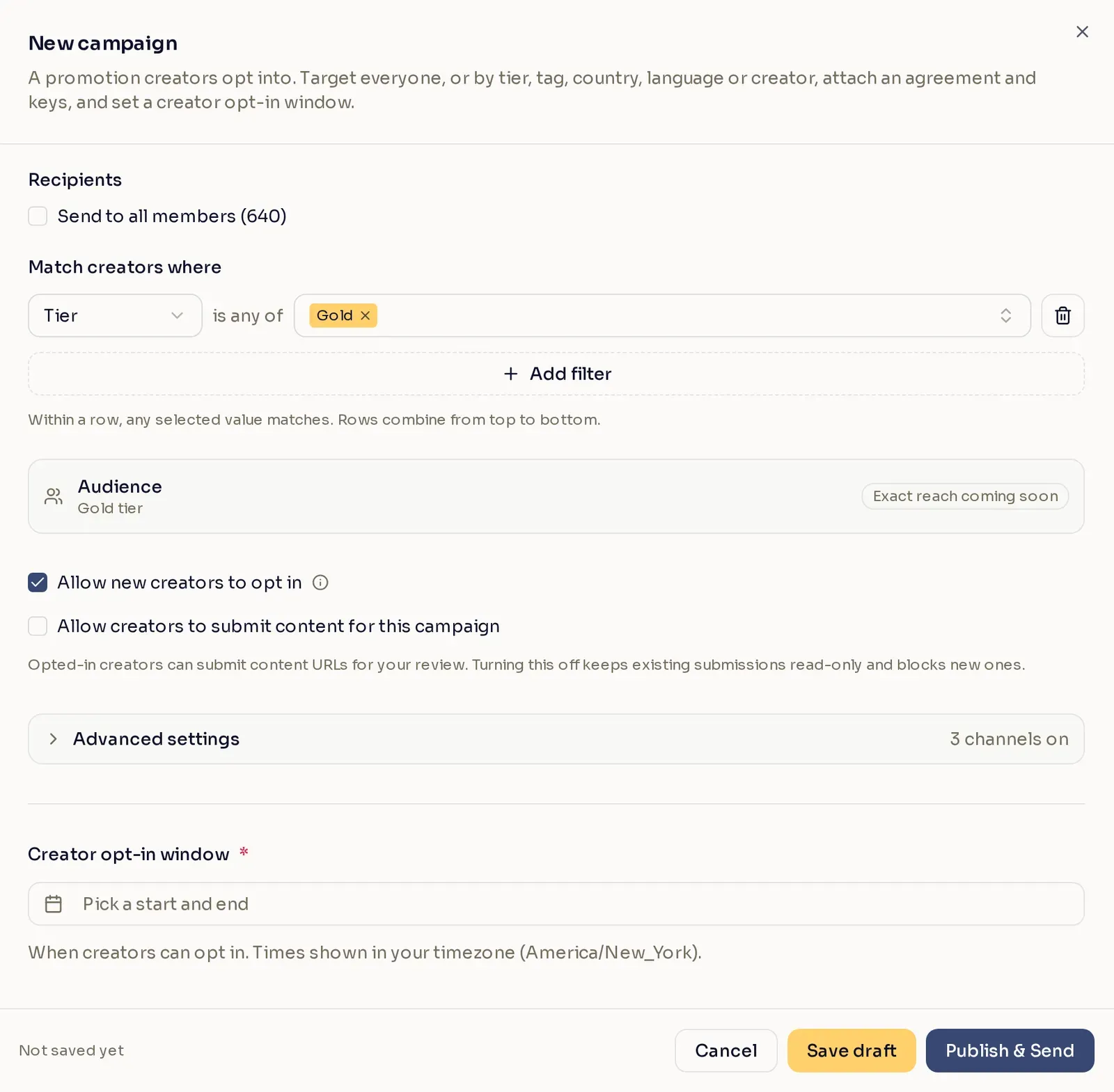
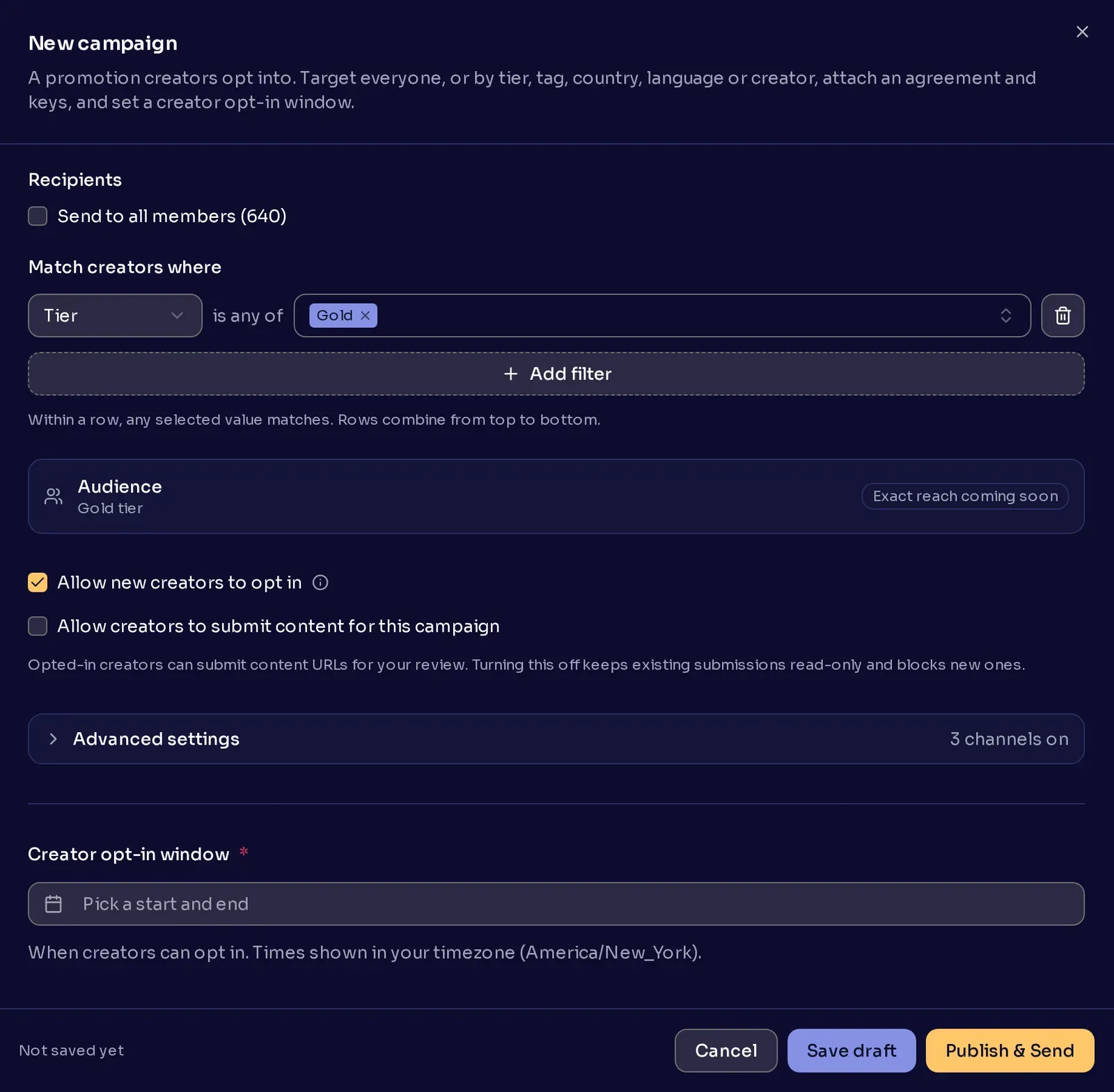
Allow new creators to opt in is on by default. It decides whether creators who become eligible after the campaign goes live can still join. Creators who join later explains how it works. It is not available for Specific creators, because that list never changes.
-
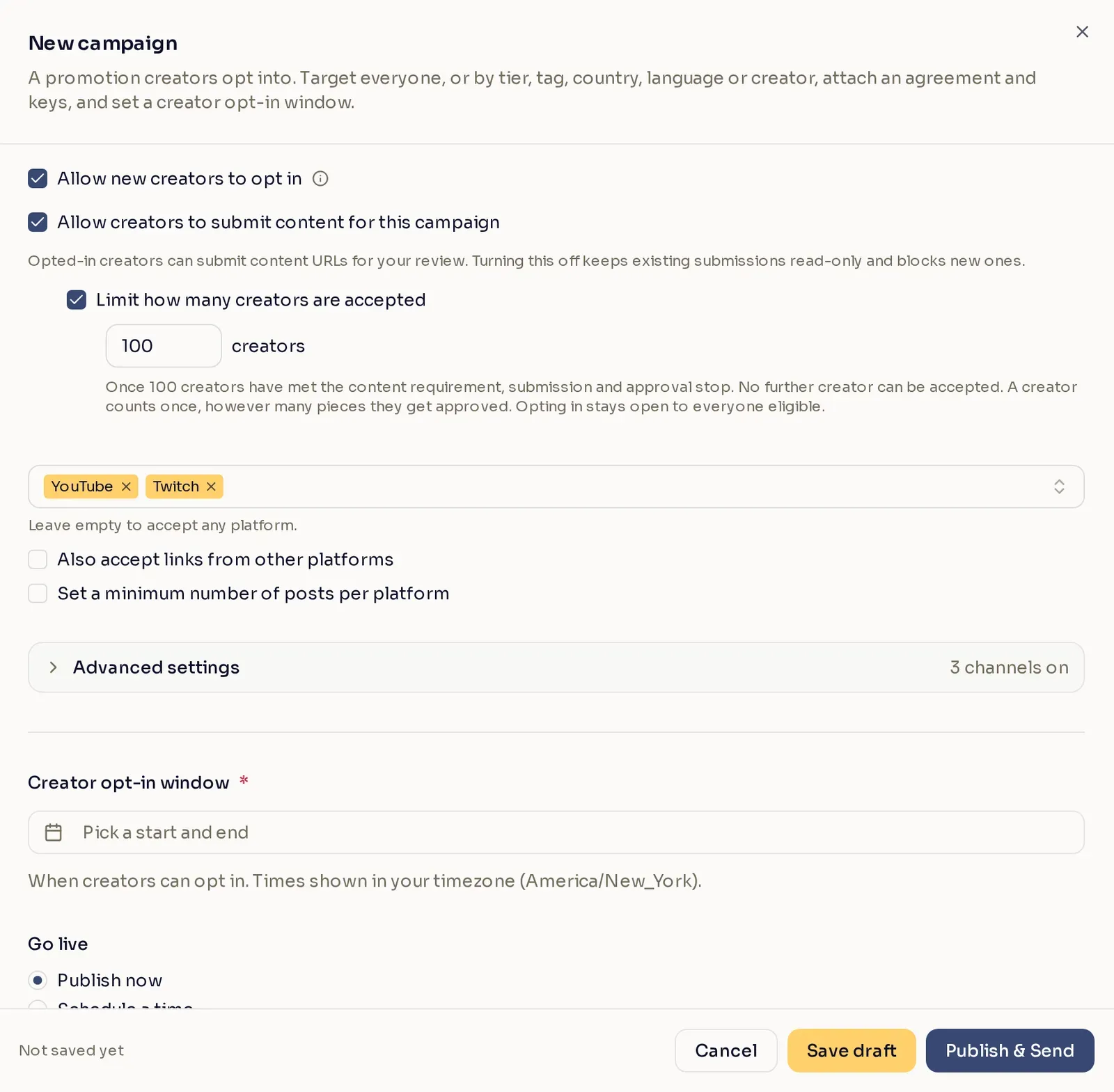
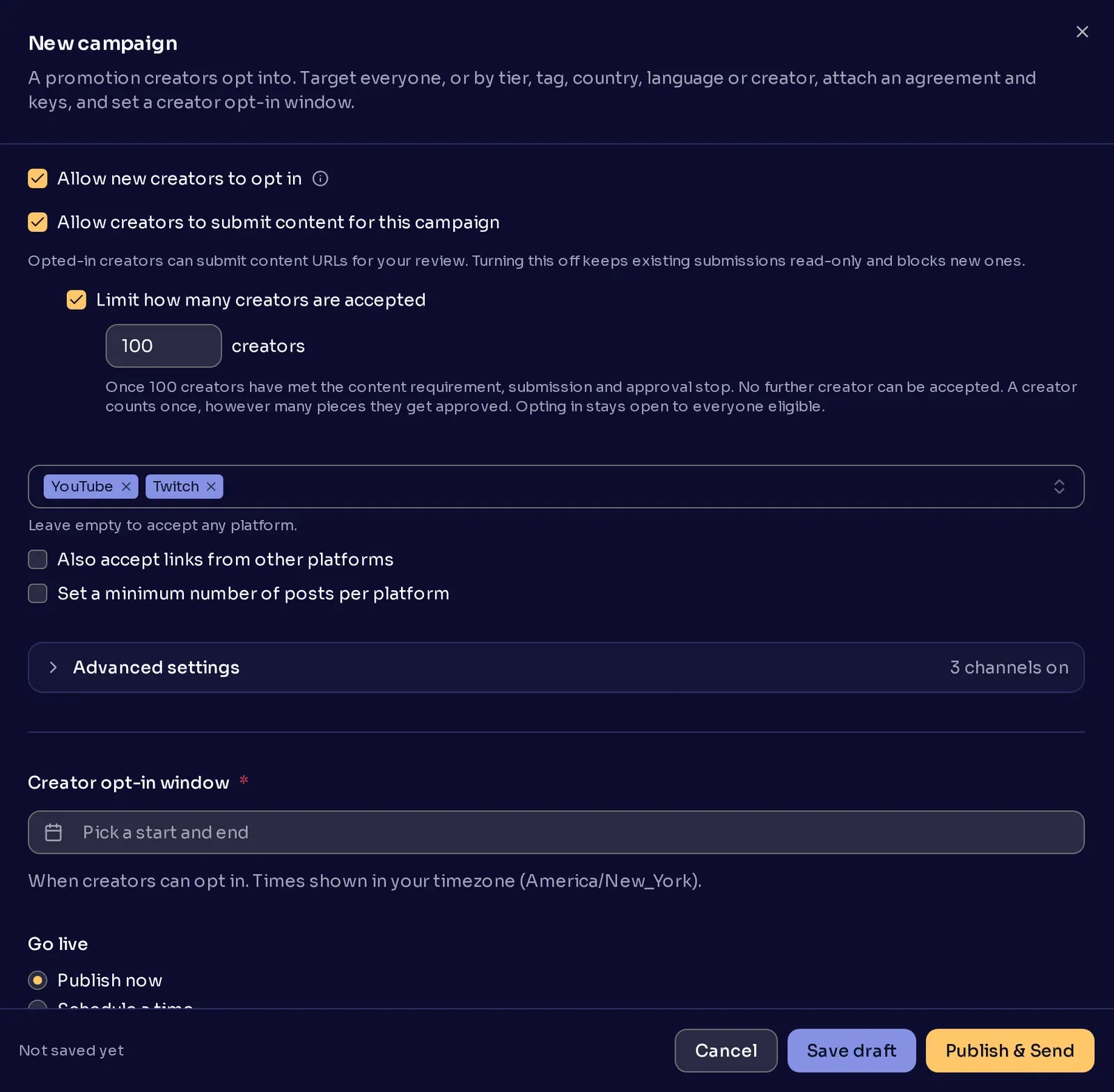
Turn on content submission (optional). Tick Allow creators to submit content for this campaign to have creators send you links to what they make. You review each link before it counts. A creator meets the campaign’s content requirement once you approve enough of their content: one piece by default, or the minimum for each platform if you set minimums.
With content submission on, two more settings appear:
- Limit how many creators are accepted (optional) sets a creator limit. Once that many creators meet the content requirement, submission and approval close. Opting in stays open to everyone eligible. If you tick it, enter a number from 1 to 99,999. Show creators how many spots are left appears under the limit and is on by default. Creators then see the count on the campaign, for example “63 of 100 left”. Untick it to keep the limit private: creators see no count, only that the campaign is full once every spot is taken.
- Choose platforms (optional) limits submissions to YouTube, Twitch, Instagram, TikTok, or X. Without it, the campaign accepts any platform. Once you pick a platform, two more options appear. Tick Also accept links from other platforms to take links from anywhere else too. Tick Set a minimum number of posts per platform to require a number of approved posts on each platform, up to 10 posts in total.
-
Choose how creators hear about it (optional). Open Advanced settings to see the announcement channels:
- Nexus shows a notification on the creator’s dashboard.
- Email sends the invitation by email. It only works with Nexus turned on too.
- Discord sends a direct message from the Discord bot to each creator who has linked a Discord account. It needs the Discord bot connected to your program.
Nexus and Email are on by default, and so is Discord when your program has the Discord bot connected. With every channel off, creators get no announcement, but invited creators can still find the campaign on their dashboard.
-
Set the dates. Set the Creator opt-in window: when creators can start opting in, and when the campaign ends. Times are in your own timezone. Under Go live, choose Publish now or Schedule a time for the invitations to go out. Creators can opt in once the campaign is live and the opt-in window has started.
-
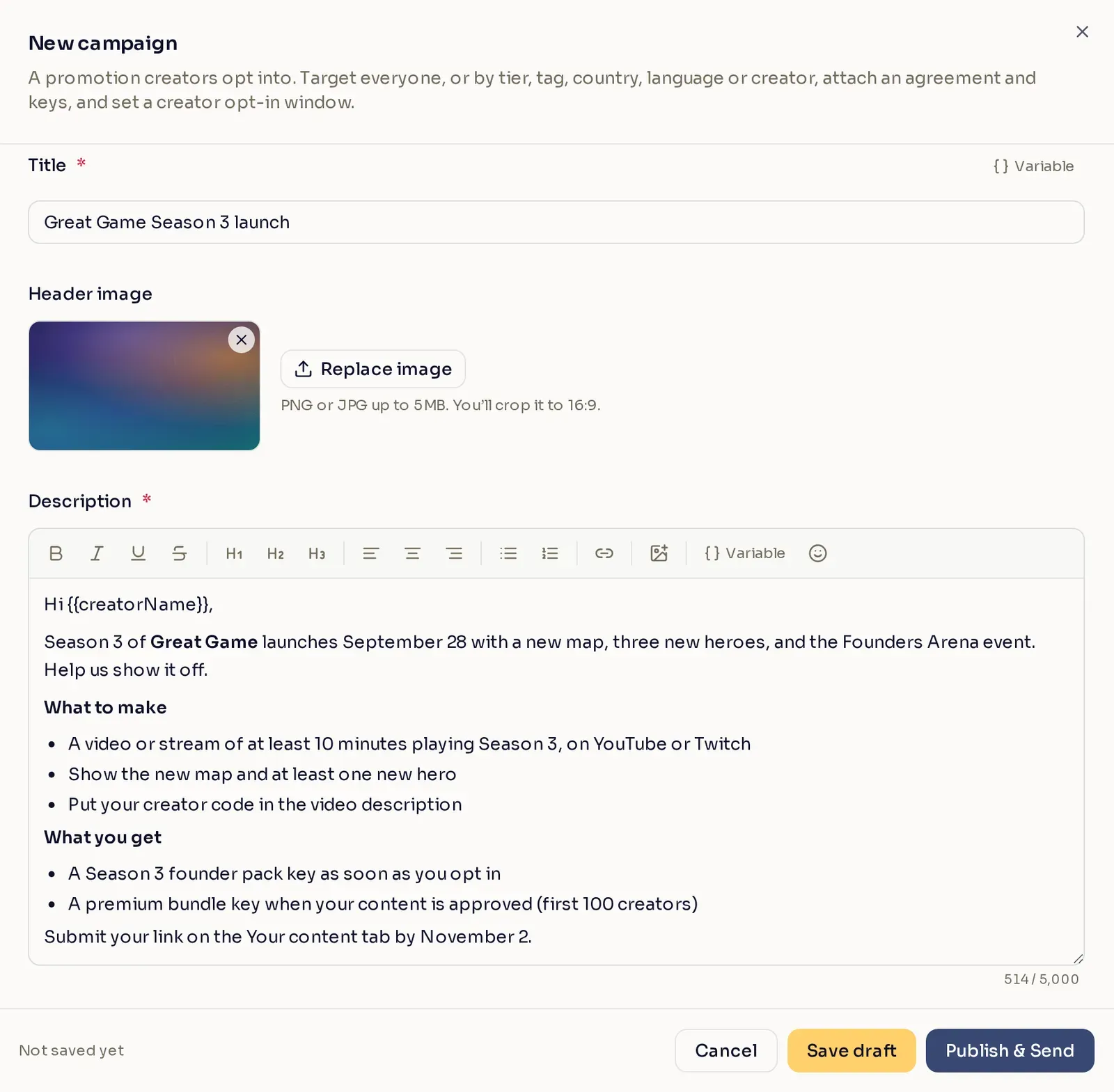
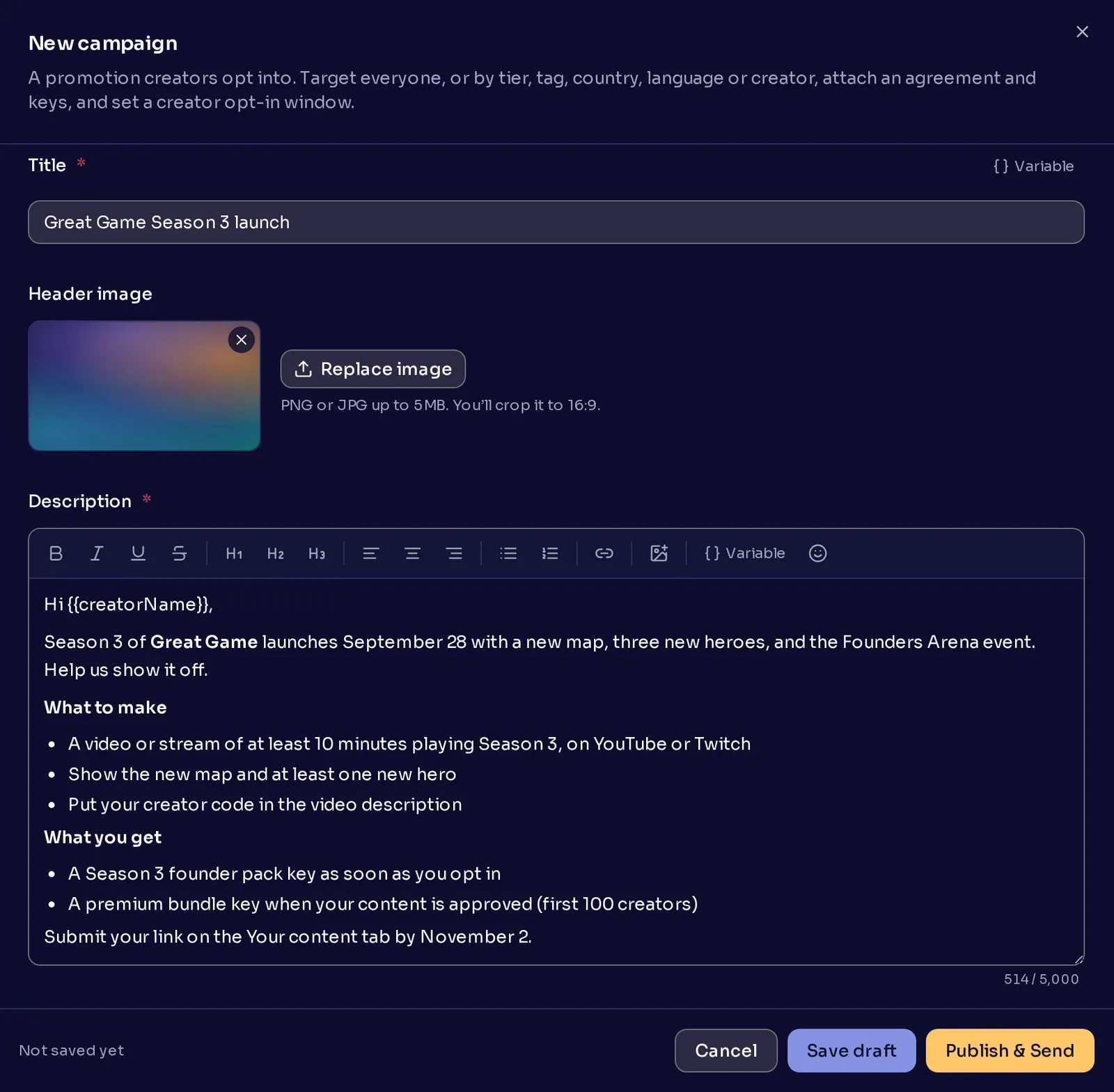
Write the invitation. The title and description are what creators read when they decide whether to join, so treat them like a pitch. A good invitation answers three questions for the creator: what is happening, what to make, and what they get.
Enter a Title, then add a Header image (optional): a PNG or JPG up to 5 MB, which you crop to 16:9. Write the Description last, and format it with bold text and lists so it scans. Use the Variable menu to insert the creator’s name.
What creators see shows this same invitation from the creator’s side.
-
Add tags and agreements (optional). Under Assign tags, choose tags to apply to every creator who opts in. To make a new tag for the campaign, tick Create a campaign tag. Its Tag name starts as the campaign title, and you can change it (up to 50 characters). If a tag with that name already exists, choose another name, or use the link under the field to assign the existing tag instead.
Under Agreements, select Add agreement to add terms creators must accept when they opt in. An agreement can be a link to your terms, a rich-text block, or a short statement.
-
Attach keys (optional). Select Add a key list and pick one of your program’s key lists. Set how many keys each creator receives, and choose when they receive them:
- On opt-in sends keys to every creator who opts in, as soon as they opt in. The list needs enough keys for your whole audience.
- On approval sends keys to each creator once they meet the content requirement. It needs content submission turned on. The list needs enough keys for your creator limit, or for your whole audience if you set no limit. To ask for more than one approved piece, set Approved pieces required, which appears under your key lists.


-
Send yourself a preview (optional). Select Send a preview to yourself to email a copy of the invitation to your own address. The button becomes available once the campaign has a title and a description.
-
Save or publish. Select Save draft to keep working later. Select Publish & Send, or Schedule if you chose a go-live time, to publish the campaign. If something needs fixing, a message appears in red at the bottom of the panel. Once it saves, the campaign appears in the list as Publishing or Scheduled.
What creators see
Section titled “What creators see”When the campaign goes live, each invited creator gets an announcement on the channels you turned on. The campaign appears under Support a Creator > Campaigns on their dashboard, with your invitation front and center:
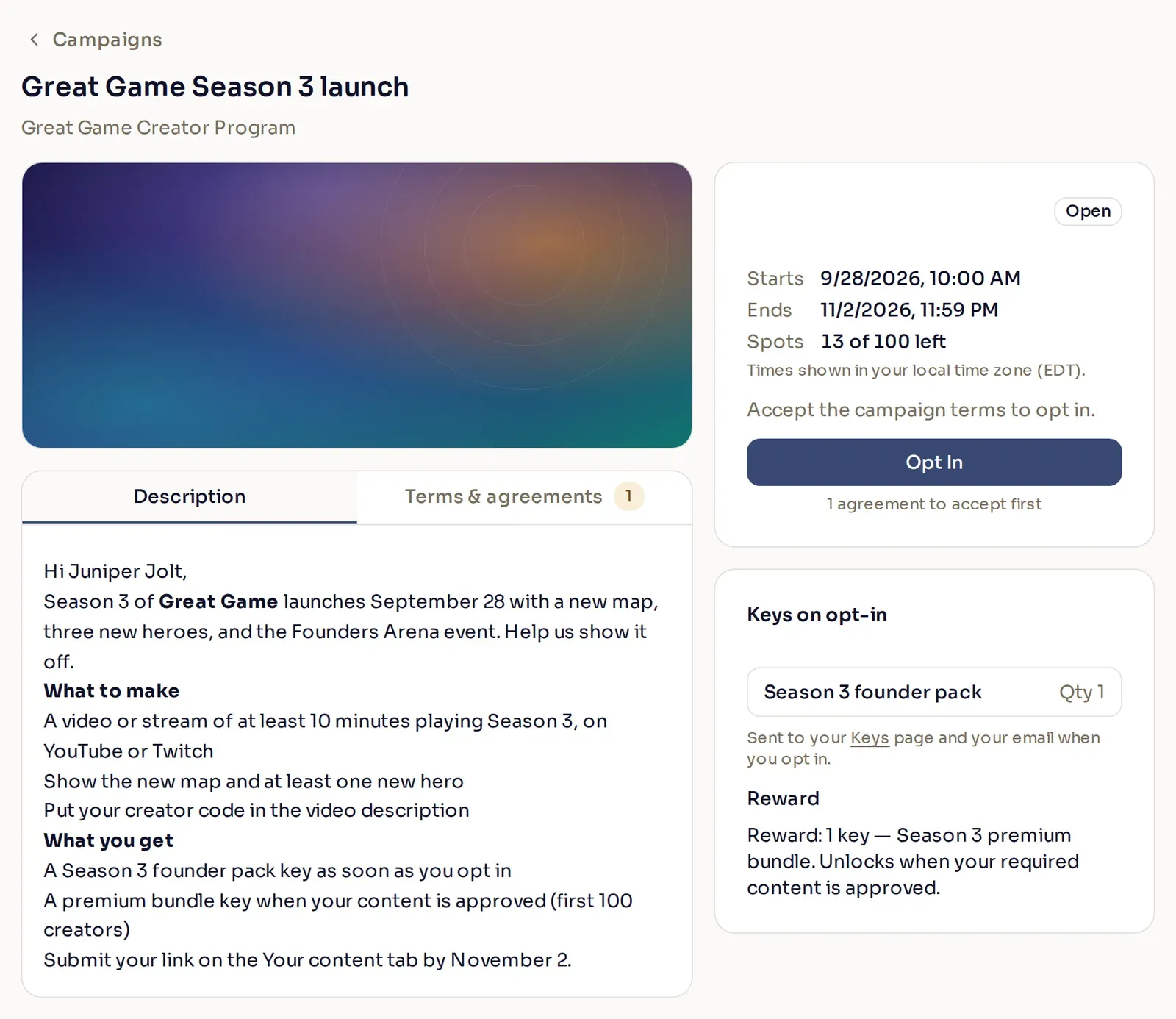
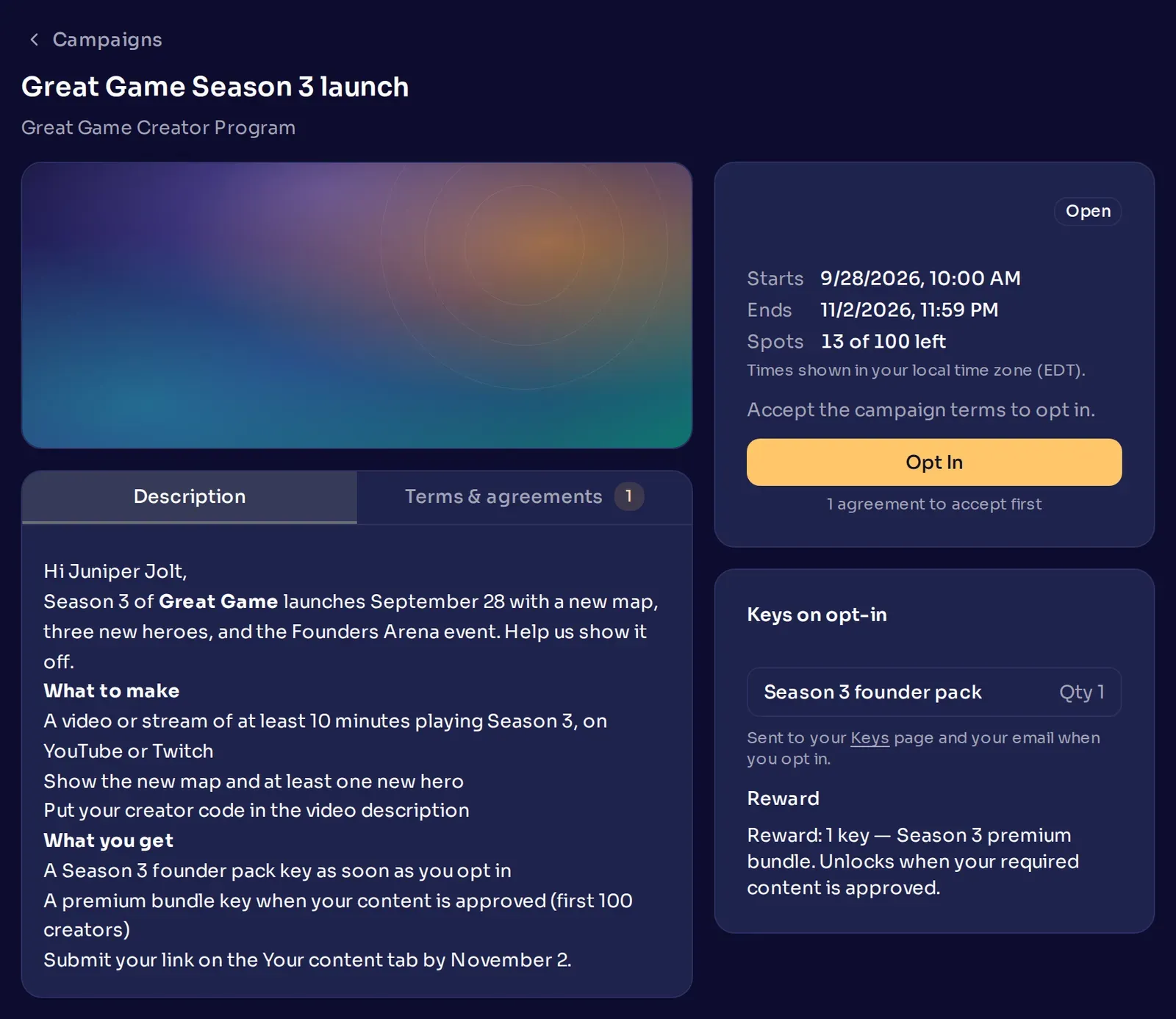
Next to the description, the creator sees the opt-in window, how many spots are left if you set a creator limit, and the keys they can earn. If you turned off Show creators how many spots are left, the creator sees no count, only Full once every spot is taken. Before they can opt in, they open and accept each of your agreements on the Terms & agreements tab:
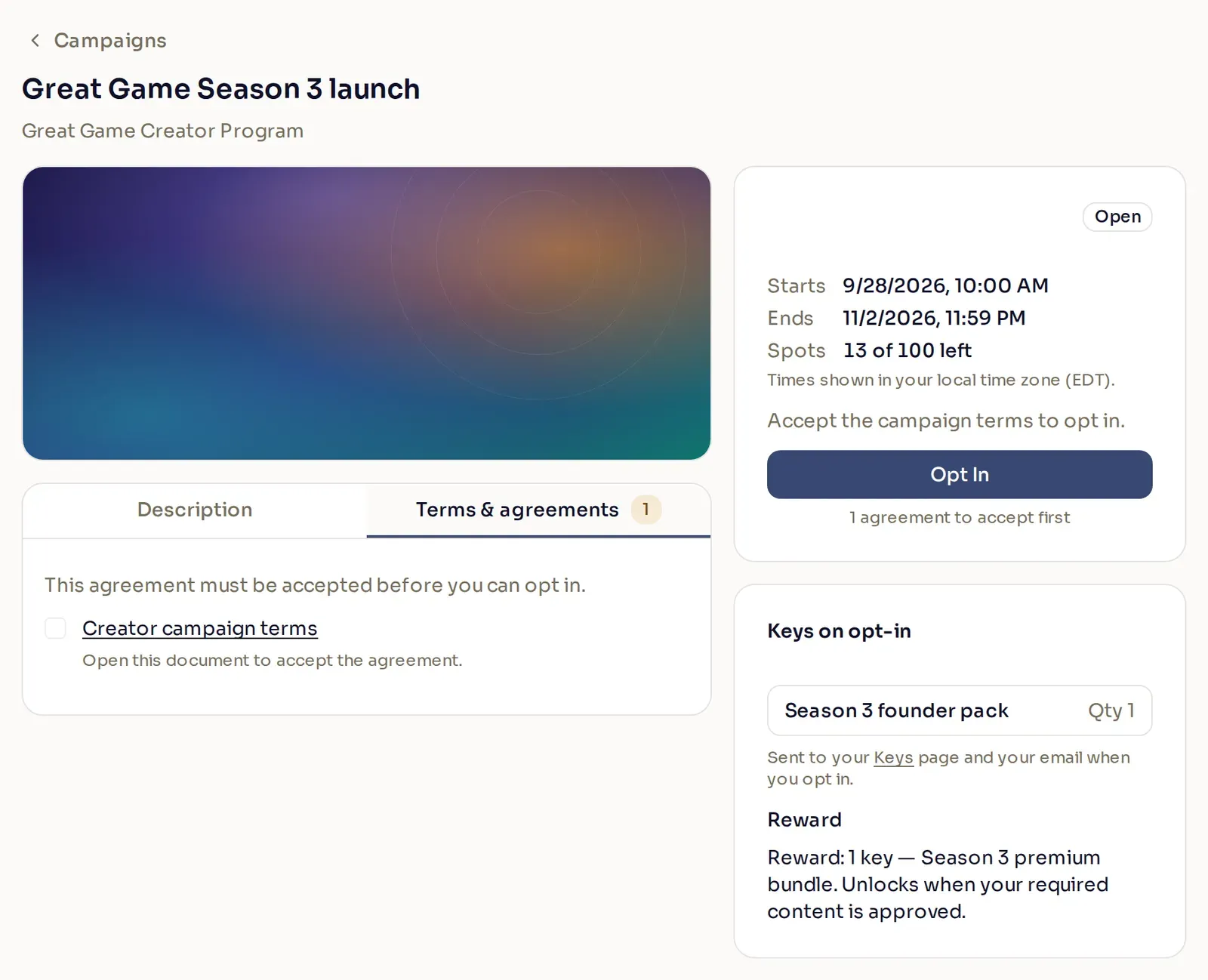
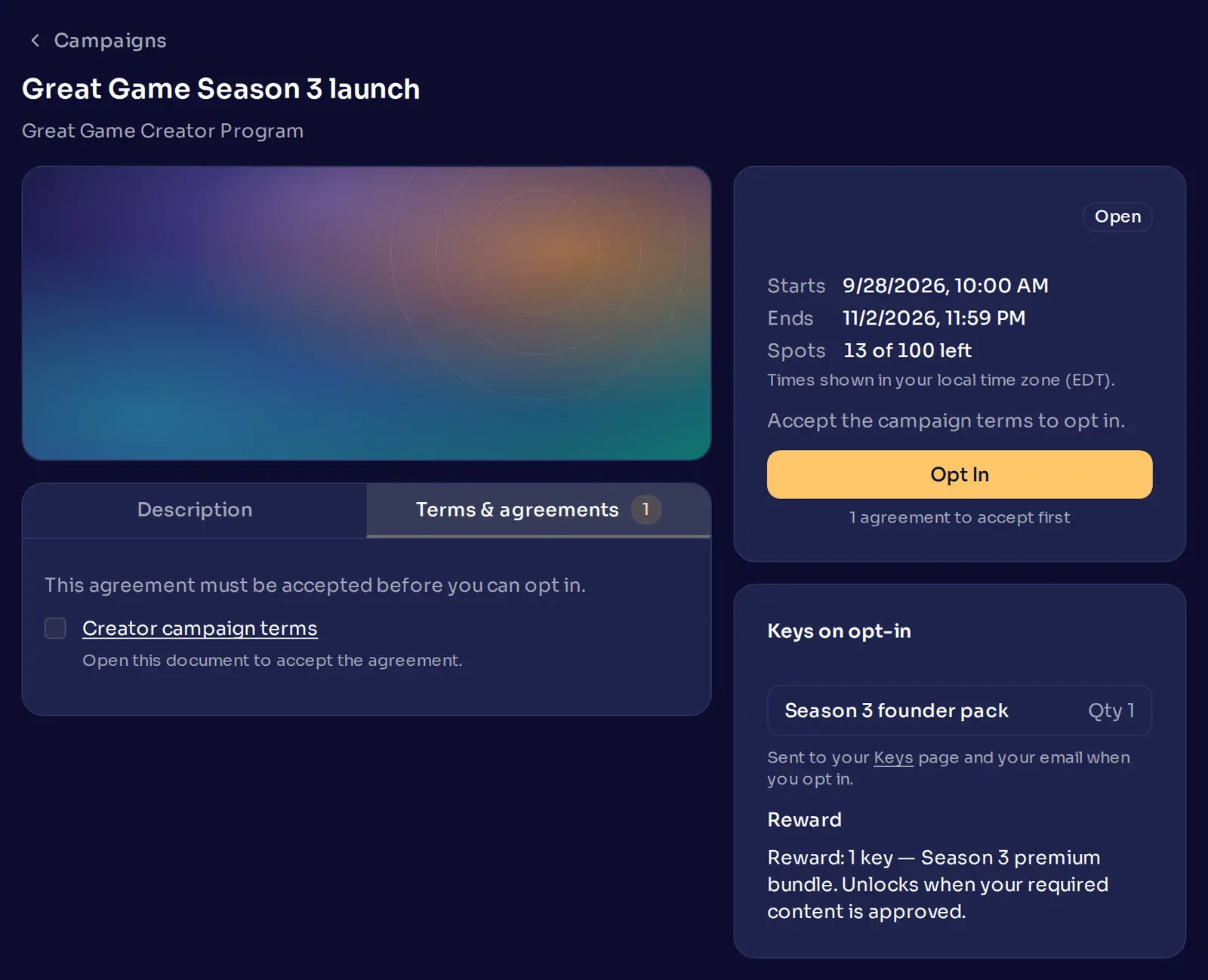
Once they select Opt In, they receive any tags you assigned and any keys sent on opt-in. Keys arrive on the creator’s Keys page, and by email if the Email channel is on and the creator has not turned off key emails.
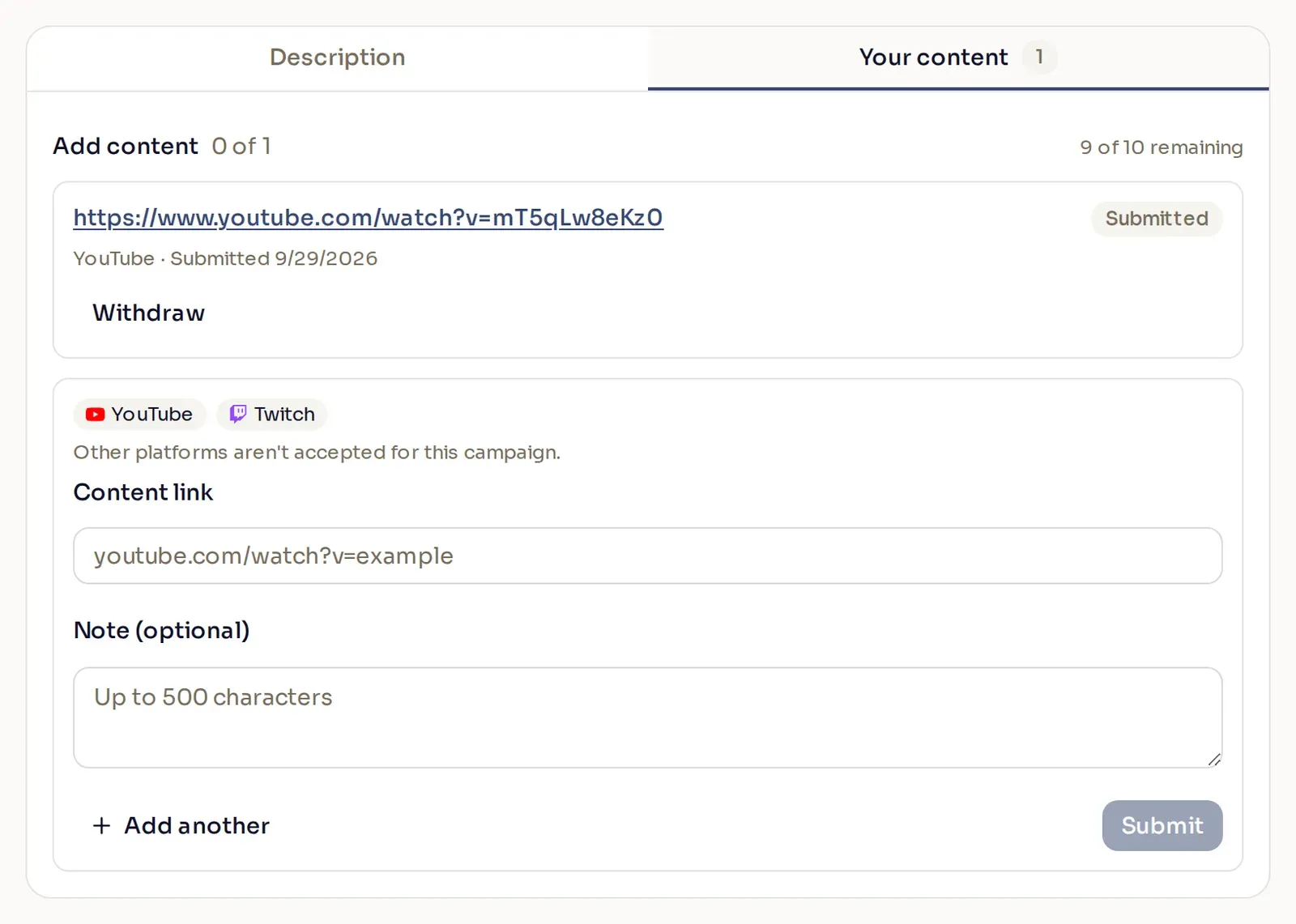
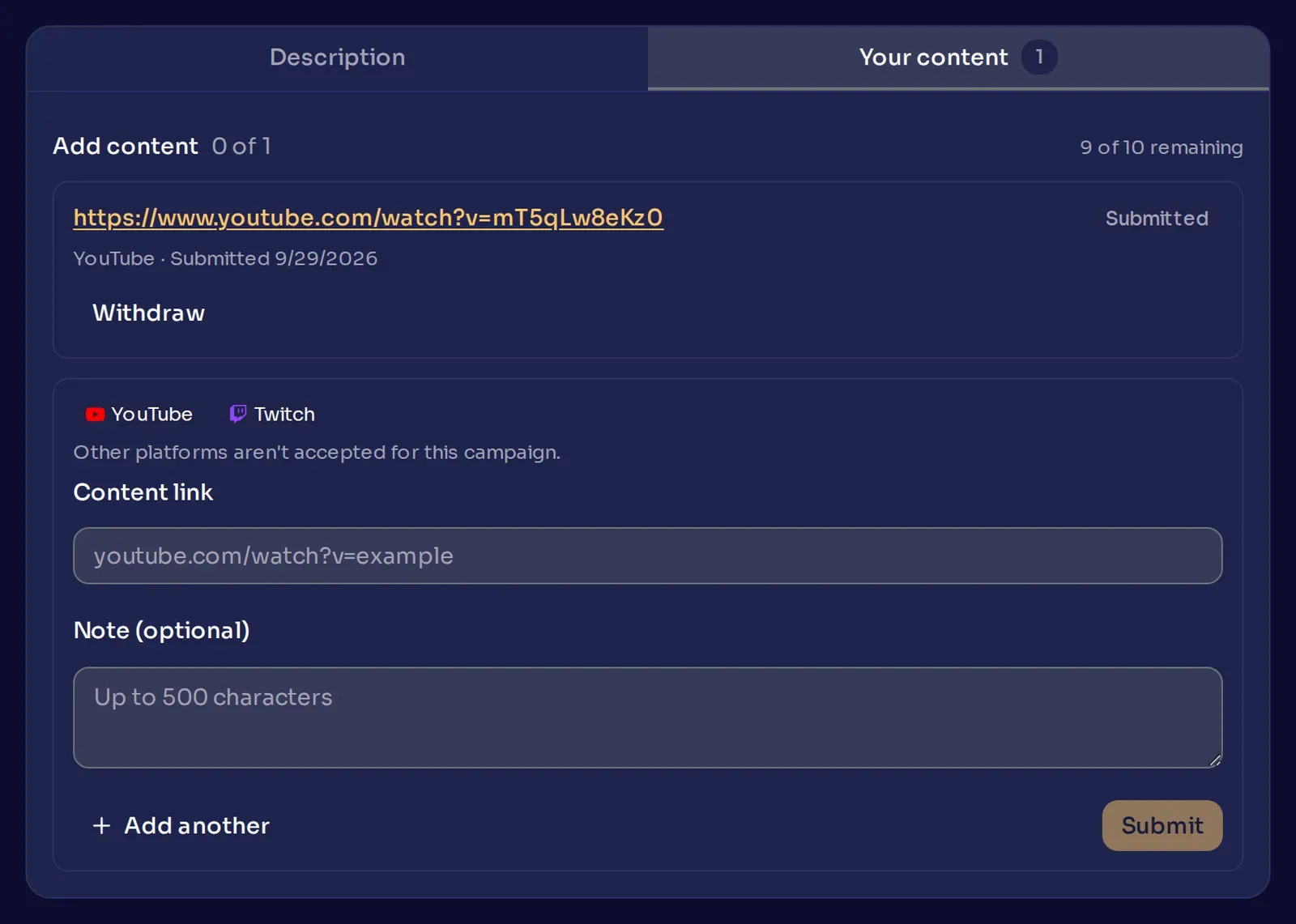
If the campaign accepts content, the creator submits their links on the Your content tab. Each creator can submit up to 10 links per campaign, counting every link they ever submit, including ones they withdraw.
A creator can opt out while the campaign runs, and opt back in later by accepting your agreements again. Opting back in does not send keys sent on opt-in a second time.
Creators who join later
Section titled “Creators who join later”You cannot change the audience of a live campaign. Creators can still become eligible while it runs, for example when they join your program or get a tag the campaign targets. Whether they can join depends on Allow new creators to opt in:
| Allow new creators to opt in | A creator who becomes eligible after you publish |
|---|---|
| Off | Cannot see or join the campaign. The creator list is set when you publish or schedule the campaign. |
| On | Sees the campaign on their dashboard and can opt in until the opt-in window ends. |
For example, you publish a campaign for your Gold tier with Allow new creators to opt in ticked. A week later, you move a creator from Silver to Gold. They can now find the campaign under Support a Creator > Campaigns and opt in. They get the campaign’s tags and keys sent on opt-in like everyone else. With the option off, the campaign never appears for them.
Run the live campaign
Section titled “Run the live campaign”Once creators start opting in, you run the campaign from the Accepted creators panel. There you can:
- review submissions and approve, reject, or request changes
- release a creator’s reward early
- remove a creator from the campaign
- export the list of creators in the campaign
Edit a campaign
Section titled “Edit a campaign”Select a campaign in the list to open it. Its status decides what you can change:
| Status | What it means | What you can change |
|---|---|---|
| Draft | Saved but not published. Creators cannot see it. | Anything. |
| Publishing | You selected Publish now, and Nexus is about to start sending it. | Most settings. Select Publish & Send again to save. |
| Scheduled | Published and waiting for the go-live time you chose. | Most settings. Select Schedule again to save. |
| Processing | Nexus is sending the invitations. | Nothing. You can only view it. |
| Active | Live. Creators can opt in once the opt-in window starts. | The details. Change a live campaign lists what locks. |
| Complete | The opt-in window has ended. | Nothing. You can only view it. |
| Error | The invitations could not be sent. Contact your Nexus account manager. | Nothing. You can only view it. |
On a Publishing or Scheduled campaign, the send time of each key list you attached stays locked. While a campaign is Publishing, its announcement channels are locked too.
Change a live campaign
Section titled “Change a live campaign”Once a campaign is live, these settings lock:
- the audience
- the go-live time
- the announcement channels
- the keys per creator and send time of each key list you published
The start of the opt-in window can only move earlier. Everything else can change, and saving does not send the announcement again:
| When you change | What happens |
|---|---|
| Title, description, or header image | Creators see the new version on their campaign page. Emails and Discord messages already sent keep the old text. |
| End of the opt-in window | Creators can opt in and submit content until the new end. A date in the past ends the campaign right away. |
| Allow new creators to opt in | Turn it on, and creators who now match can find the campaign. Turn it off, and it disappears for creators who were not invited and have not opted in. |
| Content submission | Turn it off, and new submissions stop and the creator limit is removed, but you can still review the ones already in. You cannot turn it off while a key list is sent on approval. |
| Creator limit | Raising it reopens submission and approval. You cannot lower it below the number of creators who have already taken a spot. |
| Show creators how many spots are left | Creators see the change the next time they open the campaign. Turned off, they see only when the campaign is full. |
| Platforms and minimums | New submissions follow the new rules. Creators who now meet the content requirement receive their reward. |
| Agreements | New creators accept the updated agreements. Creators already in do not accept them again. |
| Assign tags | Applies to creators who opt in from now on. |
| Key lists | You can add or remove key lists. Change keys on a live campaign explains what each change sends and how many keys it needs. |
Delete a campaign
Section titled “Delete a campaign”Open the campaign’s row menu and select Delete. If the campaign was already sent, deleting it also removes it from the invited creators’ lists. Delete disappears from the menu while any creator is opted in. To delete the campaign after that, remove every opted-in creator first.
Common questions
Section titled “Common questions”Why won’t my draft save?
Section titled “Why won’t my draft save?”A draft needs a title, and anything you started needs finishing:
- every filter in a filtered audience needs at least one value
- Limit how many creators are accepted, if ticked, needs a number from 1 to 99,999
- Create a campaign tag, if ticked, needs a tag name that no other tag uses
- a key list set to On approval needs content submission turned on
- every agreement needs its details
The message at the bottom of the panel names the problem.
Can I add creators to a campaign that is already live?
Section titled “Can I add creators to a campaign that is already live?”Not directly, because the audience locks when the campaign goes live. If Allow new creators to opt in is on, creators who come to match your audience can still find the campaign and opt in. Otherwise, create a new campaign for them.
Can I reward a creator who posted somewhere the campaign does not accept?
Section titled “Can I reward a creator who posted somewhere the campaign does not accept?”Yes. Open the campaign’s Accepted creators panel, open the creator’s row menu, and select Release reward now. Release a reward early explains how it works.
Why does my preview email show Nexus branding?
Section titled “Why does my preview email show Nexus branding?”Campaign emails, including the invitation, review results, and key deliveries, use your program’s email branding once Nexus has set it up for campaigns. Until then, they show Nexus branding. Contact your Nexus account manager to set it up.
Why does the panel say there aren’t enough keys?
Section titled “Why does the panel say there aren’t enough keys?”A key list does not hold enough keys for the creators who could receive them. You might see an amber warning under the key list while you build the campaign, or a red message when you publish. Keys and creator limits explains how many keys each send time needs.