Before you invite creators, decide what they need to give you when they apply and what happens to their application. You set this in Program settings, along with your program’s name and how soon a denied creator can apply again. Platform requirements and agreements, also on the Creator settings tab, have their own pages: Set platform requirements and Create an agreement.
This short video walks through the switches on the Application requirements card:
Before you start
Section titled “Before you start”Only program Admins can open Program settings. If it is missing from your sidebar, ask an Admin on your team to give you Admin access for this program.
Open Program settings
Section titled “Open Program settings”Open Program settings, the first item under your program in the sidebar. It has three tabs: General, Creator settings, and Integrations, where you connect the Discord bot.
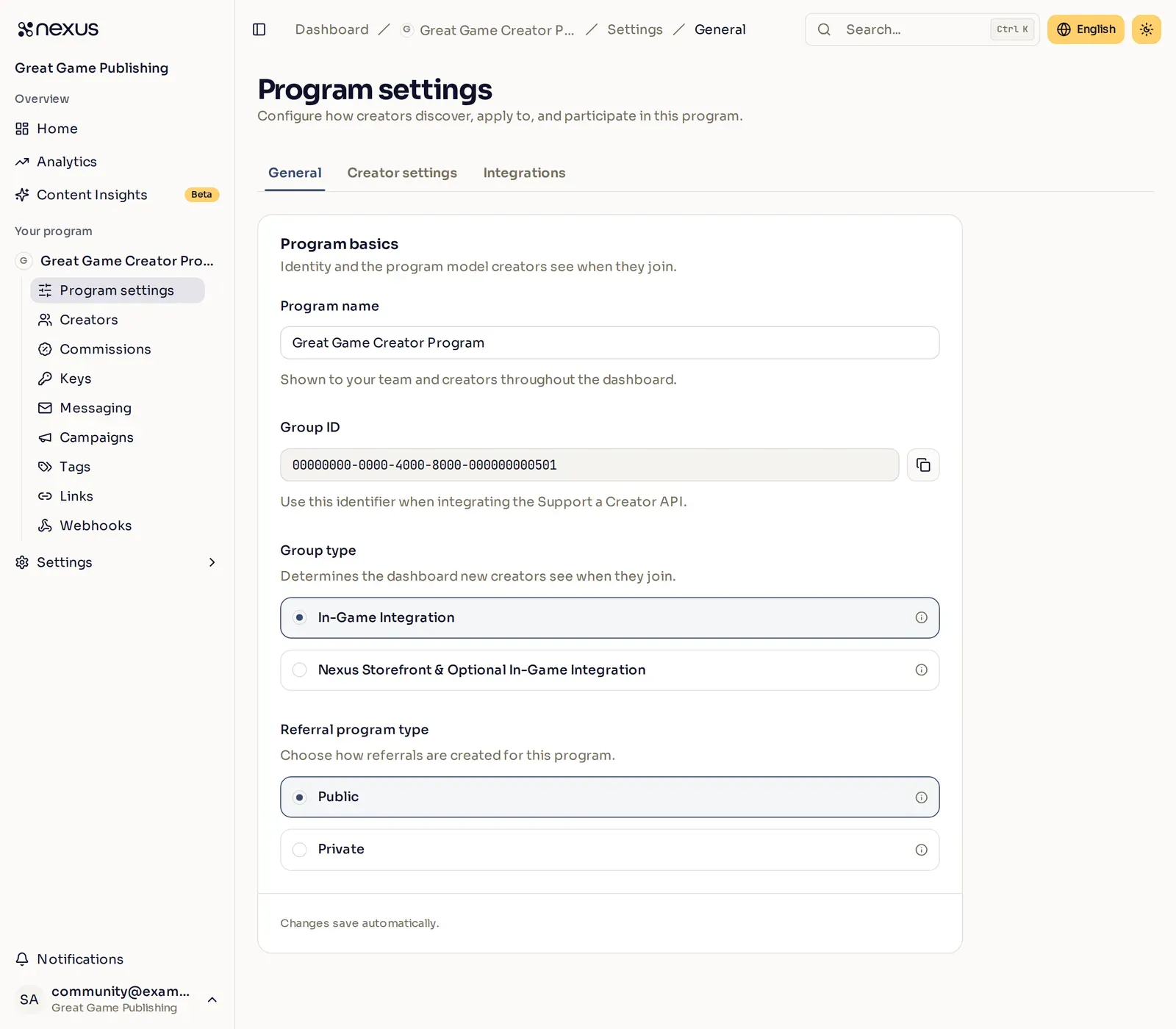
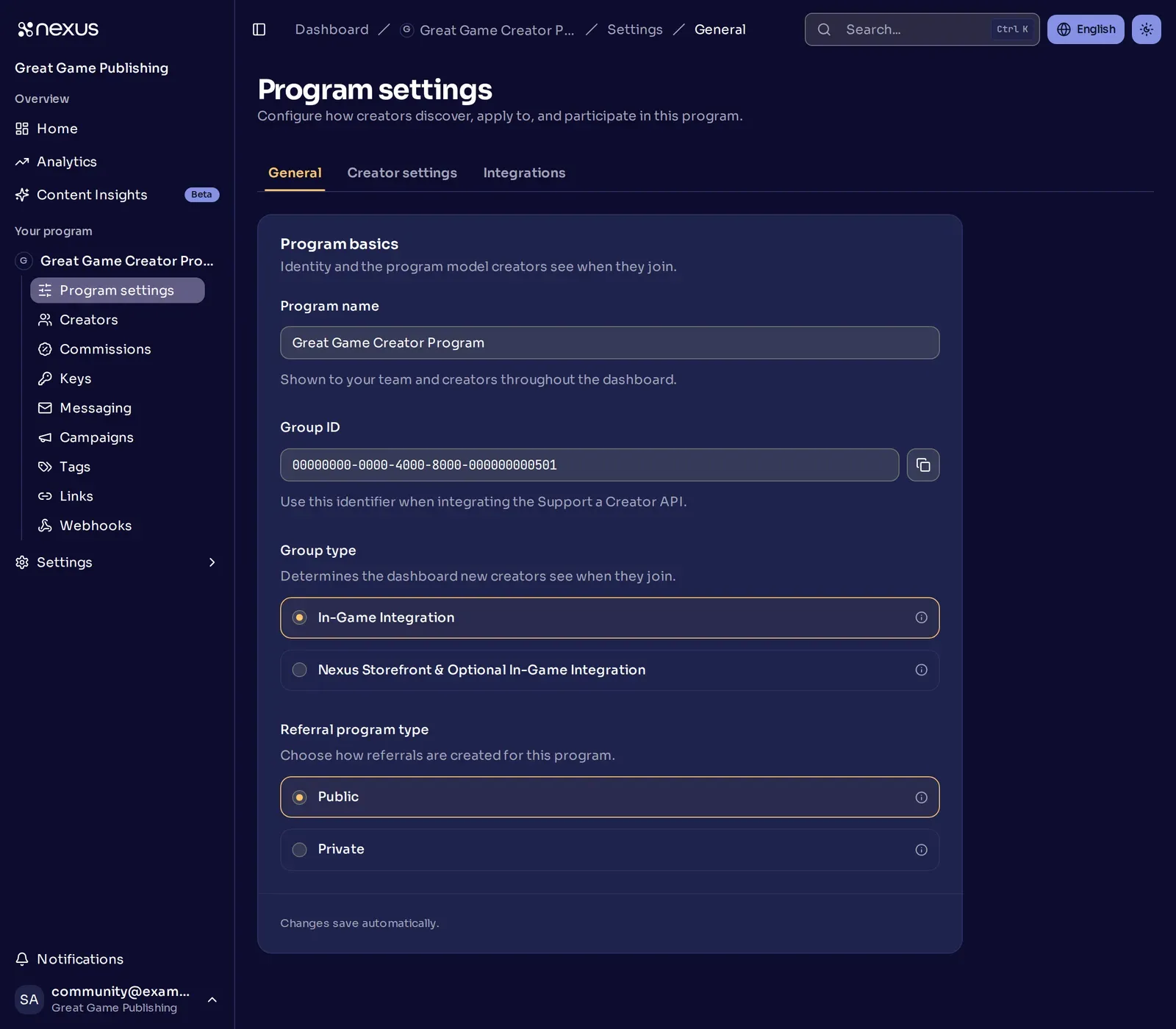
Changes on the General and Creator settings tabs save as you make them, so those cards have no Save button. When you turn a switch on or off, a message offers Undo for a few seconds. Panels that open from a card have their own save button.
Choose what creators provide
Section titled “Choose what creators provide”The first card on the Creator settings tab, Application requirements, decides what a creator gives you to apply.
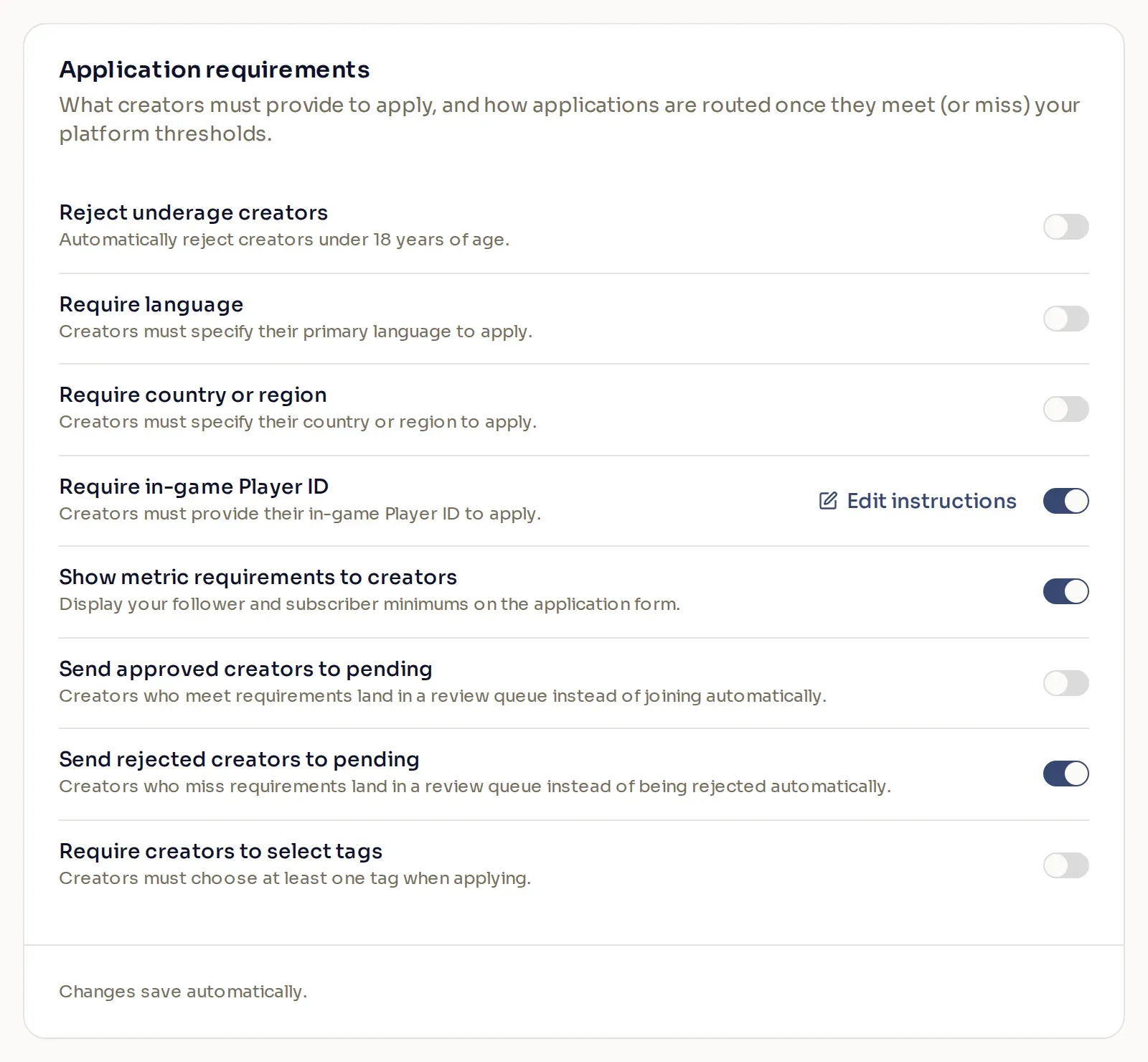
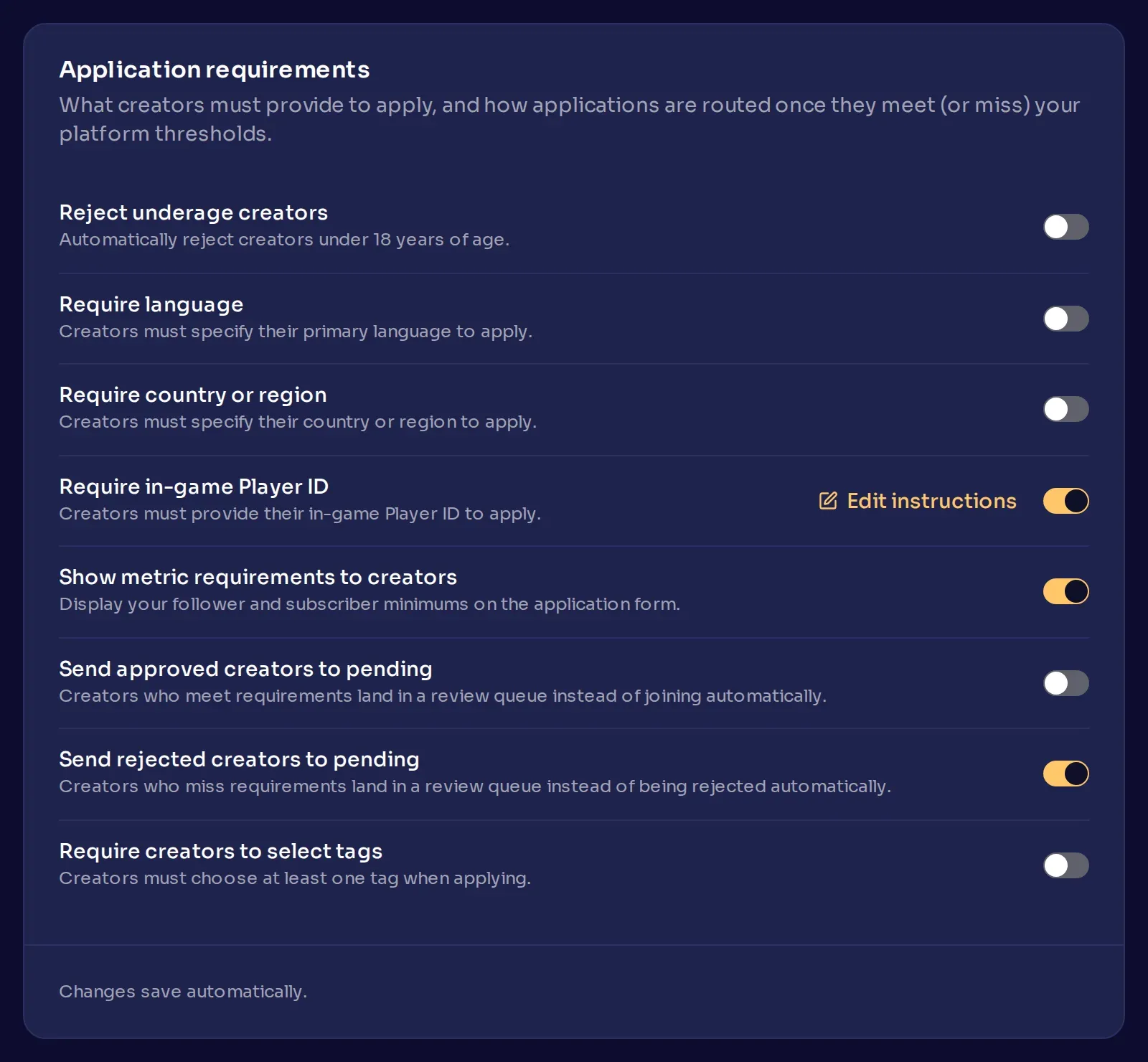
- When Nexus checks an application, Reject underage creators denies applicants it identifies as under 18 and tells them “Creators must be at least 18 years of age to apply.”
- Require language and Require country or region ask creators who sign up for Nexus through your program for their language and their country or region.
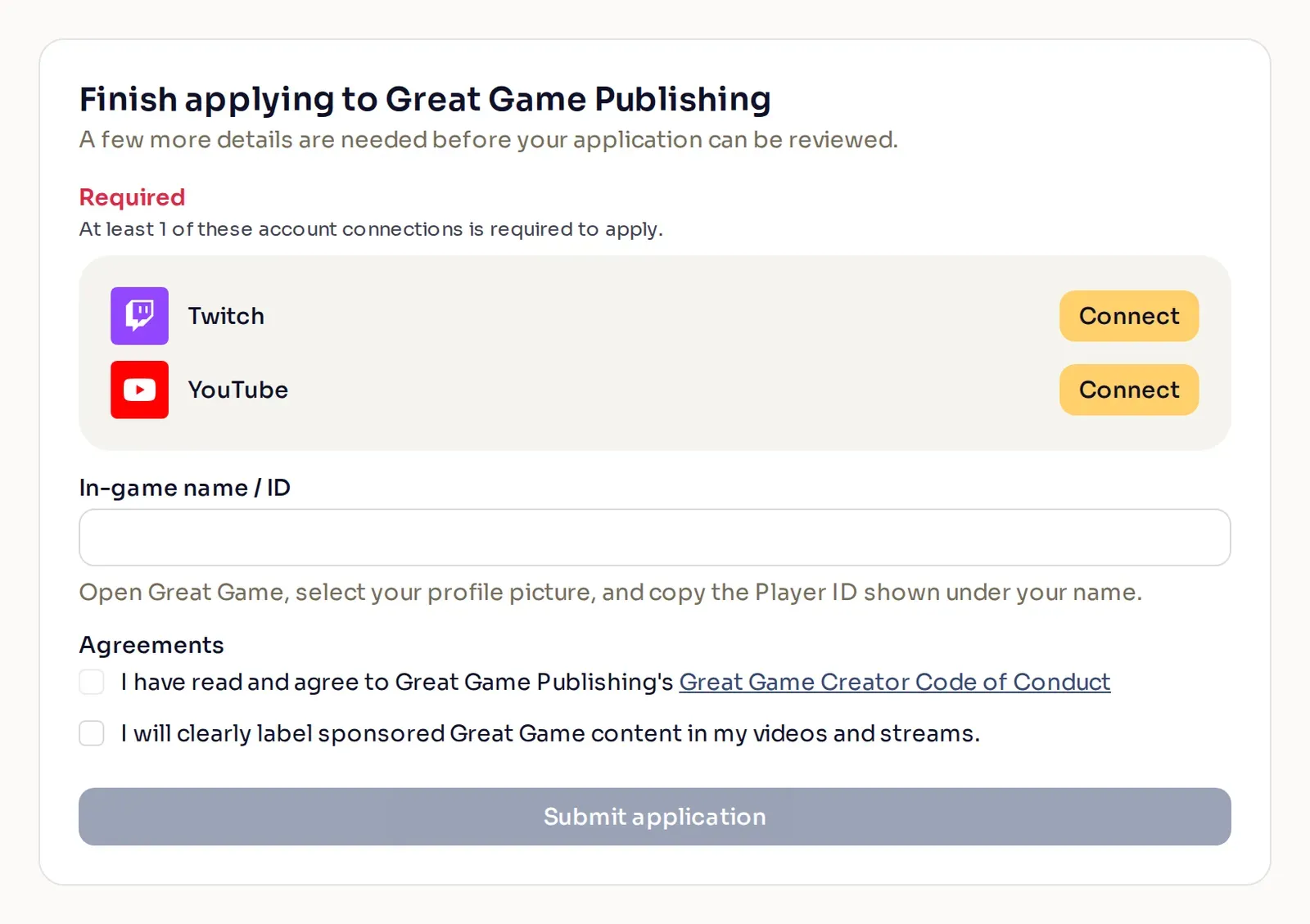
- Require in-game Player ID asks applicants for the ID they use in your game, so you can match a creator to their in-game account. To tell creators where to find the ID, select Add instructions (Edit instructions once you have added some), then Save instructions.
- Require creators to select tags asks applicants to pick at least one tag. They choose from the tags you set to Allow creator selection on the Tags page, so create those first.
Creators already in your program get a reminder on their dashboard to add a Player ID, tag, language, or country that you start requiring.
Choose which applications you review
Section titled “Choose which applications you review”When a creator applies and at least one platform is on, Nexus checks the accounts they connect against your platform requirements and decides on the application for you. Two switches on the same card hold applications on the Pending tab of Creators instead, where you approve or deny them yourself:
- Send approved creators to pending holds creators who meet those requirements, instead of letting them join right away.
- Send rejected creators to pending, on by default, holds creators who fall short of those requirements, instead of denying them.
Let creators apply again
Section titled “Let creators apply again”On the Creator codes and cooldowns card, Rejected creator cooldown sets how long a denied creator waits before they can apply again. Removed creator cooldown sets the wait offered when you remove a creator, and you can choose a different one for that creator then.
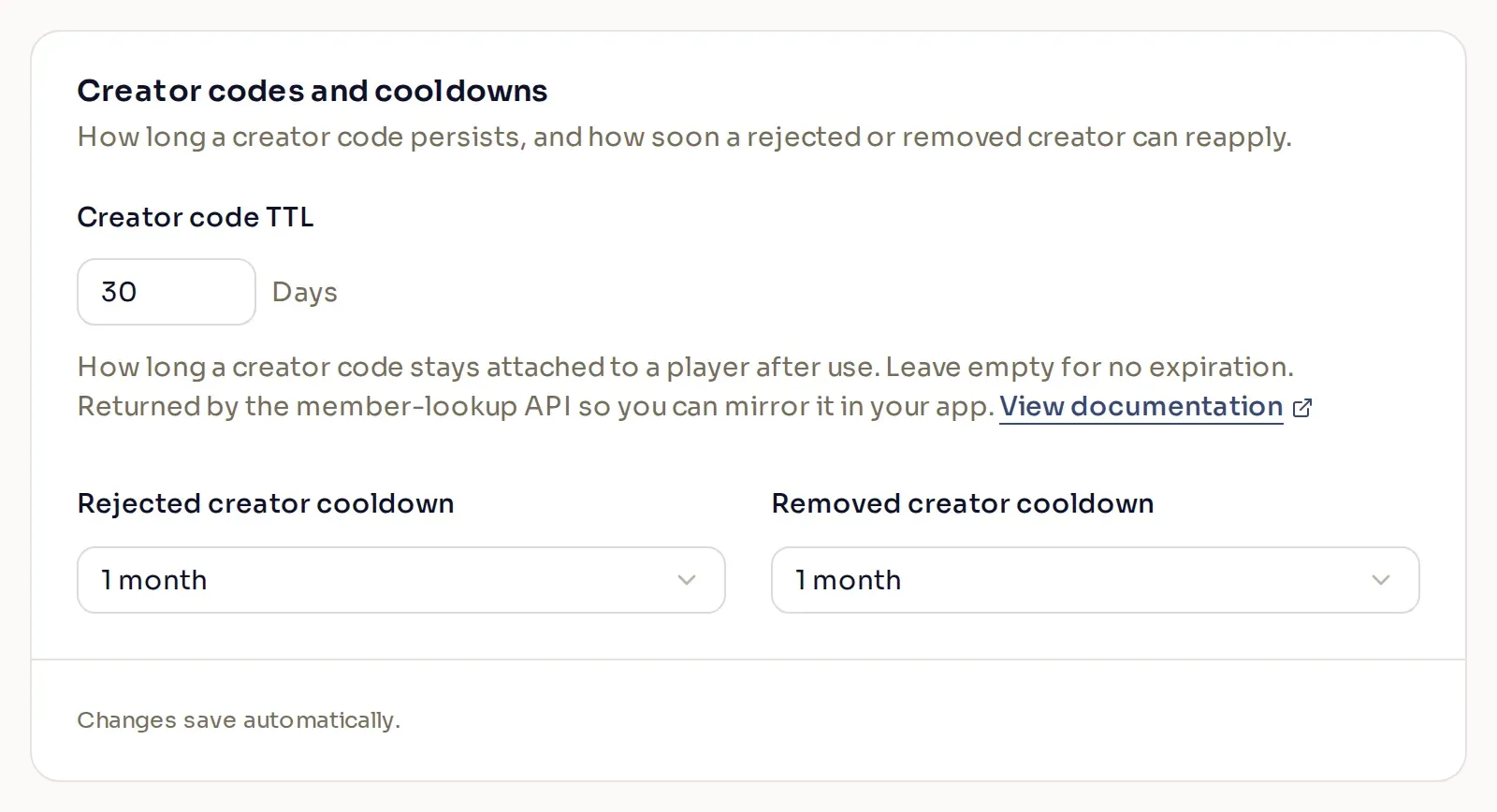
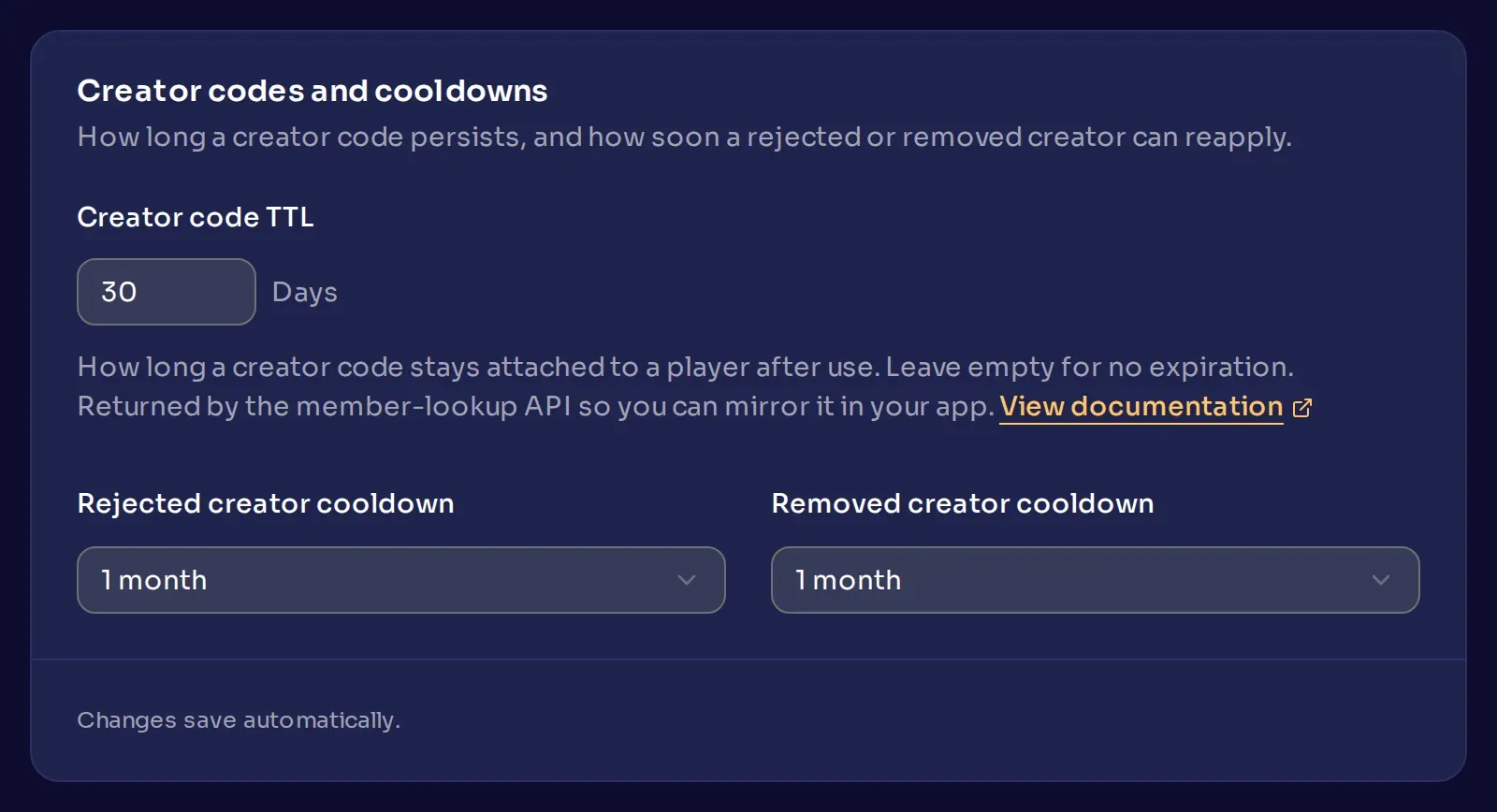
Both start at 1 month. Choose None to let creators apply again right away, or Never to stop them.
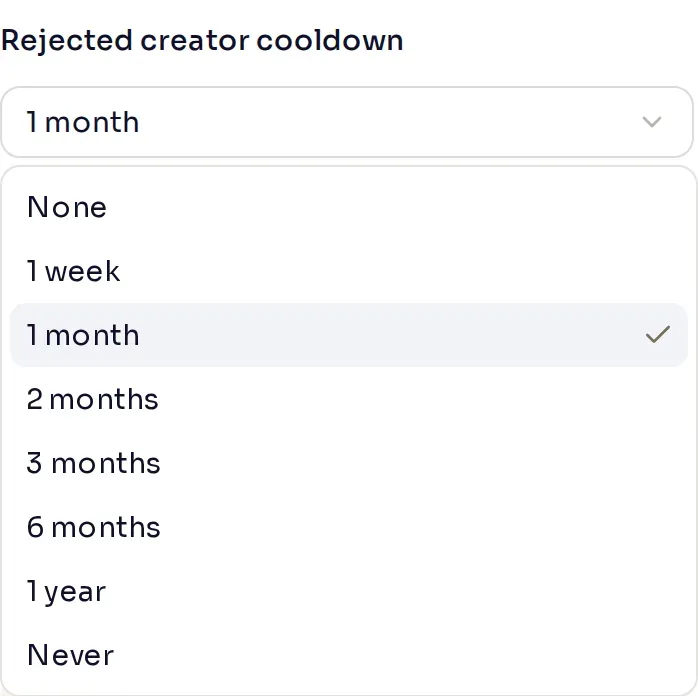
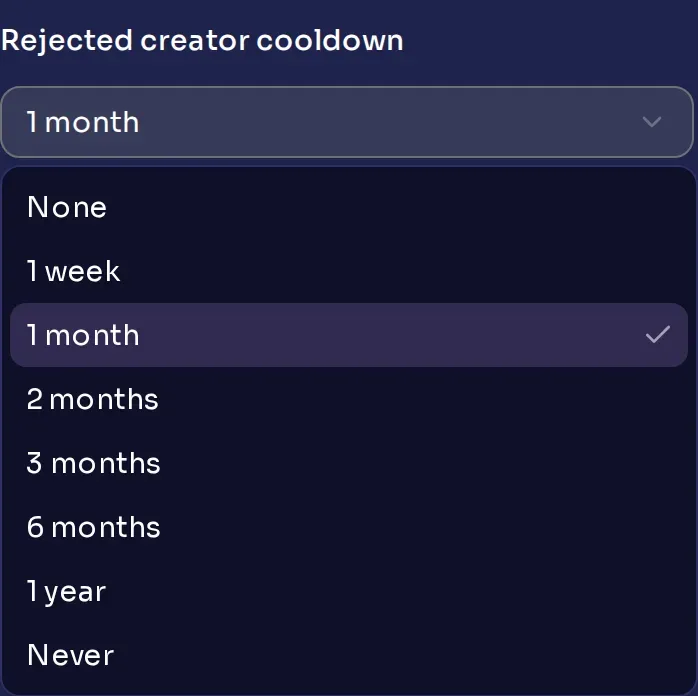
A change to Rejected creator cooldown also applies to creators already denied, counted from the day they were denied.
Creator code TTL is for your developers. Code time to live (TTL) explains it.
Set your program’s name and type
Section titled “Set your program’s name and type”These are on the General tab.
- Program name saves when you click out of the field. Your Permalink, an invite link under Creators > Invite Creators that only publisher-wide Admins see, is made from the program name. Renaming the program changes the Permalink, and one you already shared stops working, so settle the name before you share it.
- Group ID and Referral program type are for your developers, who use them with the Nexus API.
- Group type sets the account a creator gets when they sign up for Nexus through your program. With In-Game Integration (the default) they get no storefront of their own, and with Nexus Storefront & Optional In-Game Integration they get their own Nexus storefront.
What creators see
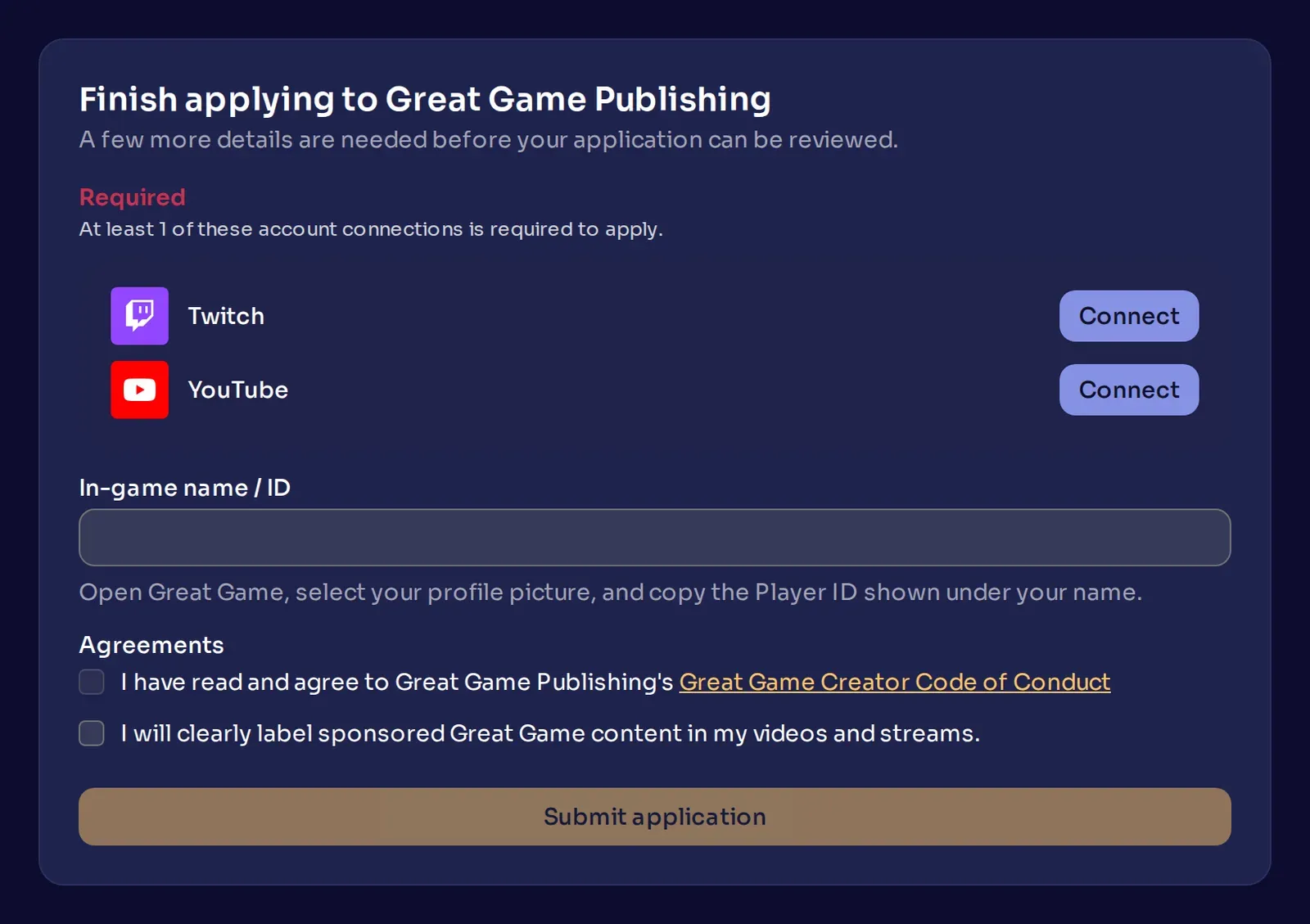
Section titled “What creators see”When a creator applies through an invite link, Nexus asks for what it still needs from them. That can be a connected account, their Player ID, a tag, or acceptance of your agreements. On the invite form, the Player ID field reads In-game name / ID, with your instructions under it. Creators signing up for Nexus see it as Player ID.
Once they submit, they see whether they have joined, are waiting for review, or were denied. During a timed cooldown, a creator who opens your invite link again sees how many days are left.
Next steps
Section titled “Next steps”When your settings are ready, invite creators from Creators > Invite Creators.