Platform requirements let Nexus approve creators for you. You choose the platforms creators connect to apply and, for Twitch, YouTube, and TikTok, the minimum followers, subs, or viewers a creator needs to join and to reach each tier. You set them on the Connected platforms card of the Creator settings tab in Program settings. Set application requirements covers who can open it and how saving works.
Prefer to watch? Here is the tutorial video.
Before you start
Section titled “Before you start”Tiers let you pay groups of creators different rates. To place creators in tiers, create the tiers first under Commissions > Creator tiers (Revenue Shares in a revenue-share program).
Choose platforms
Section titled “Choose platforms”Turn on each platform creators can connect to apply. Creators must connect at least one of them. A new program starts with Twitch and YouTube on and no requirements set. Until you set some, applications wait on the Pending tab of Creators while Send rejected creators to pending is on, as it is at first. With every platform off, Nexus checks nothing, and every application waits there.
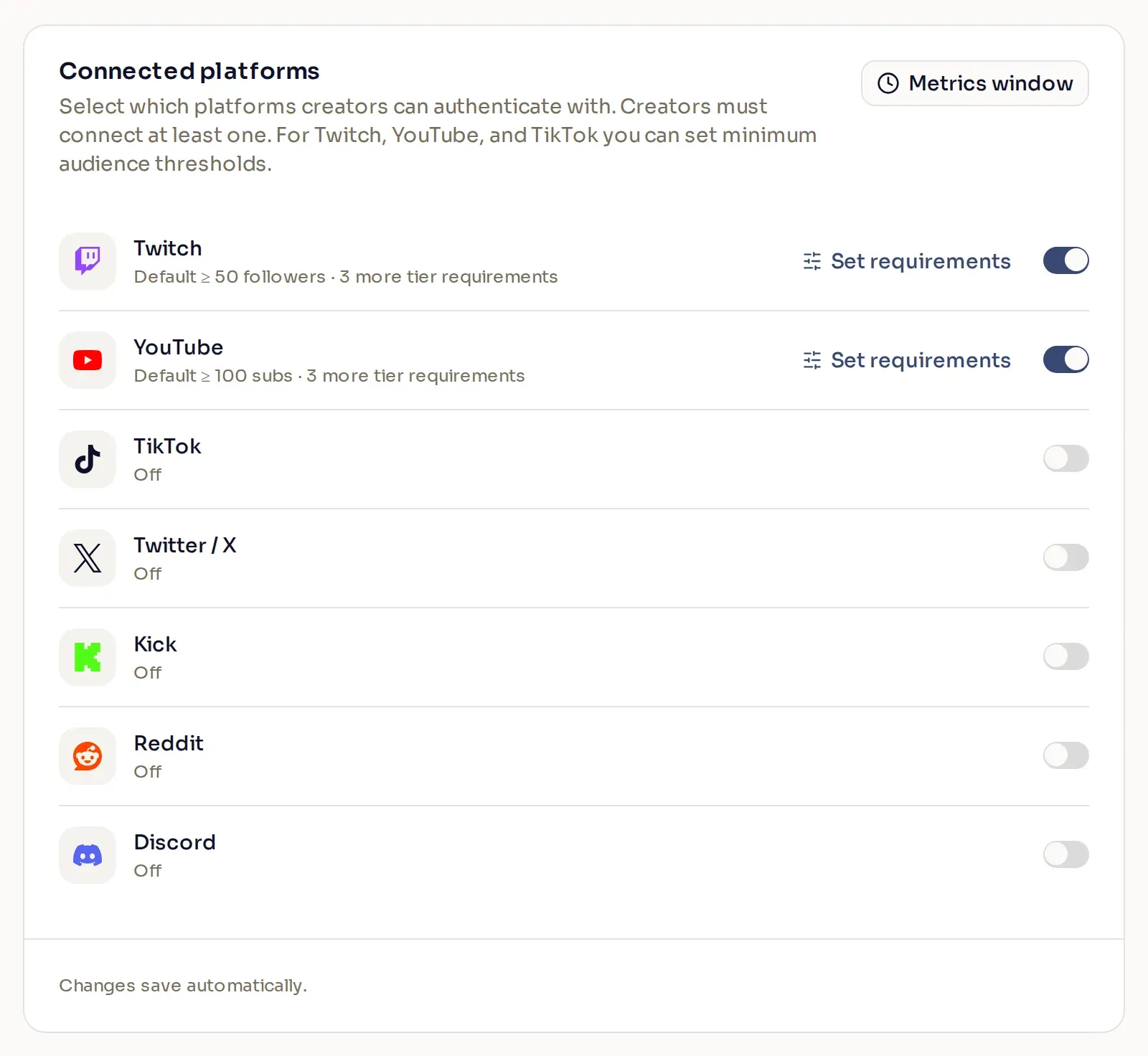
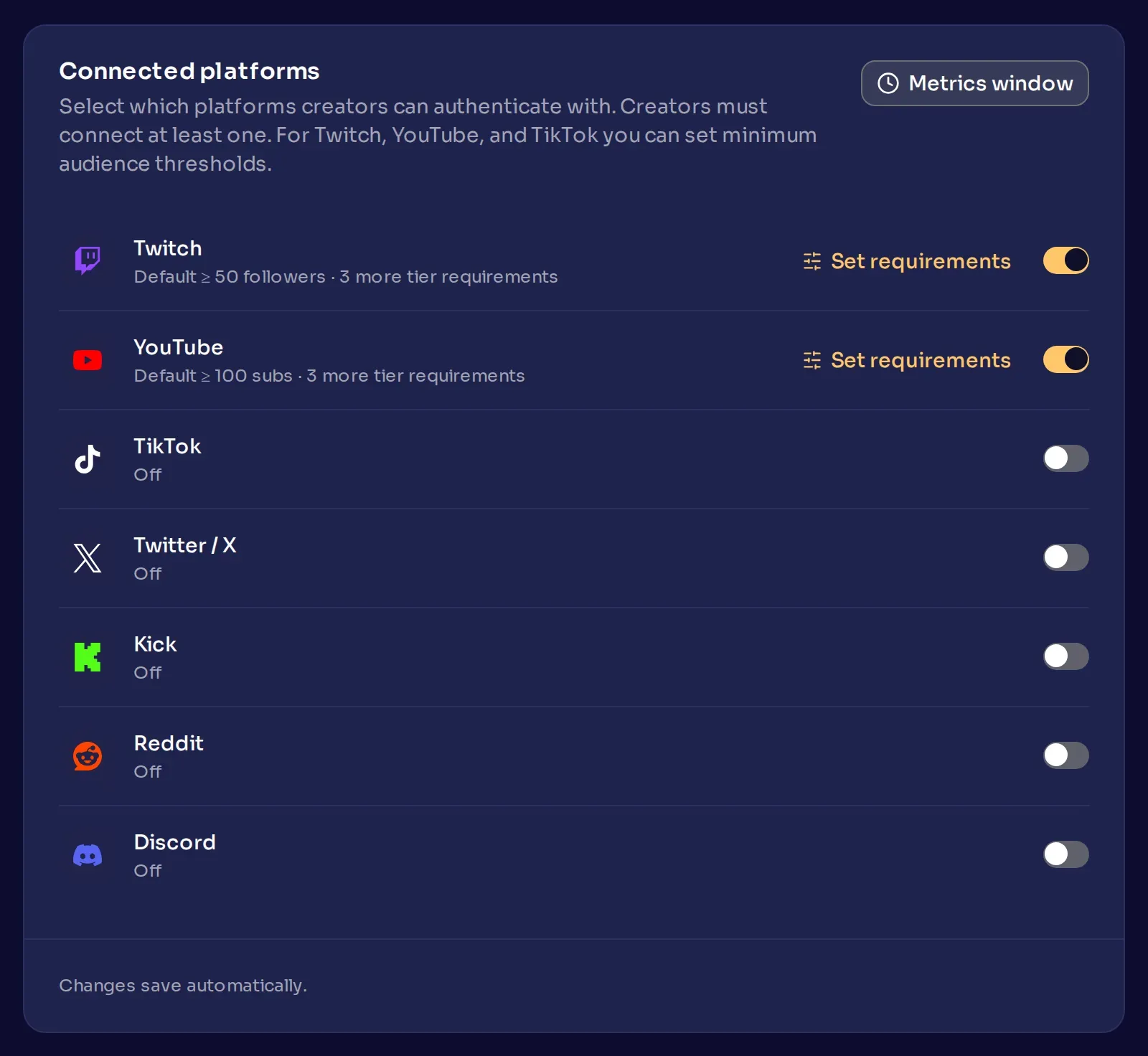
Twitter / X, Kick, Reddit, and Discord show Authentication only when on: creators can connect them, but there are no requirements to set. The Discord switch is for creators’ Discord accounts. The Discord bot is on the Integrations tab.
Set requirements
Section titled “Set requirements”-
Open the requirements. Select Set requirements on a platform you turned on. The panel lists a Default row first, then each of your tiers with its commission (rev share in a revenue-share program).
-
Tick the rows to use. Default sets what a creator needs to qualify without a tier, and each tier row sets what they need to qualify for that tier. Unticked rows are left out of the check, and with no row ticked, no creator meets your requirements.
-
Set the minimums. In each ticked row, tick each minimum you want Nexus to check and enter a number for it:
- Twitch: followers, subs, and CCV (average concurrent viewers)
- YouTube: subs and AVV (average views per video)
- TikTok: followers and AVV
A creator meets a row by meeting any one of its ticked minimums. A minimum of 0 accepts any creator who connects the platform, and so does a ticked row with no minimum ticked. Give every ticked tier row at least one minimum, then select Save.
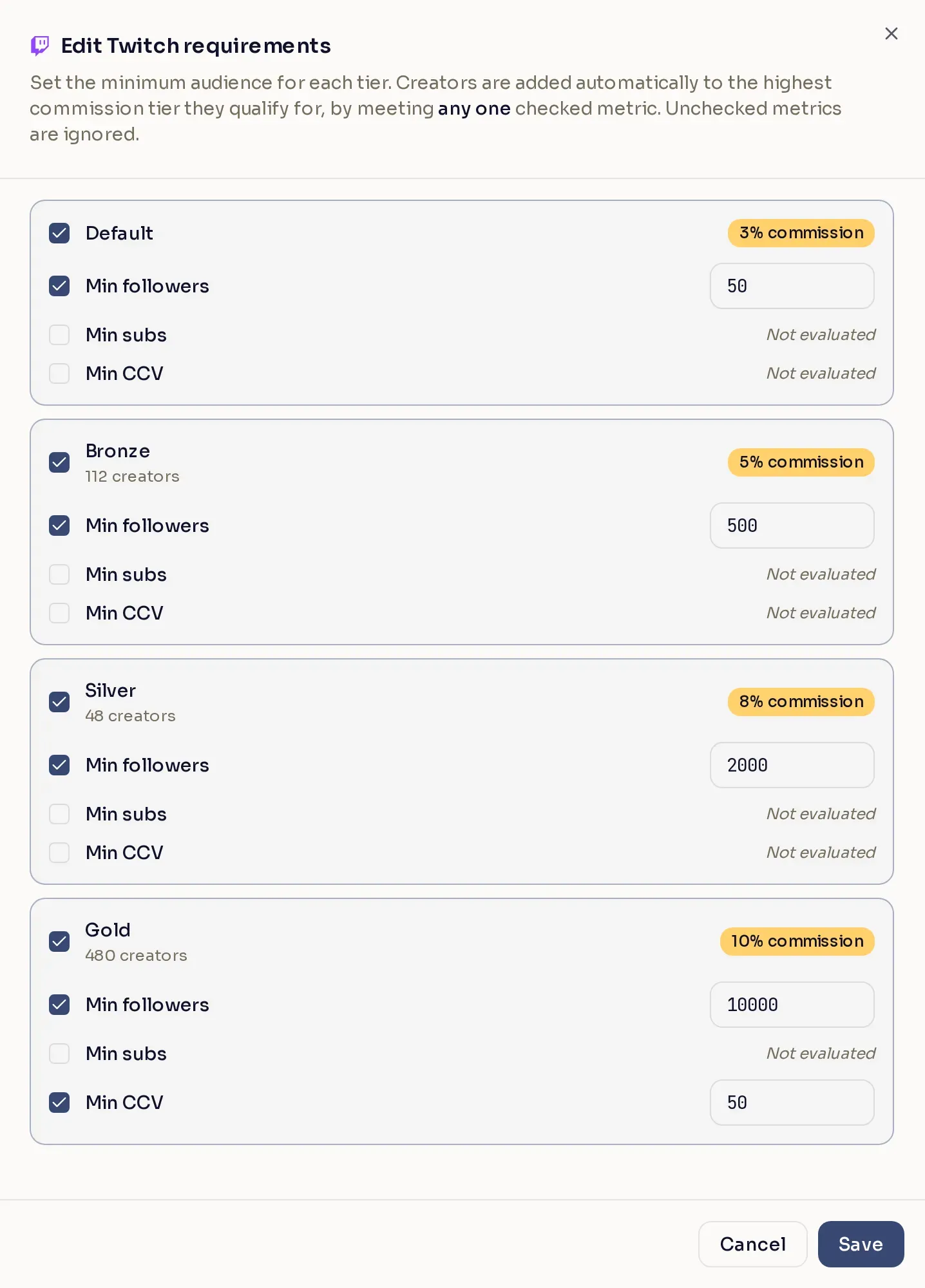
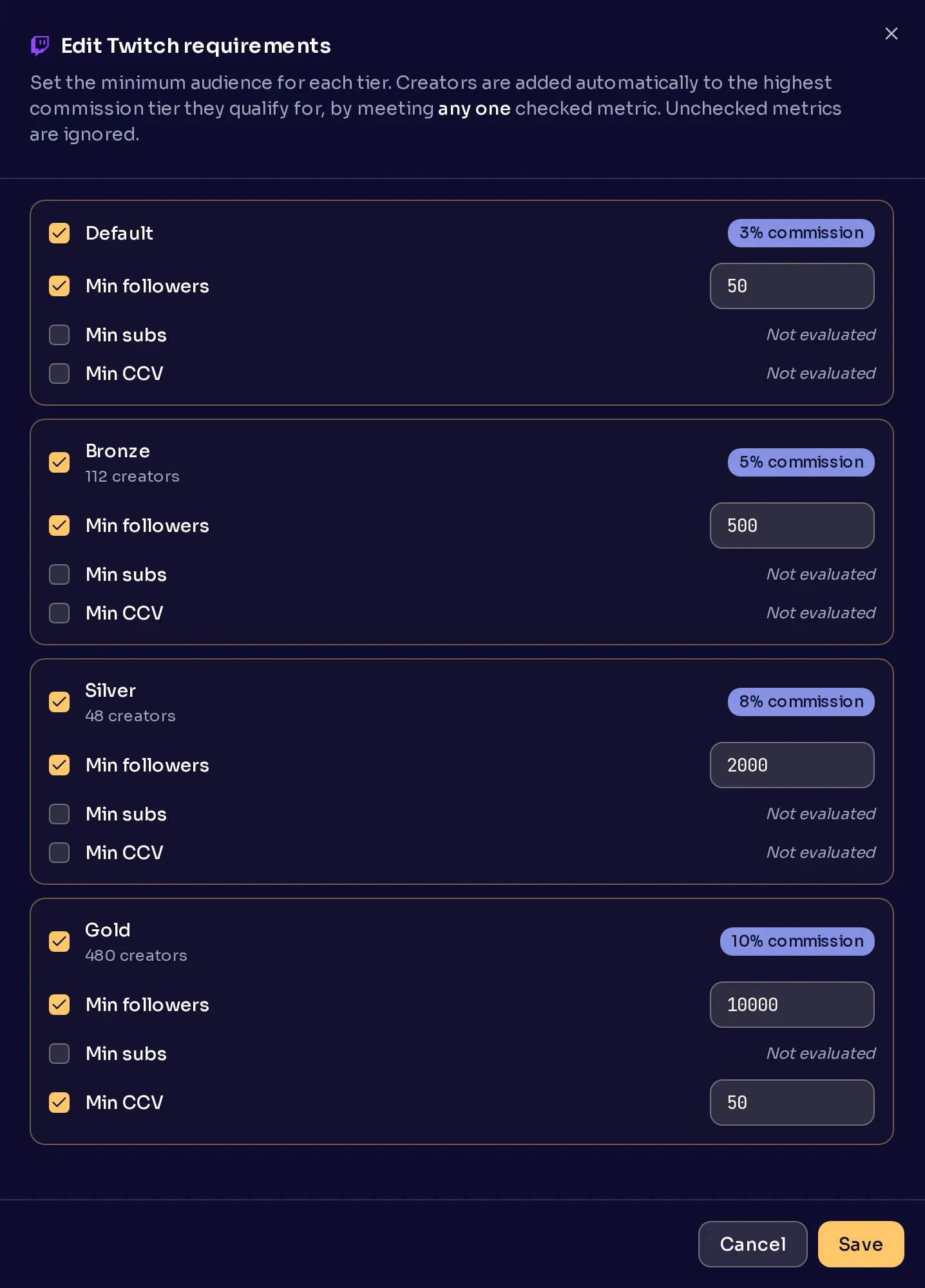
Here, a Twitch creator with 3,000 followers and 20 CCV meets the Default, Bronze, and Silver rows, not Gold. Nexus places them in Silver, the tier with the highest rate they qualify for. A creator with 20 followers and 5 CCV meets no row, so by default they wait in Pending.
Metrics window sets how many days YouTube and TikTok AVV is averaged over: 30, 60, or 90 (the default). Twitch CCV always uses 90. Choose the window before you set AVV minimums.
How Nexus decides on an application
Section titled “How Nexus decides on an application”When a creator applies, Nexus checks the accounts they connected against your requirements. A creator qualifies for the highest-rate tier whose row they meet on any platform, or without a tier if they meet only a Default row. Creators who qualify join right away, or wait in Pending while Send approved creators to pending is on. Creators who do not qualify are denied. They wait in Pending while Send rejected creators to pending is on, or when they connected a platform with no requirements that you turned on. Nexus also denies some applications whatever these switches say, such as one using a Twitch, YouTube, or TikTok account that another applicant to your program already connected.
To decide yourself, review the application on the Pending tab of Creators.
Choose how creators are approved
Section titled “Choose how creators are approved”Use your minimums with the pending switches on Set application requirements:
| You want to | Set it up like this |
|---|---|
| Review creators who miss your minimums | Keep Send rejected creators to pending on |
| Deny creators who miss your minimums | Turn off Send rejected creators to pending |
| Review creators who meet your minimums too | Turn on both pending switches |
| Let creators of any size qualify | Tick Default with a minimum of 0 |
To skip the check for creators you choose, share an invite link with Auto-accept applications on. They still connect one of your platforms. Invite creators with a link covers how.
Change requirements later
Section titled “Change requirements later”A change applies to applications Nexus checks from then on, and creators already in your program keep their place. To check the creators waiting in Pending against new requirements, select Reevaluate pending creators on the Pending tab.