You can send game keys straight to the creators in your program, without running a campaign. Use Send keys to get a launch bundle to your creators, reward one tier of creators, or give one creator some keys for a giveaway. You upload keys to a key list, choose who gets them, and send them now or at a time you pick. A key list can also send keys automatically to every new creator who joins.
This short video walks through the same steps as this page:
Before you start
Section titled “Before you start”Only program Admins can add and send keys. If Keys is missing from your sidebar, ask an Admin on your team to give you Admin access for this program.
Keys works on the program you have selected in the dashboard. To send keys by tier or by tag, set them up first under Commissions > Creator tiers (Revenue Shares in a revenue-share program) and under Tags.
Open Keys
Section titled “Open Keys”Open Keys in the Publisher Dashboard. It has two tabs: Key lists holds your keys, and Send keys is where you send them.
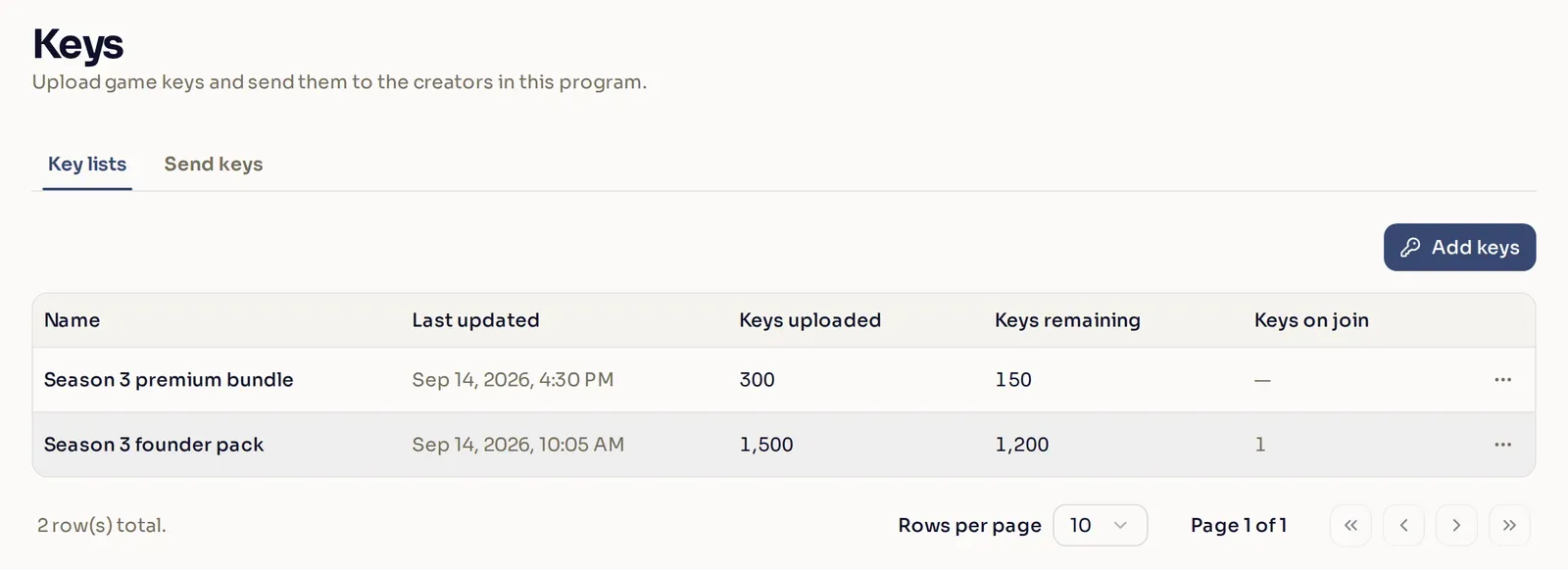
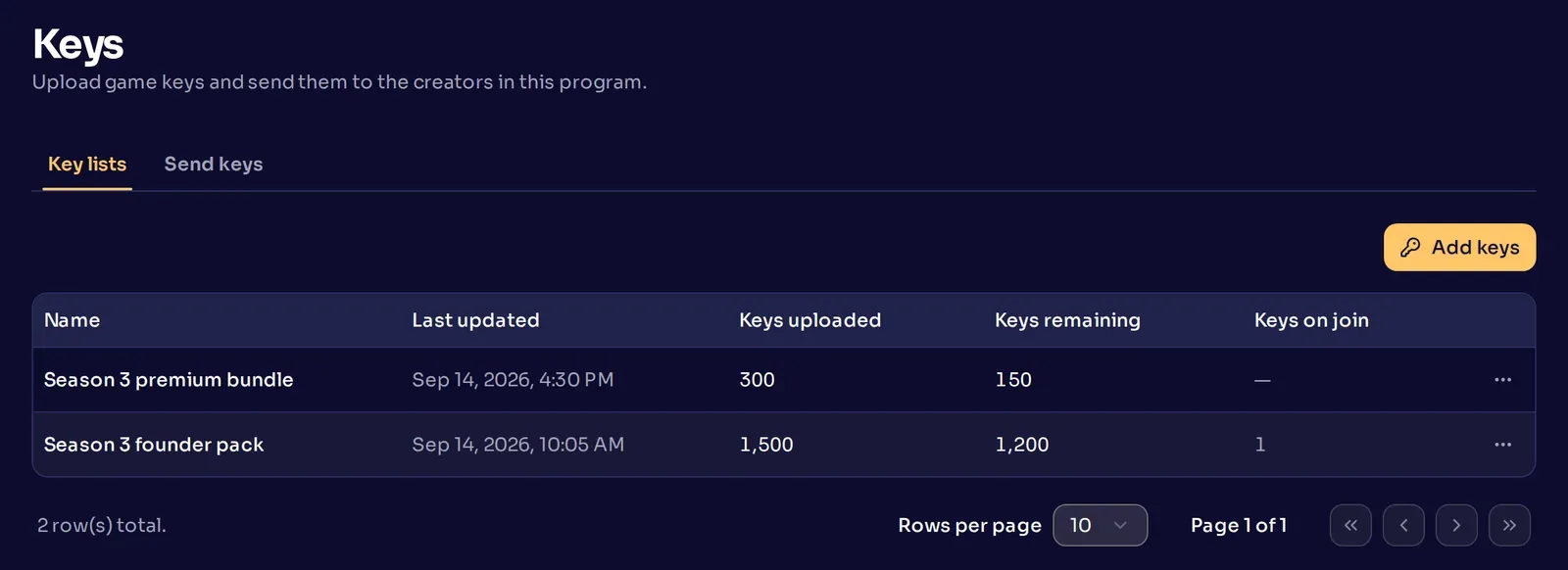
Keys remaining is how many keys in the list have not been sent yet. Keys on join is how many keys each new creator gets automatically, or a dash if the list does not send any.
Add a key list
Section titled “Add a key list”A key list is one batch of keys for one thing you give away, such as a founder pack or a premium bundle.
-
Open the dialog. On the Key lists tab, select Add keys.
-
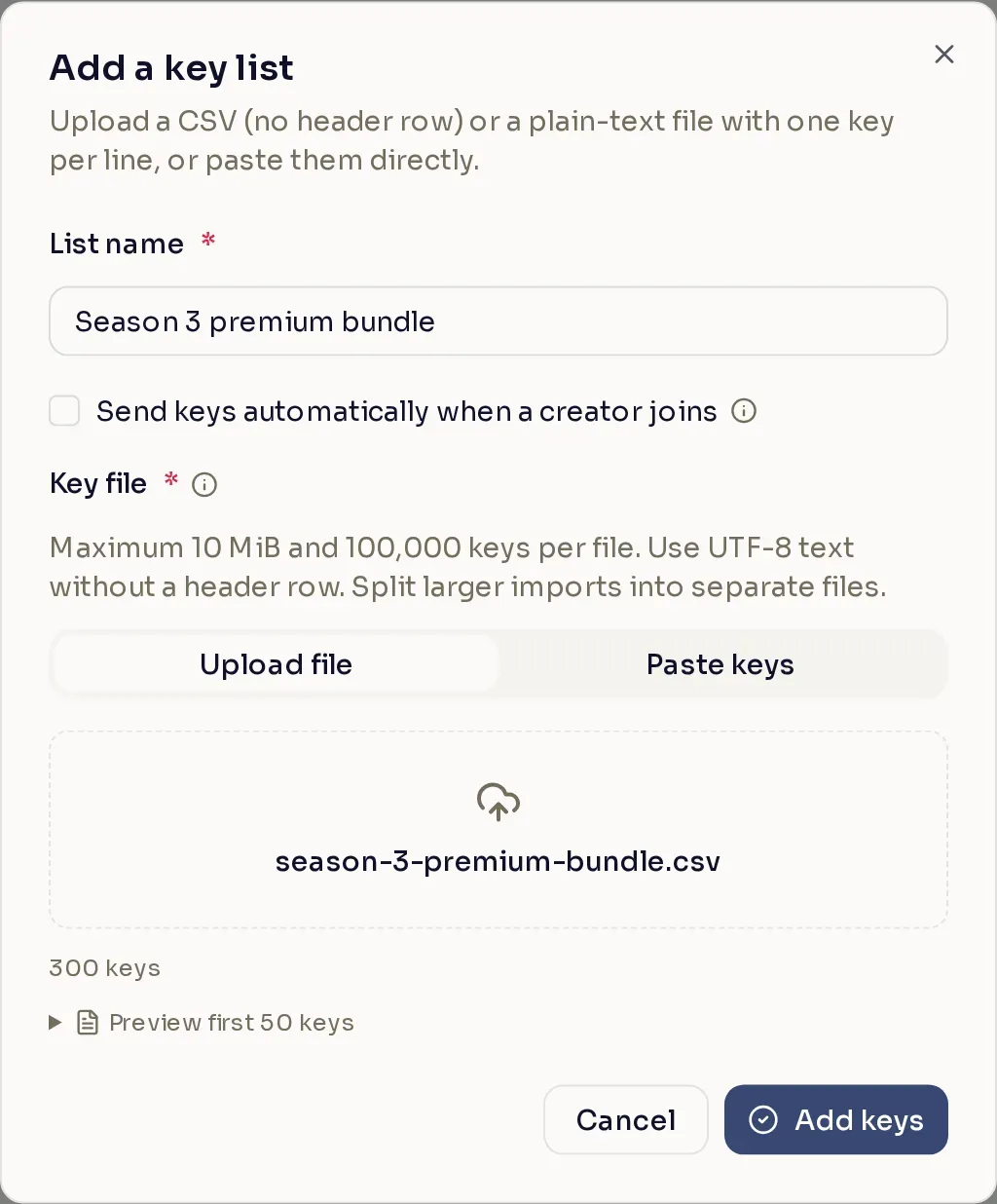
Name the list. Enter a List name. Creators see this name above their keys, in the email and on their Keys page, so choose one they will understand, such as “Season 3 founder pack”. Each key list in a program needs its own name.
-
Send keys to new creators (optional). Tick Send keys automatically when a creator joins, then set Keys per new member. Send keys when a creator joins explains how it works.
-
Add the keys. Under Key file, choose Upload file to pick a file, or Paste keys to paste them in. The dialog shows how many keys it found, and you can preview the first 50.
- Put one key per line, with no header row. A CSV must have only one column.
- A file can be up to 10 MiB and hold up to 100,000 keys. Split a bigger batch into several files and add the rest to the list afterwards.
- Each key can be up to 1,024 characters.
-
Save the list. Select Add keys. The list appears on the Key lists tab.
Nexus skips any key that is already in the list or appears twice in your file. Download duplicates saves the skipped keys as a CSV. Keys that differ only in letter case or accents count as the same key, so if your upload is rejected, remove those from the file.
Add more keys to a list
Section titled “Add more keys to a list”Open the list’s row menu and select Edit. Upload a file or paste keys, then select Save. Nexus adds the new keys to the ones already in the list. You can also rename the list here, or change whether it sends keys to new creators.
Send keys when a creator joins
Section titled “Send keys when a creator joins”Some keys are for everyone in your program, like a founder pack you want every new creator to start with. Instead of sending them by hand, tick Send keys automatically when a creator joins on that list. From then on, every creator approved into your program gets the number of keys you set in Keys per new member.
- If several lists send keys to new creators, each new creator gets keys from all of them.
- If the list is empty when a creator joins, they get their keys as soon as you add more.
- If fewer than 20 keys are left when a creator joins, Nexus emails your publisher account once, so you have time to add more.
Send keys to creators
Section titled “Send keys to creators”Open the Send keys tab and select Send keys. You can also open a key list’s row menu and select Send keys to start with that list already added.
-
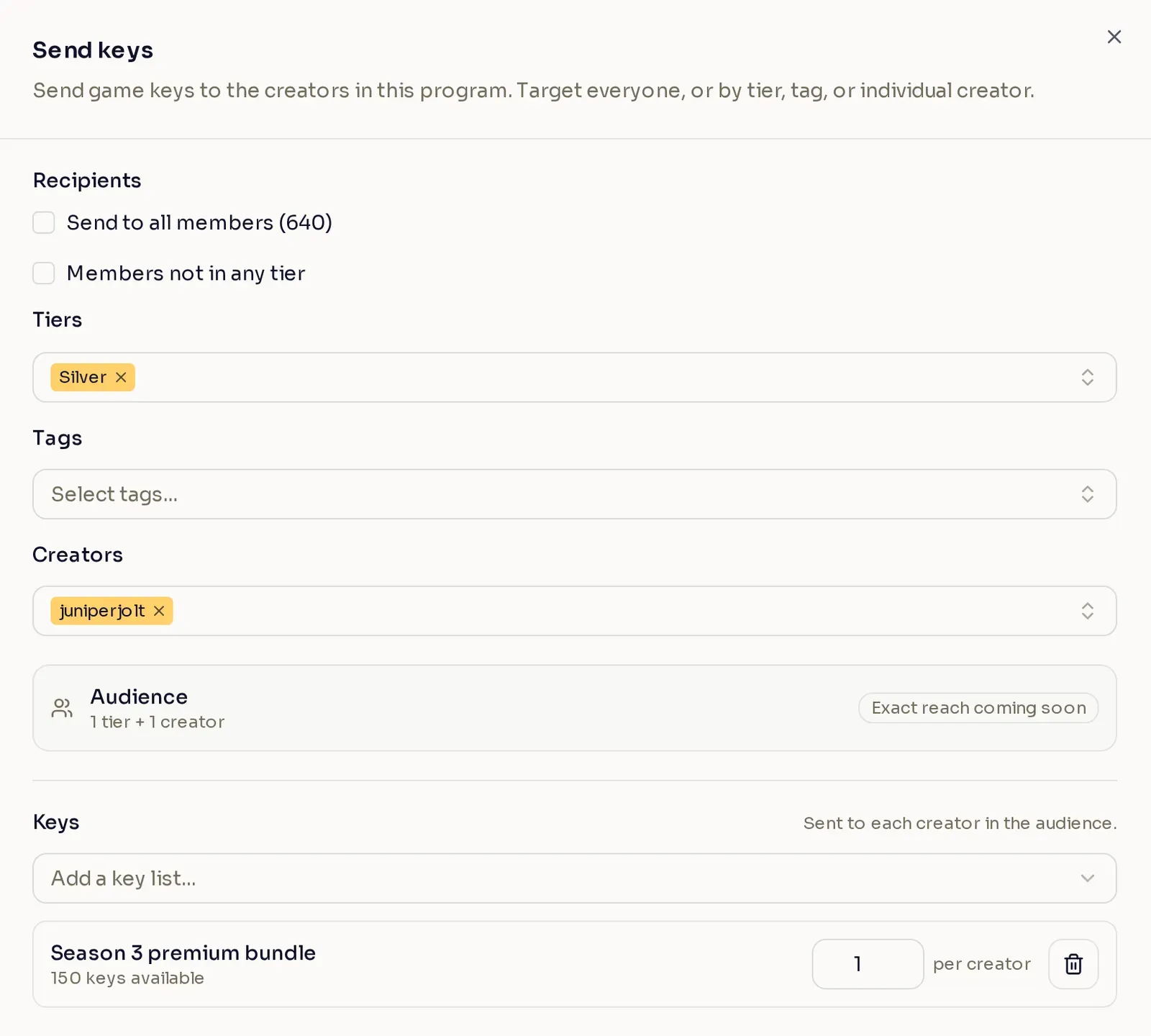
Choose who gets the keys. Under Recipients, tick Send to all members, or pick any mix of these:
- Members not in any tier
- Tiers, to send to every creator in the tiers you pick
- Tags, to send to every creator with the tags you pick
- Creators, to pick individual creators by name
Tiers and Tags only appear when your program has them. The Audience box under the pickers sums up what you chose. A creator who matches more than one of your choices still gets their keys only once. Only approved members of your program with an active Nexus account get keys.
-
Add keys. Under Keys, pick a key list from the menu. Set how many keys each creator gets from it (1 by default). You can add more lists, and each creator gets keys from every list you add.
Each list needs enough keys for everyone you are sending to: keys per creator times the number of creators. The Tiers and Tags menus show how many creators each one has. In the example above, you are sending to the 48 creators in Silver plus juniperjolt, so you need 49 of the 150 keys available. If a list is sure to run short, a warning appears under it.
-
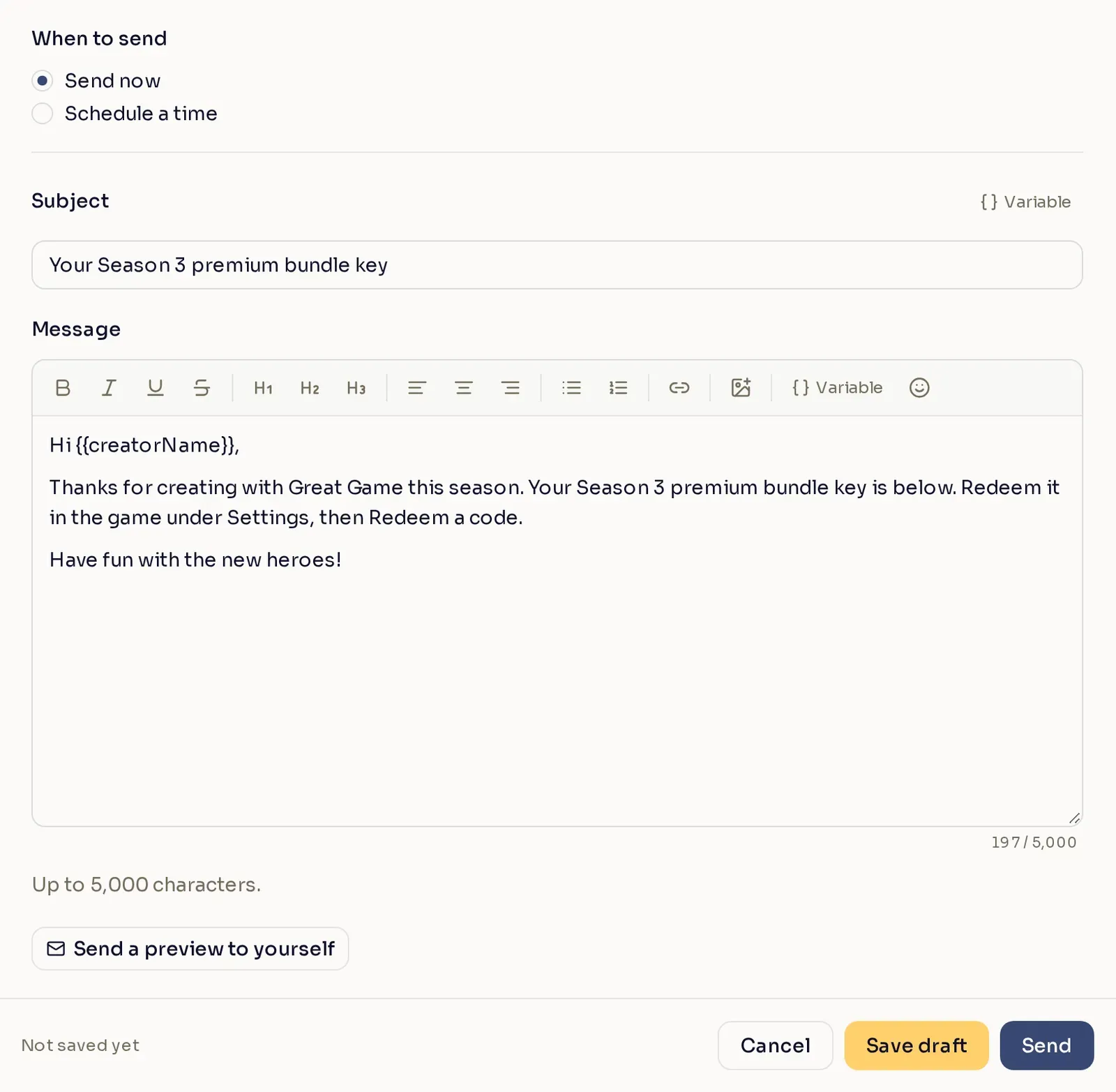
Choose when to send. Under When to send, keep Send now, or choose Schedule a time and pick a date and time in your own timezone.
-
Write the email (optional). Subject starts with a default that names your program, and you can change it. Write your Message with formatting, links, and images. To greet each creator by name, use the Variable menu in the subject or the message. Nexus adds the keys under your message, so do not paste them in. Use the message to tell creators what the keys are for and how to redeem them. A message can be up to 5,000 characters.
-
Send yourself a preview (optional). Select Send a preview to yourself to email a test copy to your own address. It needs at least one key list. The preview uses sample keys instead of real ones and your own name in place of the creator’s, and its subject starts with “(TEST)”.
-
Send. Select Send, or Schedule send if you chose a time. When you select Send, sending starts right away, so check everything first. If a key list does not have enough keys for everyone, nothing is sent, and a message in the panel names the list. To finish later instead, select Save draft.
Once it saves, a new row appears at the top of the Send keys tab.
Nexus locks in who gets the keys when you select Send, Schedule send, or Save draft. Creators who join a tier, get a tag, or leave your program after that are not added or removed. To update who gets keys you have scheduled, open the row and save it again before it goes out.
What creators receive
Section titled “What creators receive”Each creator you send to finds their keys on their Keys page in the creator dashboard, under Support a Creator. Each entry shows your program, the key list name, and when the keys were sent. Selecting an entry shows its keys. A key stays hidden until the creator selects the show button, and then they can copy it.
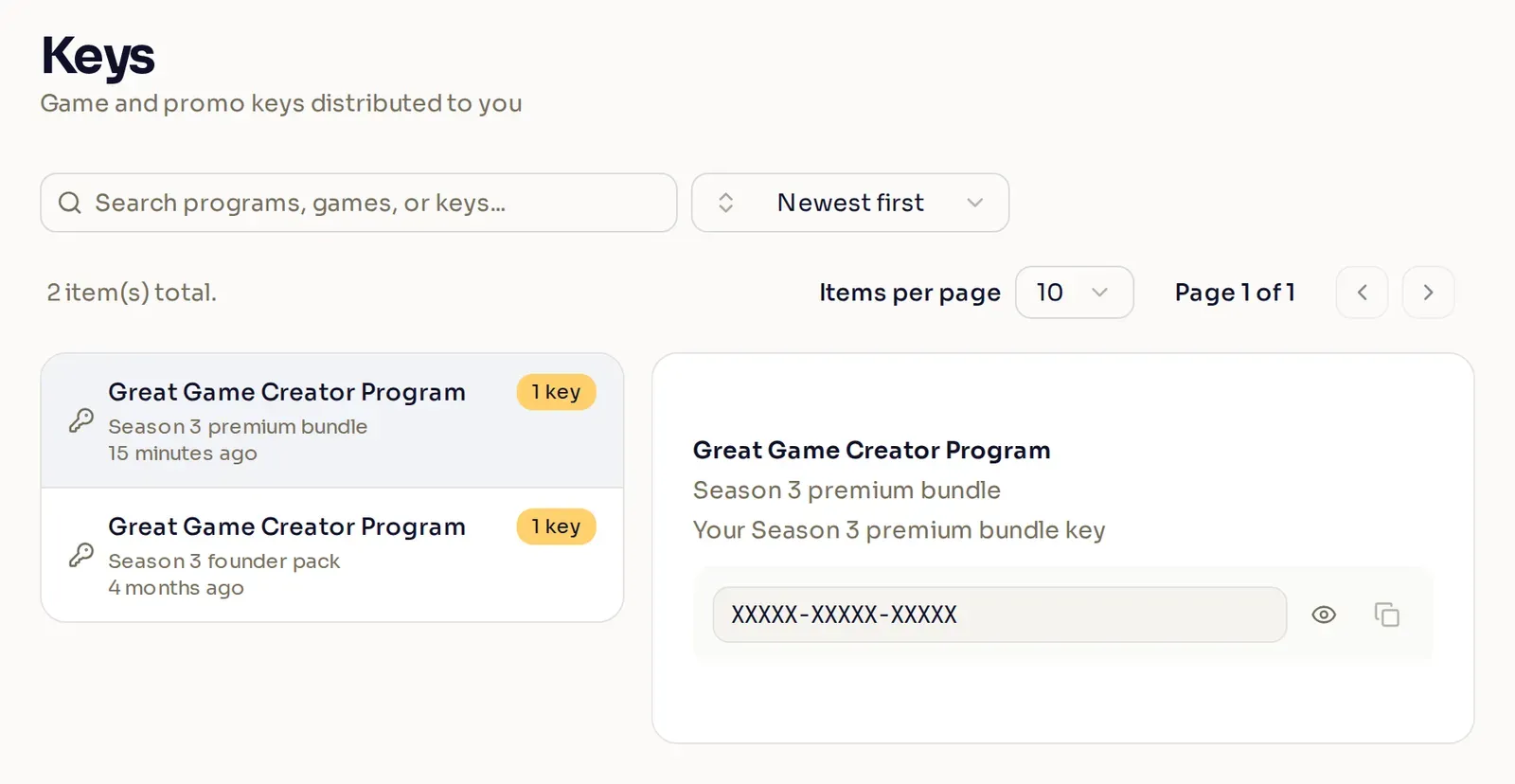
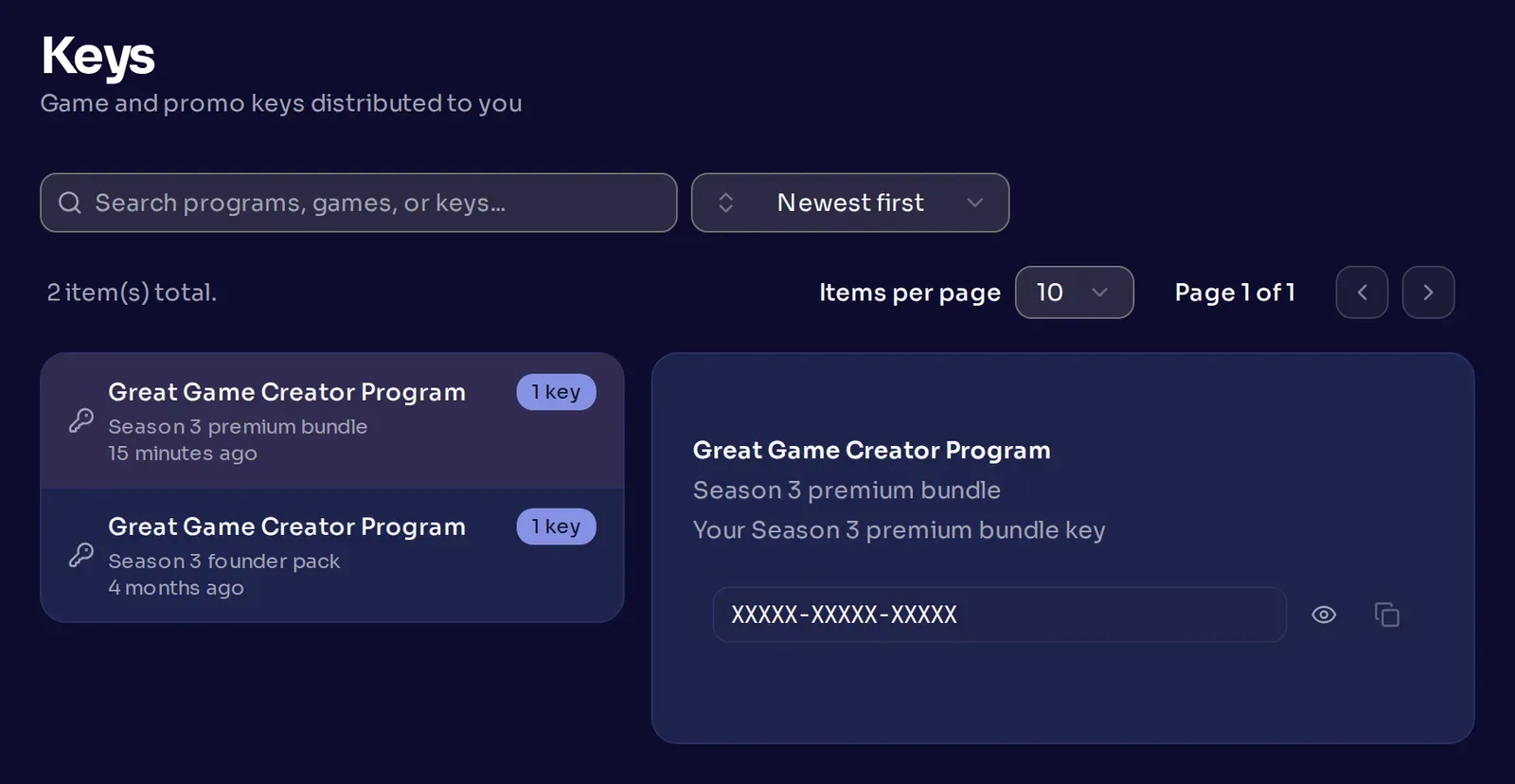
Nexus also lets the creator know:
- By email, with your subject, your message, and their keys under the key list name. The email goes out if the creator has an email address on their account and has not turned off key emails in their notification settings.
- In their Nexus messages, under Support a Creator > Messages, with a button that opens their keys.
- By Discord direct message from Nexus, linking to that message, if the creator has linked a Discord account and Discord allows the message.
Manage sent and scheduled keys
Section titled “Manage sent and scheduled keys”The Send keys tab lists everything you have sent, scheduled, or saved, newest first. ASAP in a row means Send now was chosen.
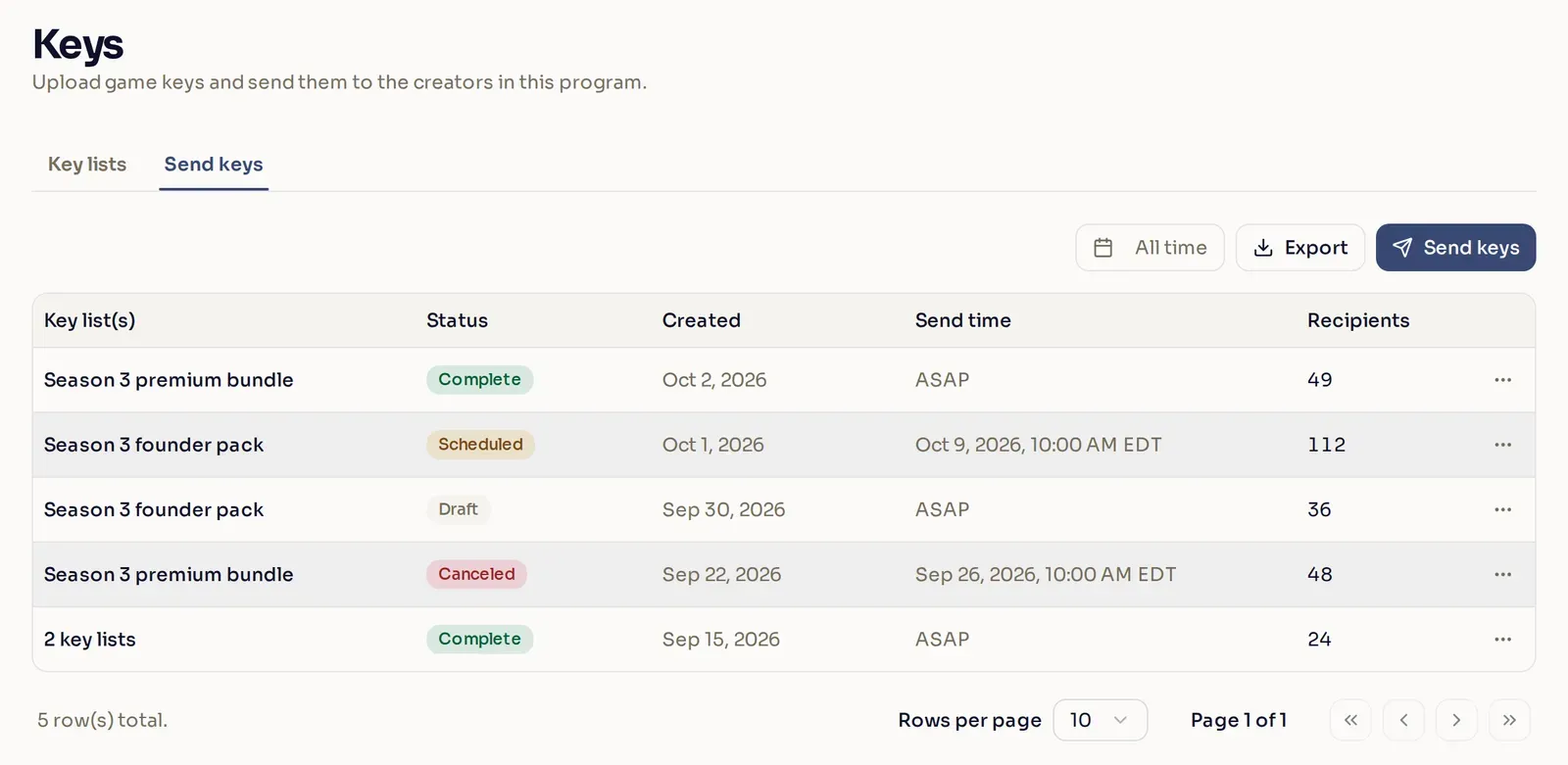
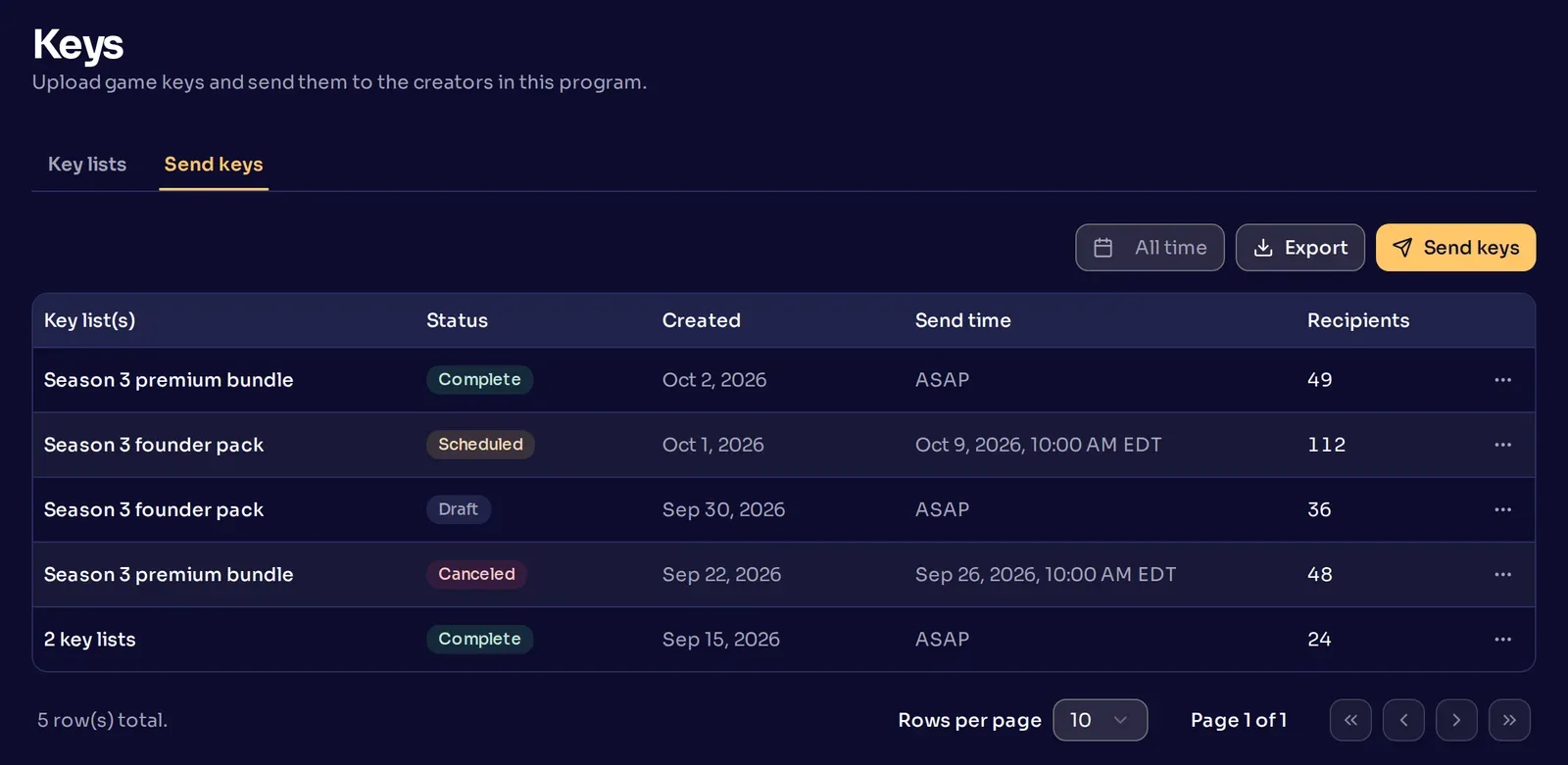
Select a row to open it. Drafts and scheduled sends open for editing, and the rest open read-only. Each row’s menu has the actions its status allows:
| Status | What it means | What you can do |
|---|---|---|
| Draft | Saved, not sent | Edit, send, duplicate |
| Scheduled | Waiting for its time | Edit, make draft, cancel, duplicate |
| Sending | Send now chosen, about to start | Same as Scheduled |
| In Progress | Sending now | View, duplicate |
| Complete | Everyone has their keys | View, duplicate |
| Stock Error | A key list ran out | View, duplicate. To finish it, add keys to that list |
| Retry | Trying again, for example after you added keys | View, duplicate |
| Canceled | Canceled before it went out | View, duplicate |
| Error | Could not finish, for example because a key list was deleted | View, duplicate. Contact your Nexus account manager |
Duplicate opens a copy with the same settings, which you can change before you send it. To send a draft, open it, check the creators and keys, and select Send or Schedule send in the panel.
Change or cancel a scheduled send
Section titled “Change or cancel a scheduled send”- Edit opens it so you can change anything, including who gets it and when. Then select Schedule send to save it, or Send to send it now. If saving fails, it stays a draft and does not go out, so fix what the message names and select Schedule send again.
- Make draft stops it from going out and keeps it as a draft, unchanged.
- Cancel stops it as soon as you select it. You can only cancel before sending starts. To send it after all, duplicate it.
Export the keys you sent
Section titled “Export the keys you sent”Select Export to download a CSV with one row for each key sent: the date the send was created, the creator’s Nexus handle, the key, and the key list. The date filter (All time by default) limits both the list and the export to what was created in the range you pick.
When a key list runs out
Section titled “When a key list runs out”If a list runs out partway through sending:
- creators who already received their keys keep them
- the row on the Send keys tab shows Stock Error
- creators who got only some of their keys get an email saying the rest are on the way
- creators who have none of their keys yet are notified when the keys arrive
To finish sending, add keys to that same list. Nexus then finishes sending on its own. It sends only the keys still missing, so no creator gets a key twice. Keys added to a different list do not count.
Keys waiting to go to new creators or through a campaign also show as Stock Error, and finish the same way.
Delete a key list
Section titled “Delete a key list”Open the list’s row menu and select Delete. Nexus deletes the keys in the list that have not been sent yet. Your browser downloads those keys as a CSV so you keep a copy. Keys already sent stay with the creators who received them.
A deleted list sends no more keys, not even to new creators. Before you delete a list, change or cancel anything scheduled from it and any campaign that still needs its keys.
Common questions
Section titled “Common questions”Can I take back a key after I send it?
Section titled “Can I take back a key after I send it?”No. Once a creator receives a key, it stays on their Keys page.
Why didn’t a creator get the email?
Section titled “Why didn’t a creator get the email?”They might have no email address on their account, or have turned off key emails in their notification settings. Their keys are still on their Keys page, and the message is in their Nexus messages.