Tags group and label the creators in your program, so you don’t need a spreadsheet to track them. Use one for anything you want to find creators by later, such as the content they make, an event they joined through, or a group you work with closely.
Prefer to watch? Here is the tutorial video.
Before you start
Section titled “Before you start”To create and manage tags, you need the Admin role for the program.
Create a tag
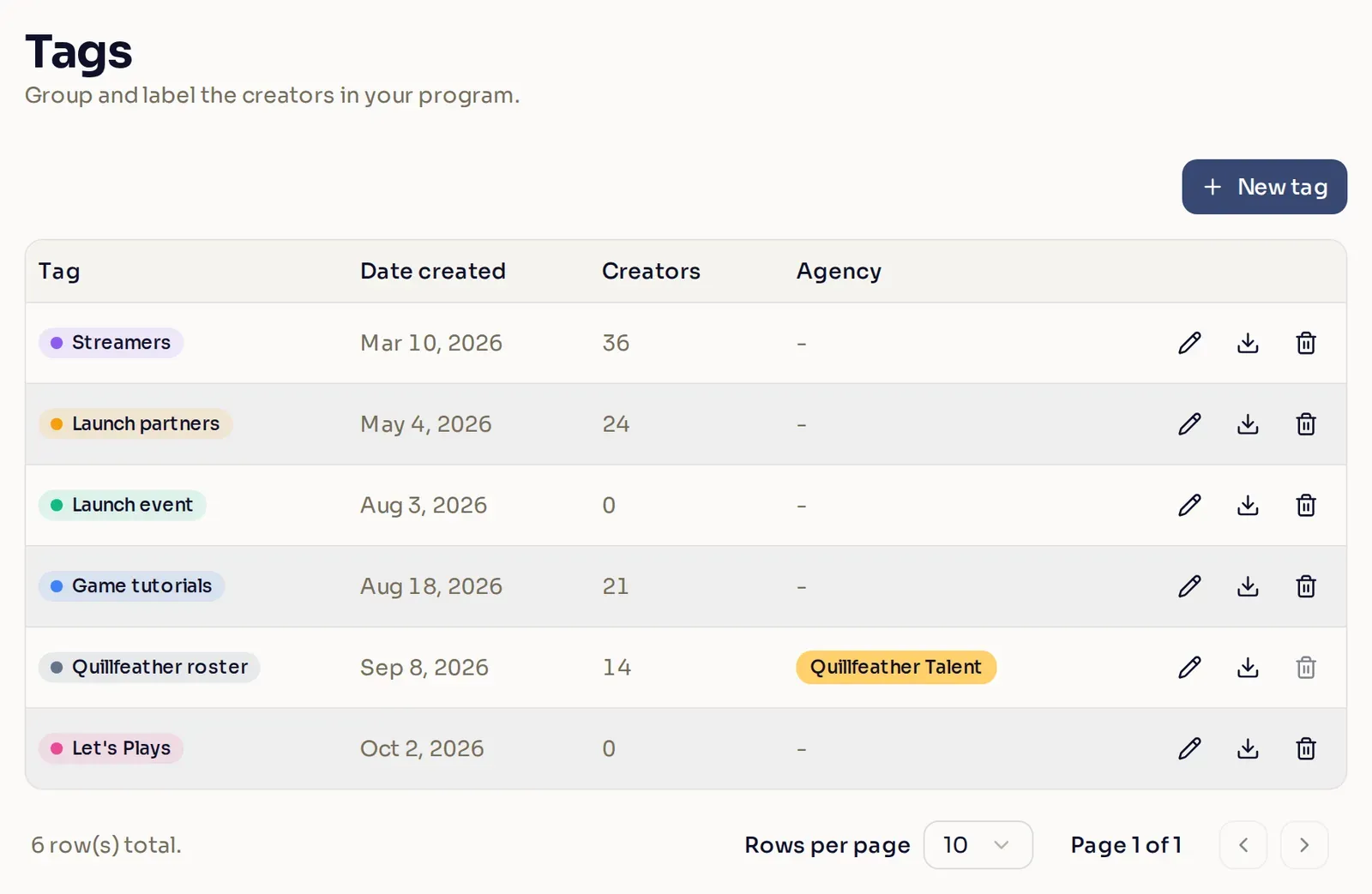
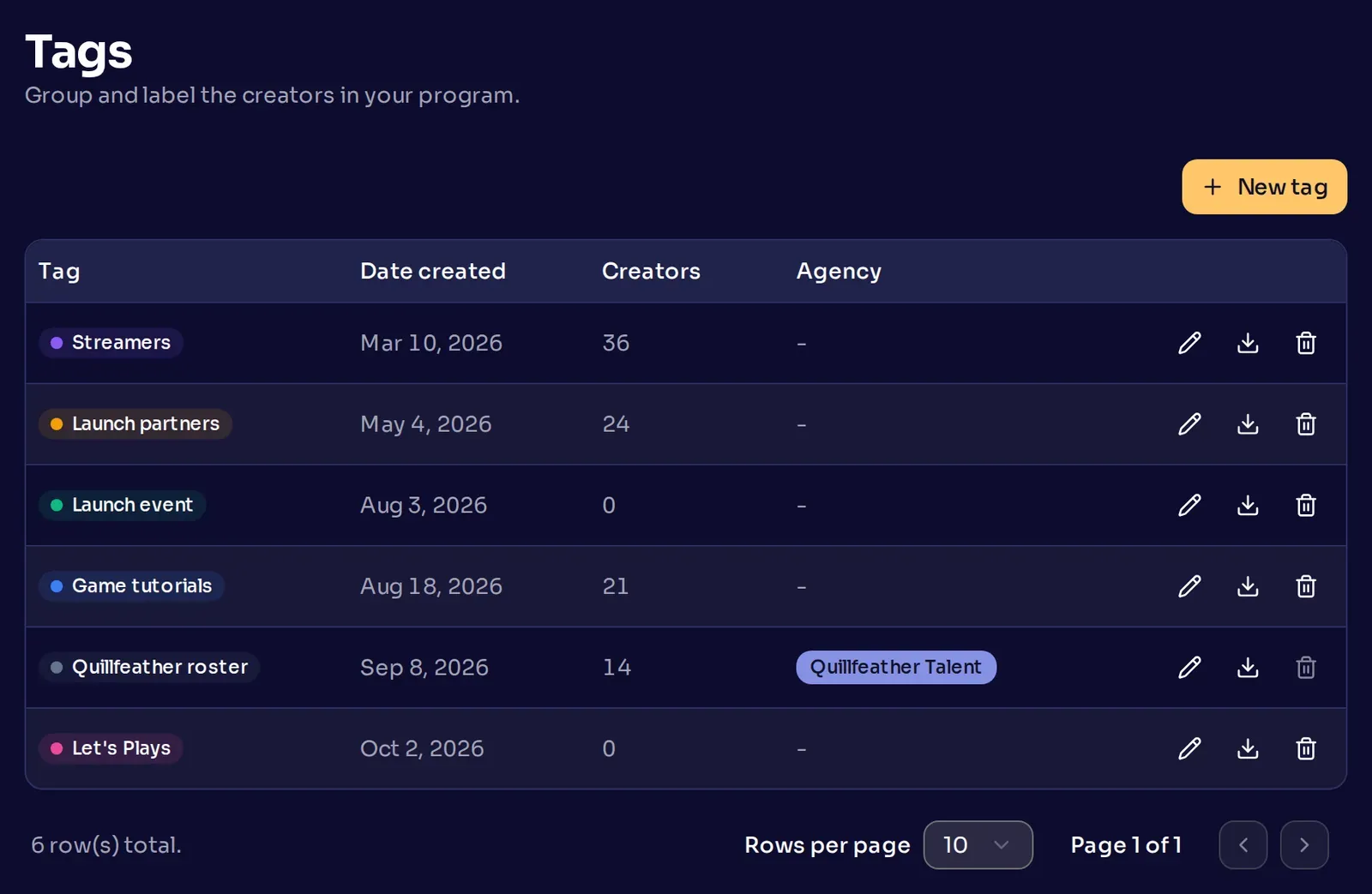
Section titled “Create a tag”In the sidebar, under your program, select Tags. The page lists each tag with the date it was created and how many approved creators have it.
-
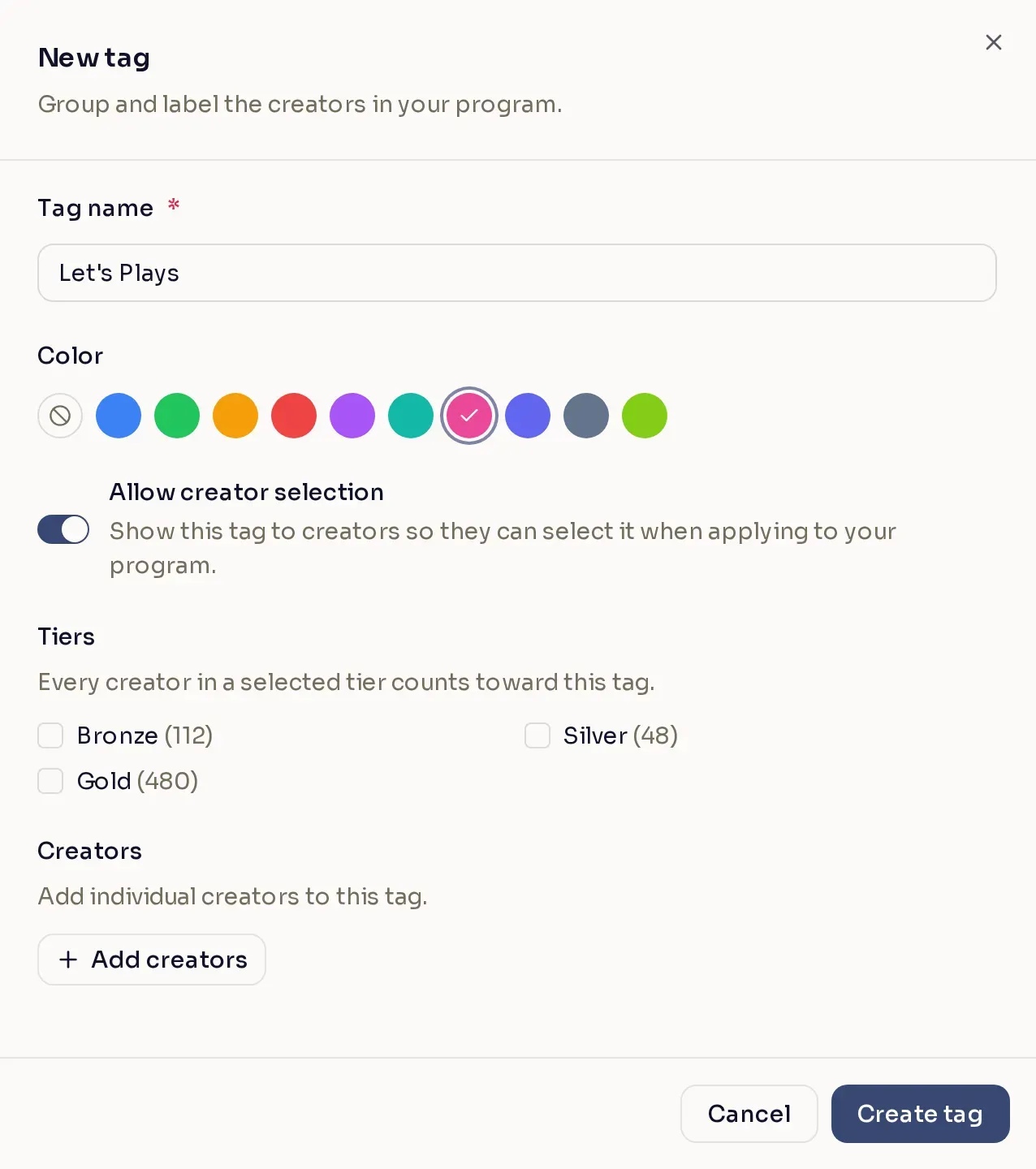
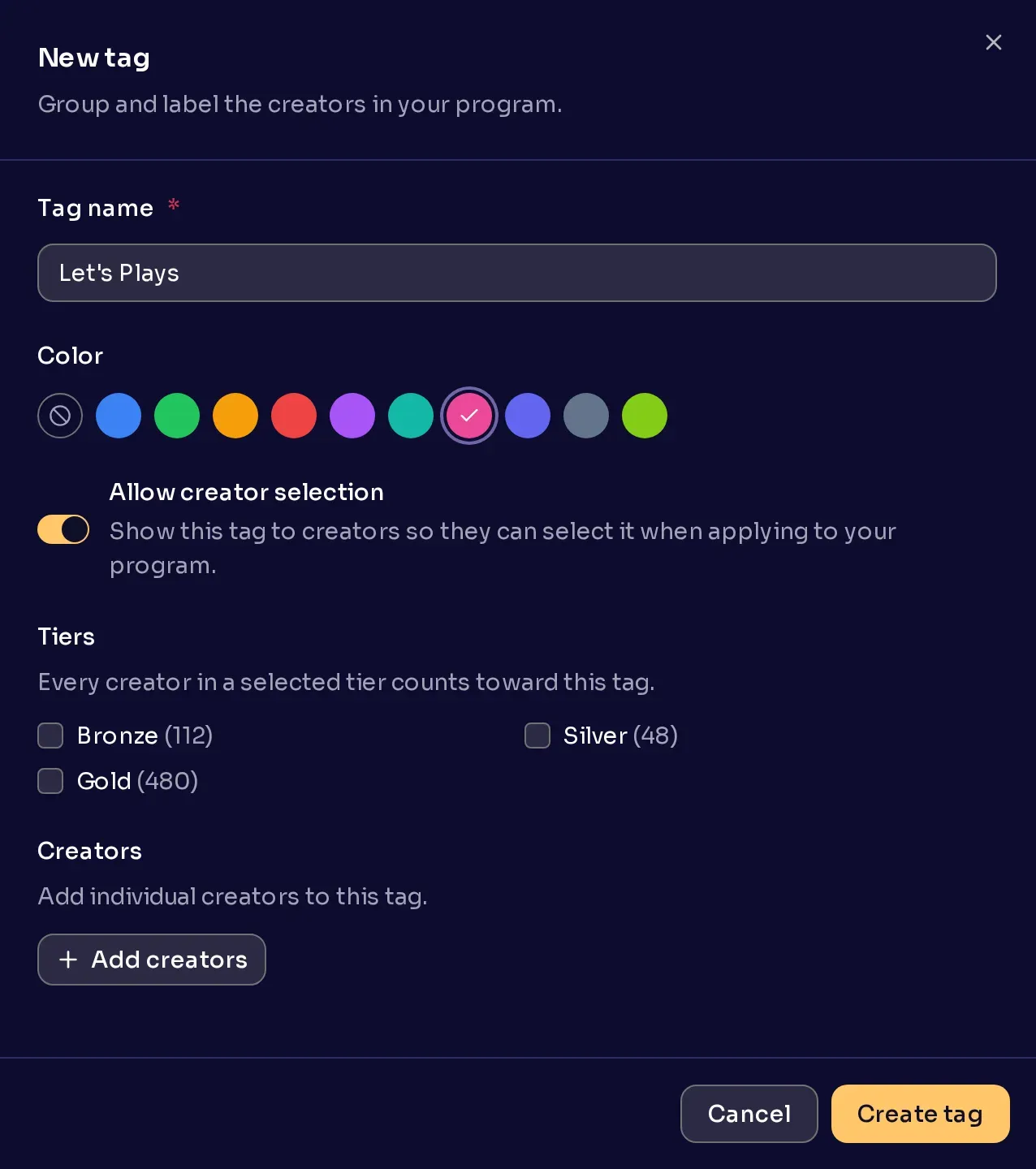
Name the tag. Select New tag and type a Tag name of up to 50 characters.
-
Pick a color (optional). A color makes the tag easy to spot in a list.
-
Let creators pick it (optional). Turn on Allow creator selection for something you want creators to tell you, such as the content they make: “Game tutorials” or “Let’s Plays”. Leave it off for a label only your team uses. Creators never see those tags.
-
Tag a whole tier (optional). If your program has creator tiers, tick one or more under Tiers. Creators have the tag while they are in a ticked tier, including creators who move into it later.
-
Add the creators you choose (optional). Select Add creators, type at least two characters of a creator’s name, and pick them from the results. The search covers your approved creators.
-
Save it. Select Create tag. The tag appears in the list.
What creators see
Section titled “What creators see”Creators new to Nexus pick from the tags you set to Allow creator selection as they sign up through your invite link. Creators in your program, including applicants still on Pending, can add or remove those tags later on their Programs page.
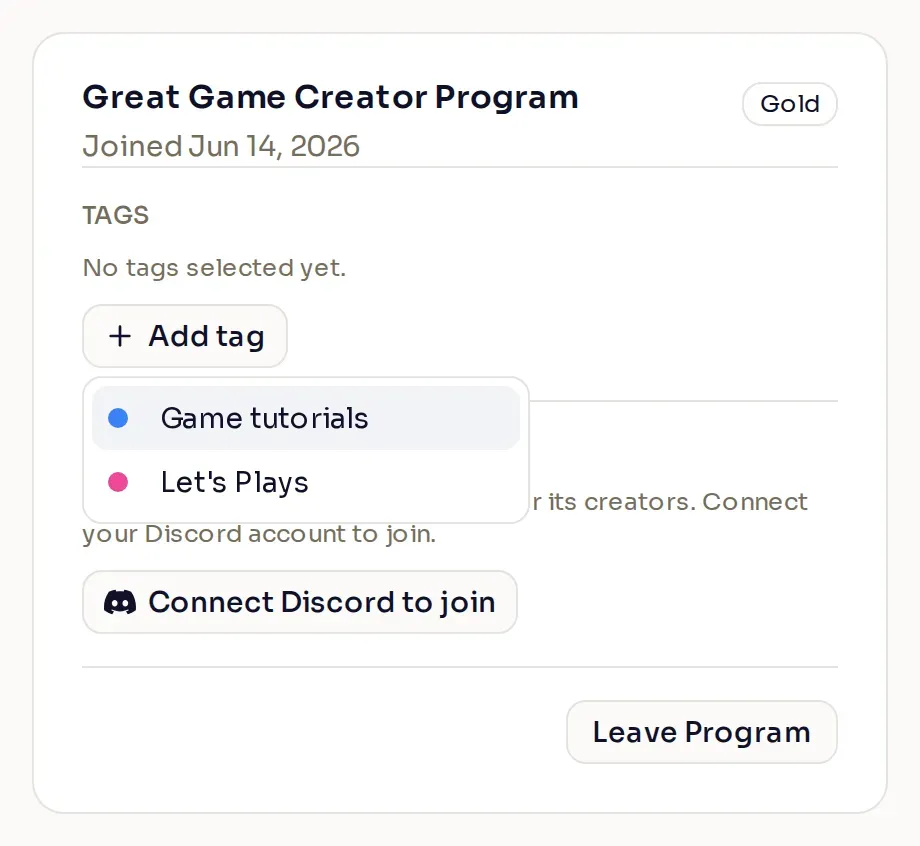
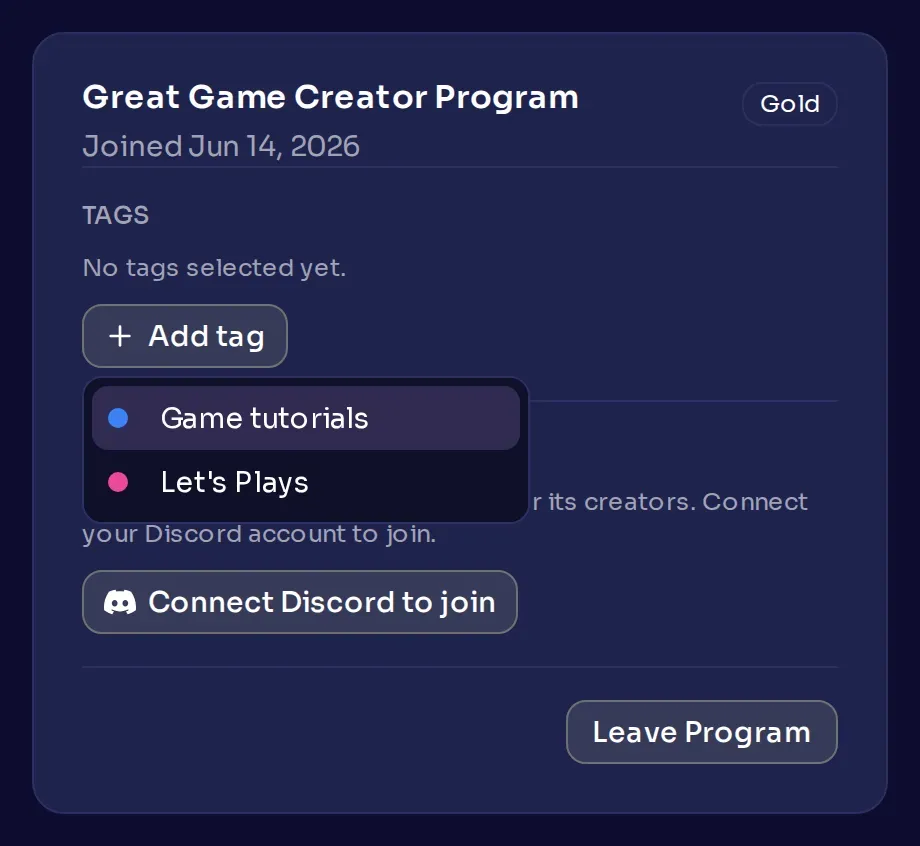
To make every applicant choose at least one, turn on Require creators to select tags.
Use your tags
Section titled “Use your tags”- Find creators. In Creators, the Tags column shows each creator’s tags.
- Tag one creator. Publisher-wide Admins can open a creator’s profile from Creators and select Tag.
- Tag creators as they join. Publisher-wide Admins can set a tag as an invite link’s Tag on join.
- Reach a group. Choose tags when you send keys, send a message, or set who can join a campaign.
If your program works with an agency, the Agency column shows the agency’s name beside its tag.
Change or delete a tag
Section titled “Change or delete a tag”Each row on the Tags page ends in three icons. Select the pencil to edit the tag, or the download icon to export its creators as a CSV file.
To delete a tag, select the trash can, then Delete. Nexus removes the tag from its creators, and you cannot undo this. If an invite link uses the tag as its Tag on join, a publisher-wide Admin needs to set that link to another tag or No tag first. When you edit the tag, Invite links lists those links. You can’t delete an agency’s tag while that agency is in your program.