A product rate sets the revenue share a member receives on one specific product, separate from your Creator Program’s default. You set it in the Publisher Dashboard, then include that product on a transaction with the skuId property.
Set a product rate
Section titled “Set a product rate”Open Revenue Shares in the Publisher Dashboard and choose the Product rates tab. The table lists every product that has its own rate.
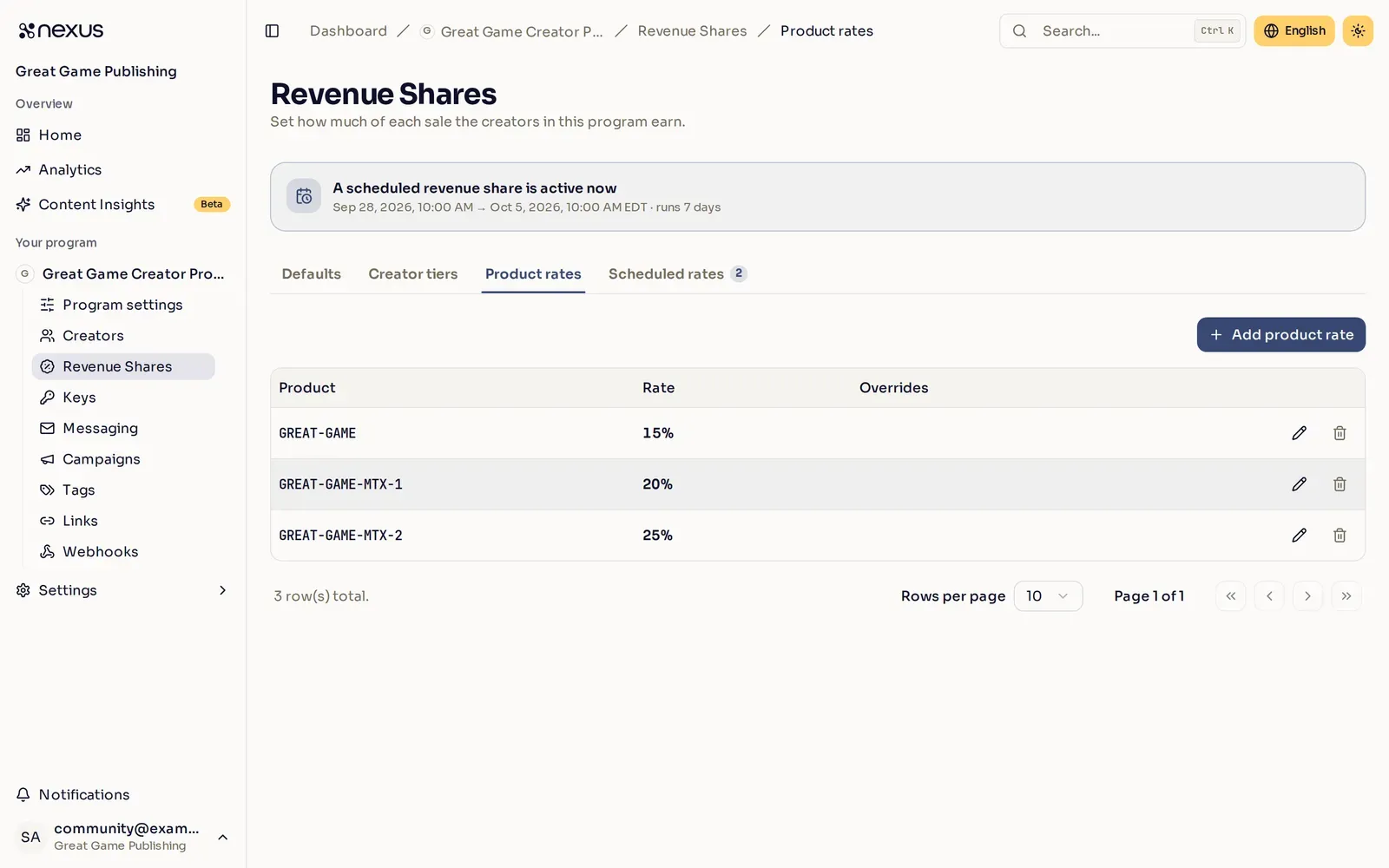
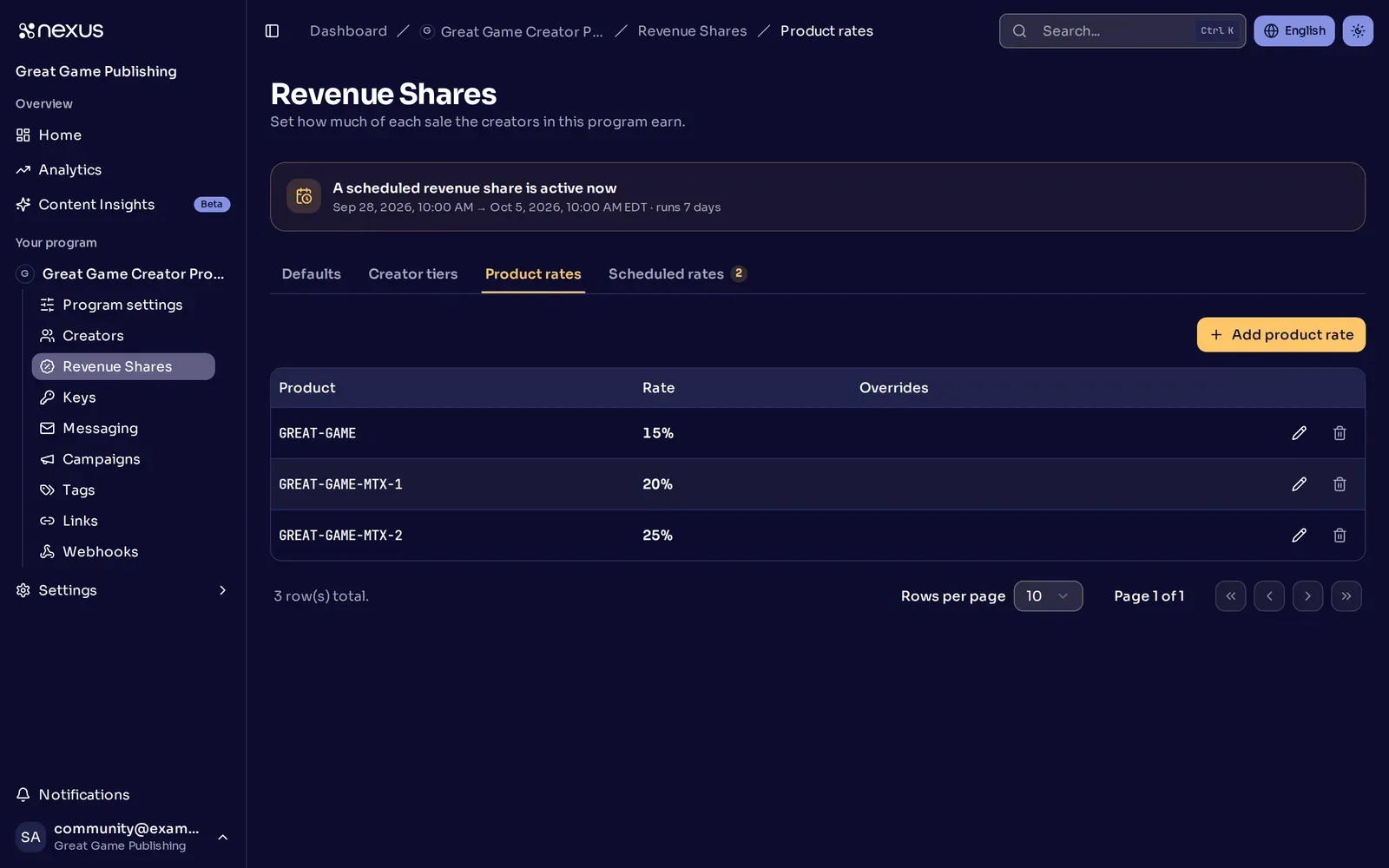
Select Add product rate to add one, or the edit action on a row to change one. Enter the product identifier as it appears in your sales data, then set the base rate. You can also set rates for specific platforms, tiers, and creators. How revenue shares are calculated explains which rate a sale pays.
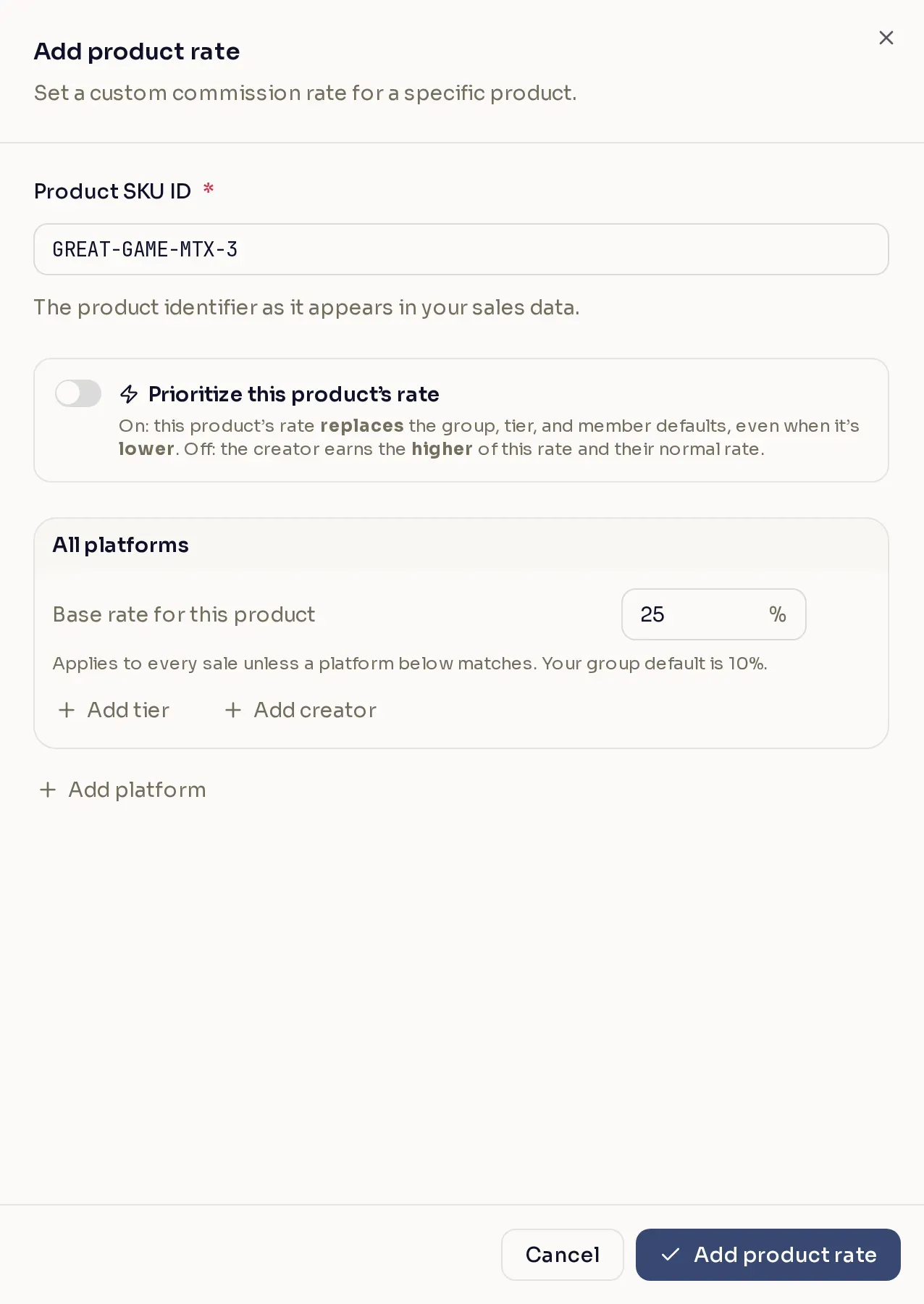
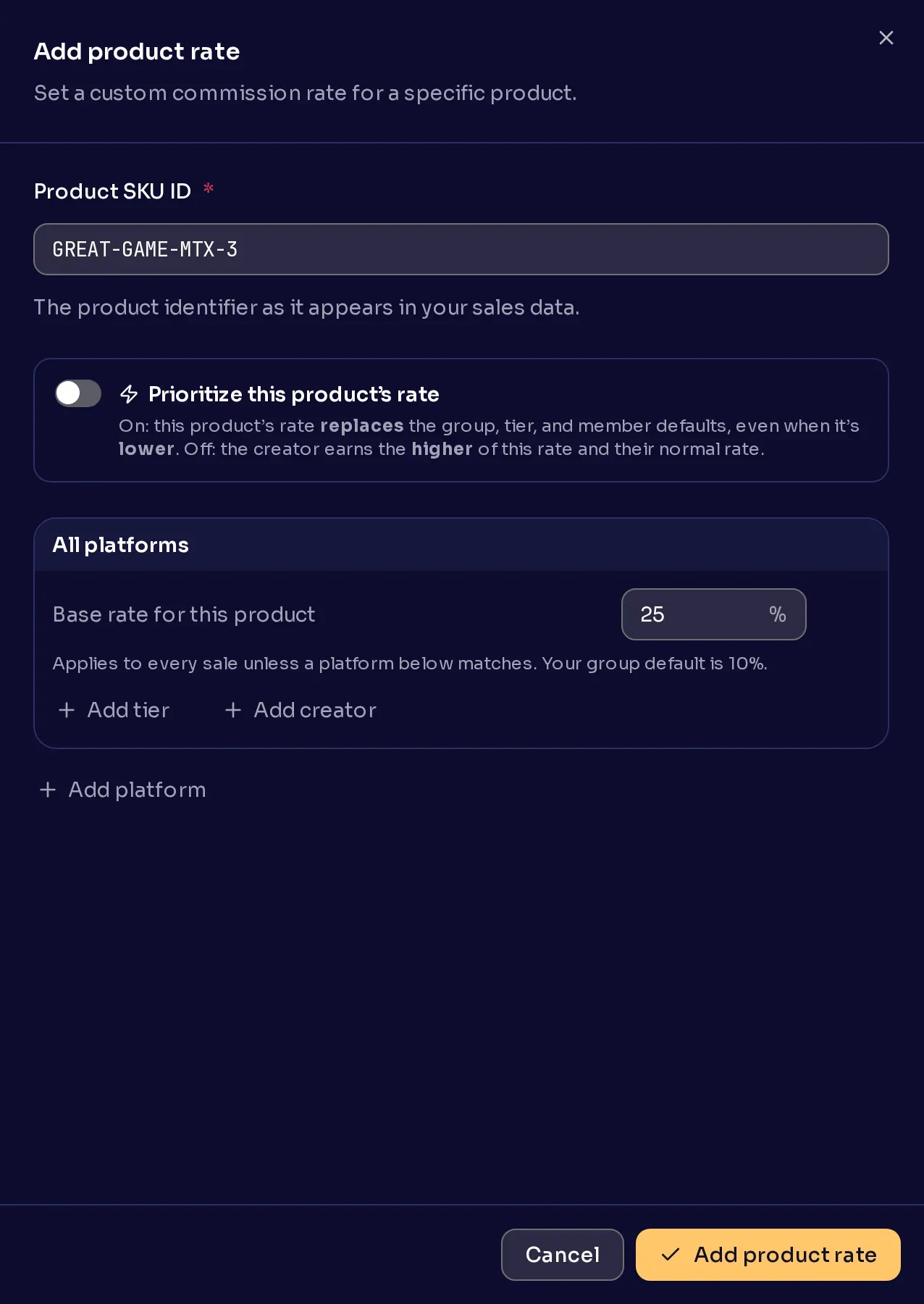
Prioritize this product’s rate decides how the product rate meets everything else:
- Off. The creator earns the highest rate that applies to them: a rate on this product, or their normal rate.
- On. This product’s rate replaces the creator’s normal rate, even when it is lower.
A creator’s normal rate is your Creator Program’s default, an active scheduled rate, or their tier’s rate, whichever is higher. On a sale from a platform with its own rate, each of these is the platform’s version. A tier set to Prioritize this tier changes both cases. See How revenue shares are calculated.
Schedule a temporary rate
Section titled “Schedule a temporary rate”The Scheduled rates tab holds two kinds of temporary change, and they are not the same thing:
- Group windows. A temporary rate across every sale for a window. It reverts automatically when the window ends.
- Per-product promos. A temporary rate on specific products for a window. One promo can cover several products and lifts their rate while it is live.
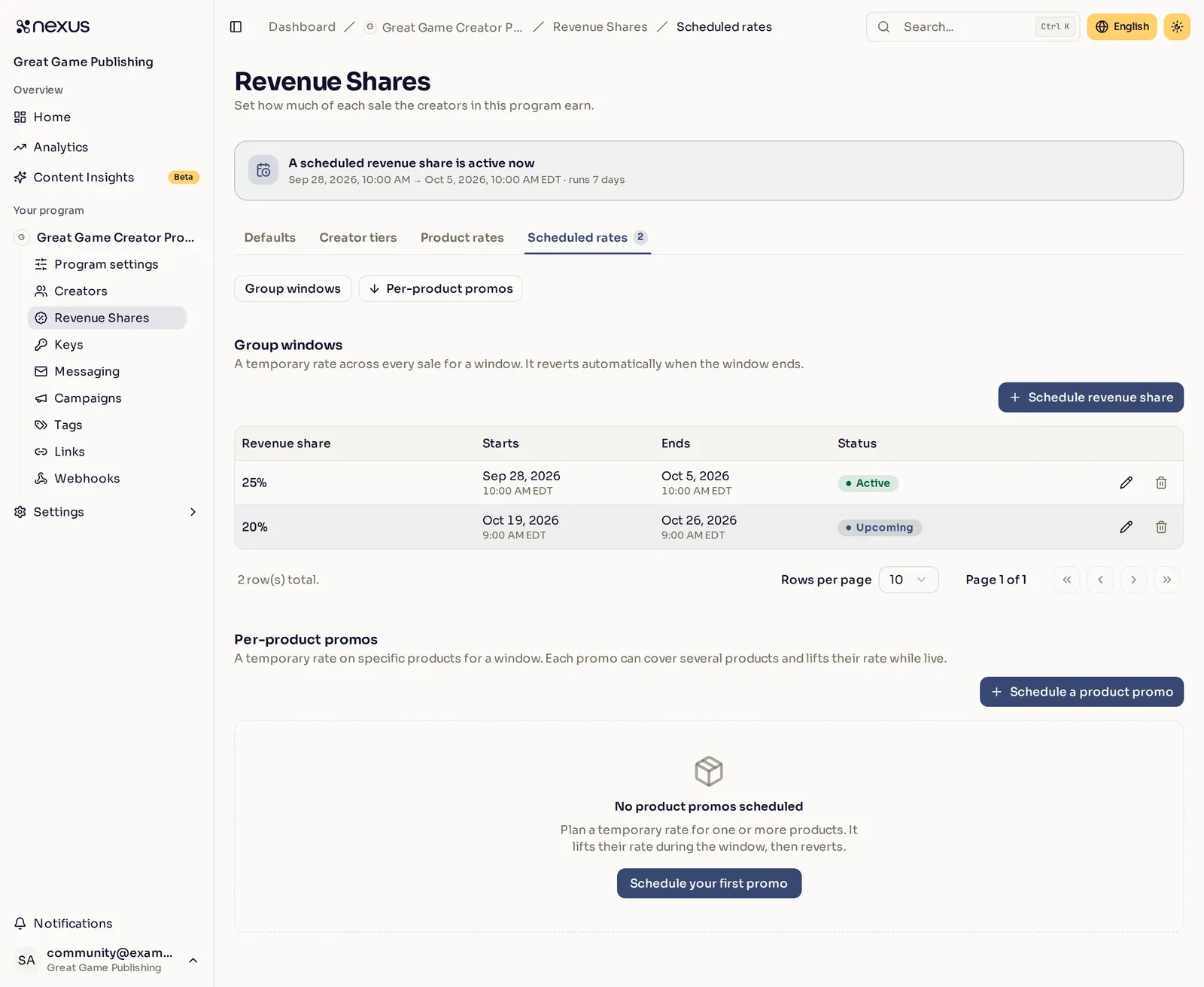
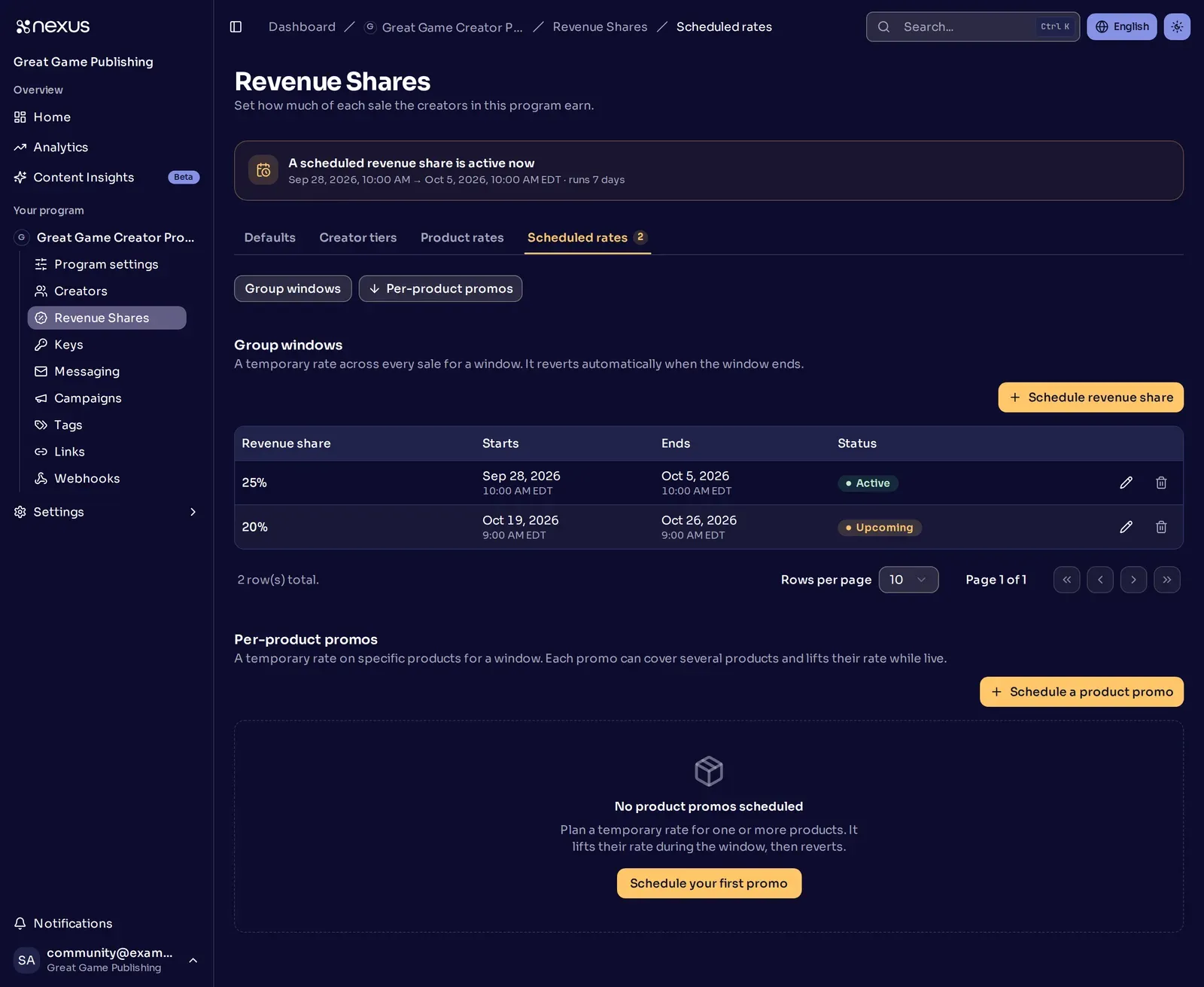
A group window and a per-product promo can run at the same time, but two promos can’t cover the same product at the same time. If a product in your promo already has another promo during that window, the dashboard won’t save it. Pick a different window, or remove the product from one of the promos. A promo that starts the moment another ends doesn’t count as overlapping. A promo you delete still pays for sales made before you deleted it, so a new promo on the same product can start no earlier than that moment.
A product you create while scheduling a promo joins your program with no permanent rate of its own. When the promo ends, transactions for that product fall back to each creator’s normal rate until you give it one.
Send the product on a transaction
Section titled “Send the product on a transaction”Once a product has a rate, include the skuId property when attributing a transaction to a member.
/attributions/transactionsHere’s how you call that with curl. The important part here is the "skuId": "DiXZPiBjJjcUkAvan6yHc", with that id being a product you have given a rate in the Publisher Dashboard.
curl -X 'POST' \ 'https://api.nexus.gg/v1/attributions/transactions' \ -H 'accept: */*' \ -H 'Content-Type: application/json' \ -H 'X-SHARED-SECRET: nexus_sk_your_key_here' \ -d '{ "playerName": "dustywusty", "memberId": "9jd7RBR_B2BZ0uWO3_lgv", "currency": "USD", "description": "1000 gems", "platform": "PC", "status": "Normal", "subtotal": 999, "transactionId": "d290f1ee-6c54-4b01-90e6-d701748f0851", "transactionDate": "2017-07-21T17:32:28Z", "skuId": "DiXZPiBjJjcUkAvan6yHc", "metrics": { "joinDate": "2017-07-22T17:32:28.000Z", "conversion": { "lastPurchaseDate": "2023-12-14T07:57:18.000Z", "totalSpendToDate": { "total": 129.99, "currency": "USD" } } } }'The status should be 200 with a JSON response body that looks something like this:
{ "transaction": { "currency": "USD", "description": "1000 gems", "id": "BqtOoyoIHEq39i3uph_nO", "platform": "PC", "subtotal": 999, "transactionDate": "2017-07-21T17:32:28Z", "transactionId": "d290f1ee-6c54-4b01-90e6-d701748f0851", "transactionStatus": "Normal", "memberId": "9jd7RBR_B2BZ0uWO3_lgv", "skuId": "DiXZPiBjJjcUkAvan6yHc", "metrics": { "joinDate": "2017-07-22T17:32:28.000Z", "conversion": { "lastPurchaseDate": "2023-12-14T07:57:18.000Z", "totalSpendToDate": { "total": 129.99, "currency": "USD" } } } }}How revenue shares are calculated
Section titled “How revenue shares are calculated”By default Nexus uses the highest rate that applies to a transaction. Any of these can apply at once:
- your Creator Program’s base revenue share
- an active Scheduled Temporary Revenue Share
- a Group Tier the attributed member belongs to
- a rate on the product: its base rate, its rate for the member’s tier, or a rate set for that member
- any scheduled promo covering the product
For example, your Creator Program default is 15% and a product carries a 20% rate. If an active scheduled revenue share raises the group default to 25%, transactions for that product earn 25% instead of the 20% base while that schedule runs.
On a sale from a platform that has its own rate, each rate above uses its platform version. That is the rate you set for that platform, or else the usual rate moved by the platform’s difference from your Creator Program’s default. Say your default is 10% and PC has a 15% rate. A 20% product rate pays 25% on PC, unless you give the product its own PC rate.
So a product rate set below your Creator Program’s default normally never applies: the higher rate wins. That includes a rate set for one creator, which applies only when it is the highest rate they qualify for.
Two settings change this when only one of them is on:
- Prioritize this product’s rate. The product’s rate replaces the creator’s normal rate, even when it is lower. For a creator with their own rate on the product, that rate is the product’s rate. Otherwise it is the higher of the product’s base rate and its rate for their tier. Use it when a product genuinely needs to pay less than everything else, and expect it to override a rate the creator would otherwise have earned.
- Prioritize this tier. Members of the tier get the tier’s settings. A product rate applies to them when it includes a rate for that tier. Unless the product is also prioritized, that rate is used even when it is lower, and no other product rate applies to them. A scheduled revenue share reaches them only through a rate set for their tier.
When both are on, the highest rate wins again, as when neither is. The member earns the highest of their own rate on the product, its rate for their tier, its base rate, and their tier’s rate.
It should also be noted that when Overriding A Member Revenue Share, the override value is always used regardless of any other factor.